

Nuri
How to ask Nuri well — prompts to copy, attachments, voice, sources, receipts and undo.
Talk to Nuri the way you'd brief a good assistant: say what you want, name the gig, plan, flight or person if it matters, and attach anything it should read. You don't need to pick a gig first — Nuri works it out from your words, the page you're on and the conversation.
On the web, open Ask in Nuri, or the side panel with ⌘ J.
On iPhone, tap Ask Nurvia anything on Home.
Each conversation is saved. Search, pin, rename, archive or delete them from the conversation list, and start a fresh one with New conversation.
Prompts that work well
Be specific about the result you want. These are good starting points.
Who on the Berlin press day still hasn't sent their passport details?Add my flight BA 117 on Friday to the London show and book a car from Heathrow.Put Lena on the guest list for Saturday, plus one.Draft an email to the venue asking where the van can park on show day. Don't send it.Compare the two hotel options near the Roundhouse for four people on 3 Nov.Add context
From the + in the composer:
- Attach a file — documents, images, audio or video, up to 10 at a time.
- Add a photo or Take a photo.
- Add Nurvia info — attach a plan, flight, stay or person so Nuri knows exactly which one you mean.
- Find flights or Find a place to stay — start a travel search.
Voice: on iPhone, tap the microphone and talk for up to five minutes. It becomes a draft you review before sending. On the web you can also Call Nuri for a voice chat.
Choose Stop answering to stop a reply mid-way.
Check what Nuri did
- Sources show as numbered markers. Click or tap one to see where a fact came from.
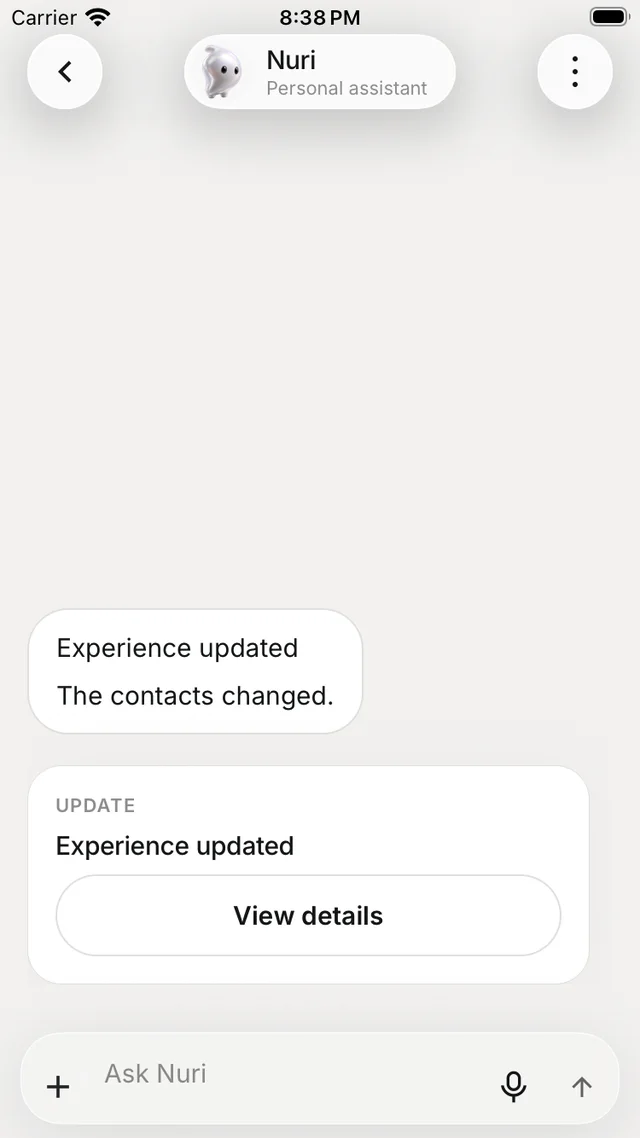
- When Nuri changes something, the reply carries one receipt card. See what happened opens it, and Undo reverses it.
- A draft doesn't send anything, and a suggestion doesn't book anything. Sends, bookings and payments wait for your yes — see How Nuri stays safe.
Double-check what matters
Nuri can make mistakes or use information that has since changed. Confirm times, gates and bookings, and check the time zone shown beside each time.
Workspace instructions
Owners and Admins can give Nuri standing instructions for a workspace, up to 1,000 characters, in SettingsWorkspaceDefaults. Everyone in the workspace can read them as Instructions Nuri follows, and Nuri uses them only for work in that workspace.
Times are local to the venue. Call the promoter "Northline". Never contact artists directly — go through Sam.Related



Meet Nuri
Nuri is the AI operator inside Nurvia. Ask in plain words and it answers, updates plans, drafts messages, watches flights and runs tasks — with your approval.
Autoflow and rules
Decide what Nuri may do on its own in each plan — modes, rules in plain words, spending limits and the workspace ceiling.