Nuri
Decide what Nuri may do on its own in each plan — modes, rules in plain words, spending limits and the workspace ceiling.
Autoflow sets how much Nuri does on its own in each gig or plan. Leave it on Manual and every change waits for you; switch to Auto and the routine work you've approved with rules just happens, within limits you set.
Where to find it
- On a plan — the Autoflow pill on the plan (it says Set up until you turn it on), or the plan's ⋯ menu.
- Every rule — NuriAutoflow on the web.
- iPhone — Autoflow and Autoflow rules in Nuri's settings.
Turn it on
Open the plan's Autoflow
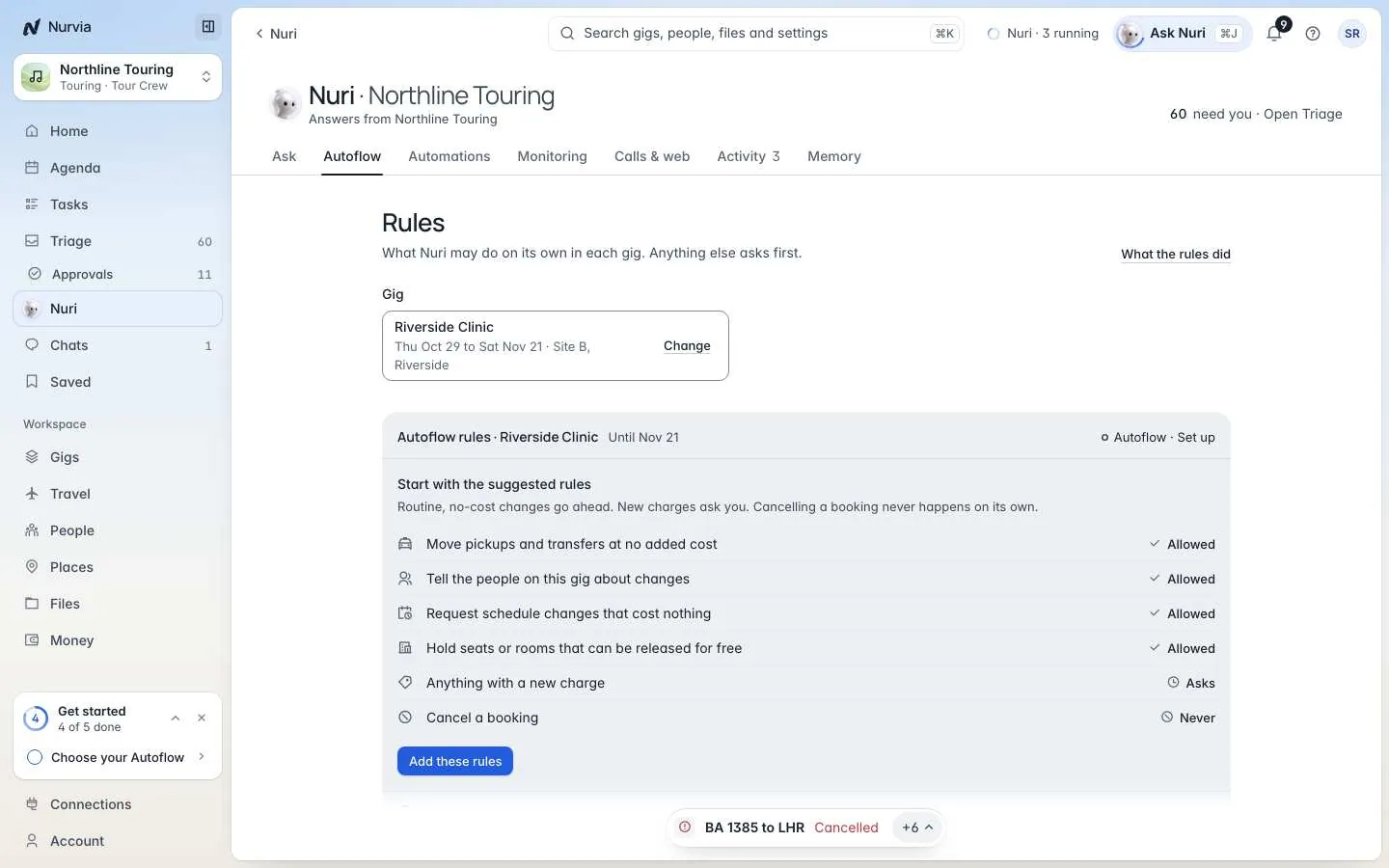
Click the Autoflow pill on the plan. Nuri suggests starting rules based on the kind of plan.
Choose your rules
Choose Turn on with these rules, or Turn on without them and add your own later.
Check what would happen
What would happen sorts every kind of change into Goes ahead, Asks you and Does not happen, so you can see the effect before you rely on it.
Modes
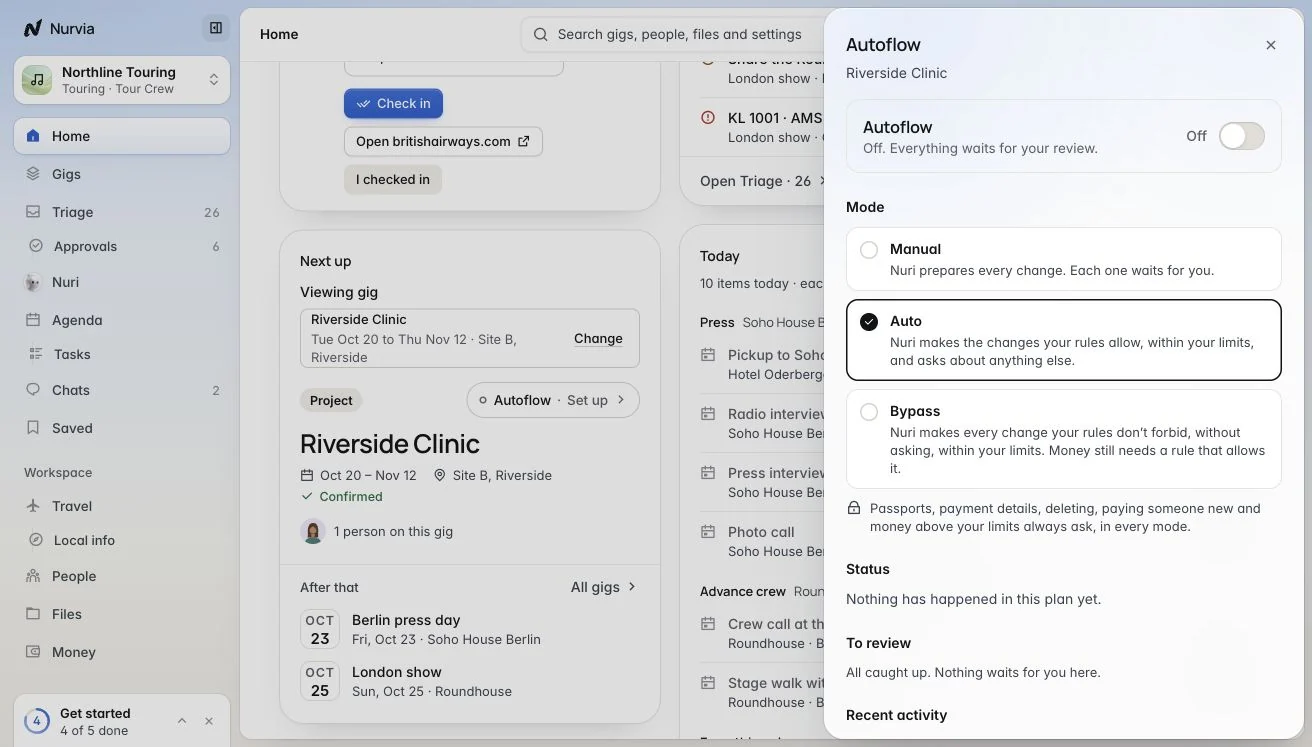
| Mode | What Nuri does |
|---|---|
| Manual | Prepares every change. Each one waits for you. |
| Auto | Makes the changes your rules allow, within your limits, and asks about anything else. |
| Bypass | Makes every change your rules don't forbid, within your limits, without asking. Money still needs a rule that allows it. |
Owners and Admins set the Highest Autoflow mode for the whole workspace in SettingsWorkspaceDefaults. Each plan picks its own mode up to that ceiling, and Never rules always win.
Write a rule
Choose Add a rule and say it in your own words:
Approve ground transport under $60 on show daysNever message promoters without asking meTell the people on this gig about schedule changesNuri reads the rule back before anything is saved, with a preview — Over the last 30 days, this would have… — and asks Where it applies and when it Ends. Then Save rule.
- Suggested rules come from things you approved five or more times in the last 30 days. Nothing changes until you add one.
- Pause, reorder, edit, end-date or delete any rule. Each rule's page shows What it did.
- Receipts keep the rule's name, even after it's deleted.
Spending limits
Set the most Nuri may spend Per action, Per gig (or plan), Per day and Per month, then Save limits. Workspace limits apply on top. Anything over a limit comes back to you.
Always asks, in every mode
Passports, payment details, deleting, paying someone new and money above your limits always ask — even in Bypass.
Who changed what
Every time someone turns Autoflow on or off, or changes its mode, rules or limits, it's logged under Changes to Autoflow.
The iPhone approval modes — Ask me every time, Auto-accept small edits and Auto-accept my requests — decide whether changes you ask for in a chat need a second confirmation. Autoflow decides what Nuri may do on its own, plan by plan. See Nuri on iPhone.
Only within the spending limits you set, and never for a new payee. See Payments and bookings.