

Nuri
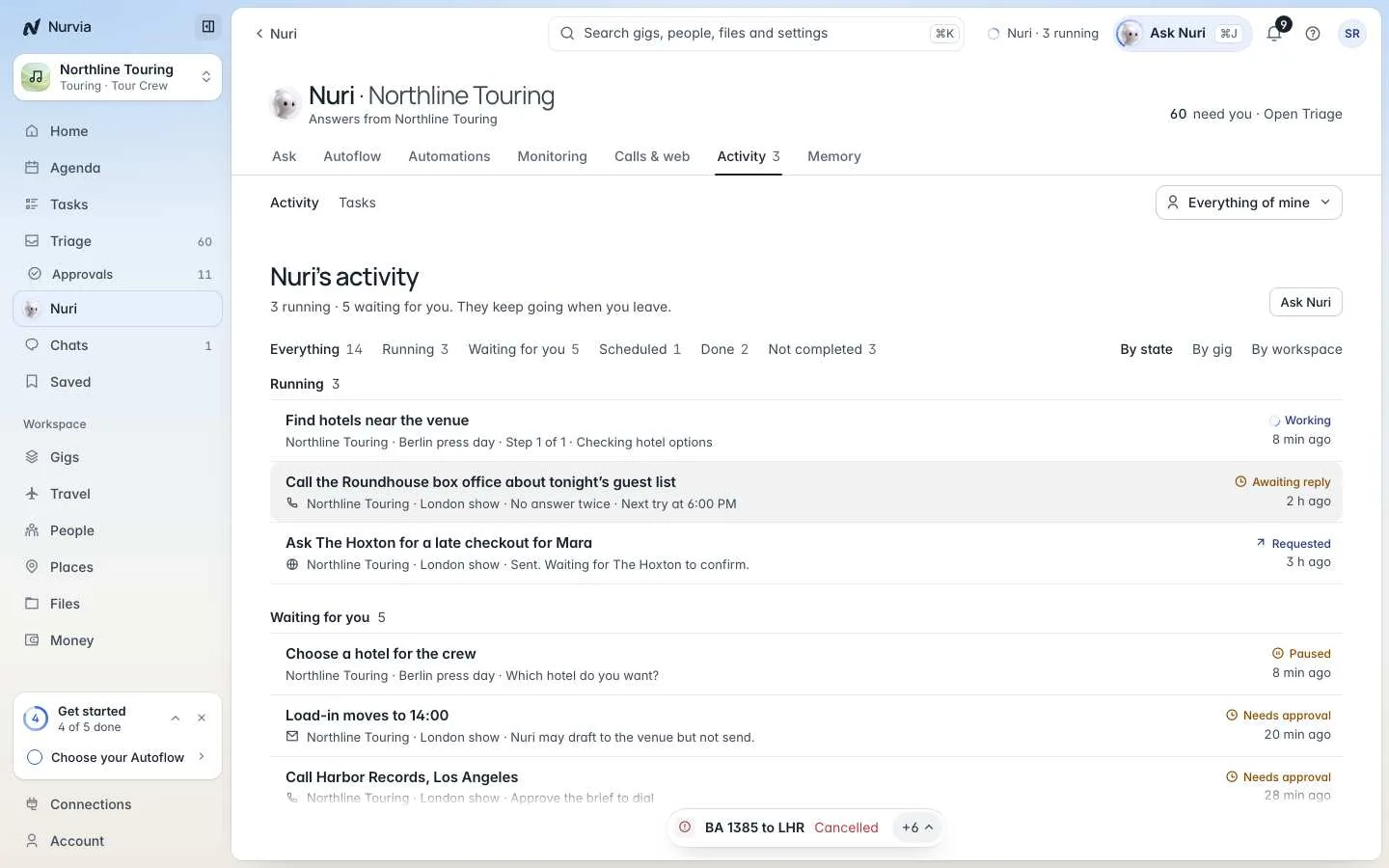
See everything Nuri is doing and has done, answer what's waiting on you, stop work in progress and rerun saved briefs.
When you hand Nuri a job, it becomes a task you can follow. Tasks keep going when you close the page, and every change they make leaves a receipt — with Undo where it's possible.
Where to find it
- Web — NuriActivity, with Activity and Tasks across the top. Use the menu on the right to show everything of yours, one workspace or one plan.
- iPhone — Nuri Activity in Nuri's menu.
Activity
Activity lists what Nuri is doing and has done for you. Filter by Everything, Running, Waiting for you, Scheduled, Done or Not completed, and group By state, By gig or By workspace.
Each item shows its state — Working, Awaiting reply, Requested, Needs approval, Paused — and opens to its steps and receipt.
Task board
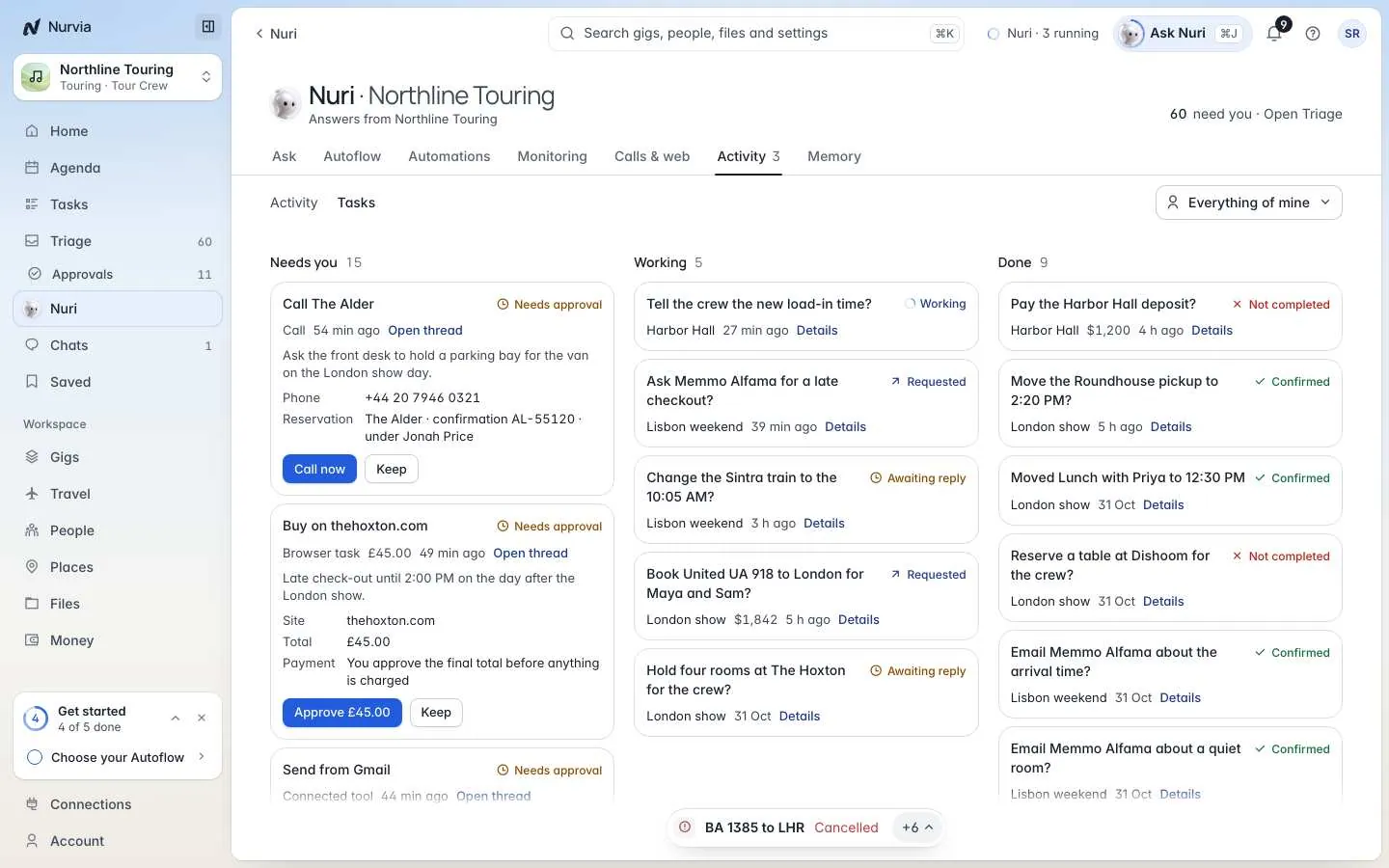
Tasks lays the same work out as a board:
| Column | What's in it |
|---|---|
| Needs you | Nuri is waiting for an answer or approval. Approve or keep it right on the card. |
| Working | In progress. Open one to see its steps, or Stop it. |
| Done | Finished, with results and proof. |
| Saved briefs | Requests saved with Save as brief, ready to run again. |
A task's page shows each step, and Open it in Triage when it needs a decision.
Save a brief to rerun
If you ask for the same kind of thing often, open the finished task and choose Save as brief. Next time, run it from Saved briefs instead of typing it again.
For the next show, check every crew flight lands at least four hours before load-in and list any that don't.On iPhone
Nuri Activity lists changes and results with Undo. While Nuri is working through several changes, Stop after current change halts it cleanly without leaving a change half-done. See Nuri on iPhone.
Related



Calls and browser tasks
Have Nuri phone a venue or restaurant, or complete a task on a website — you confirm before anything starts and can step in at any time.
Memory, profile and vault
What Nuri remembers about you and your teams, how to correct or forget it, and how the vault keeps secrets out of sight.