Web app
Nurvia in your browser — the sidebar, the top bar, and where every part of the app lives.
The web app is the most complete way to use Nurvia. It's where you set up workspaces, review what came in from email, edit plans in depth, and run money and admin. Everything you do here shows up on the iPhone app within seconds.
Where to find it
- Web: go to nurvia.app/dashboard and sign in. Home opens first.
- iPhone: the same workspaces and plans live in the iPhone app. See The iPhone app.
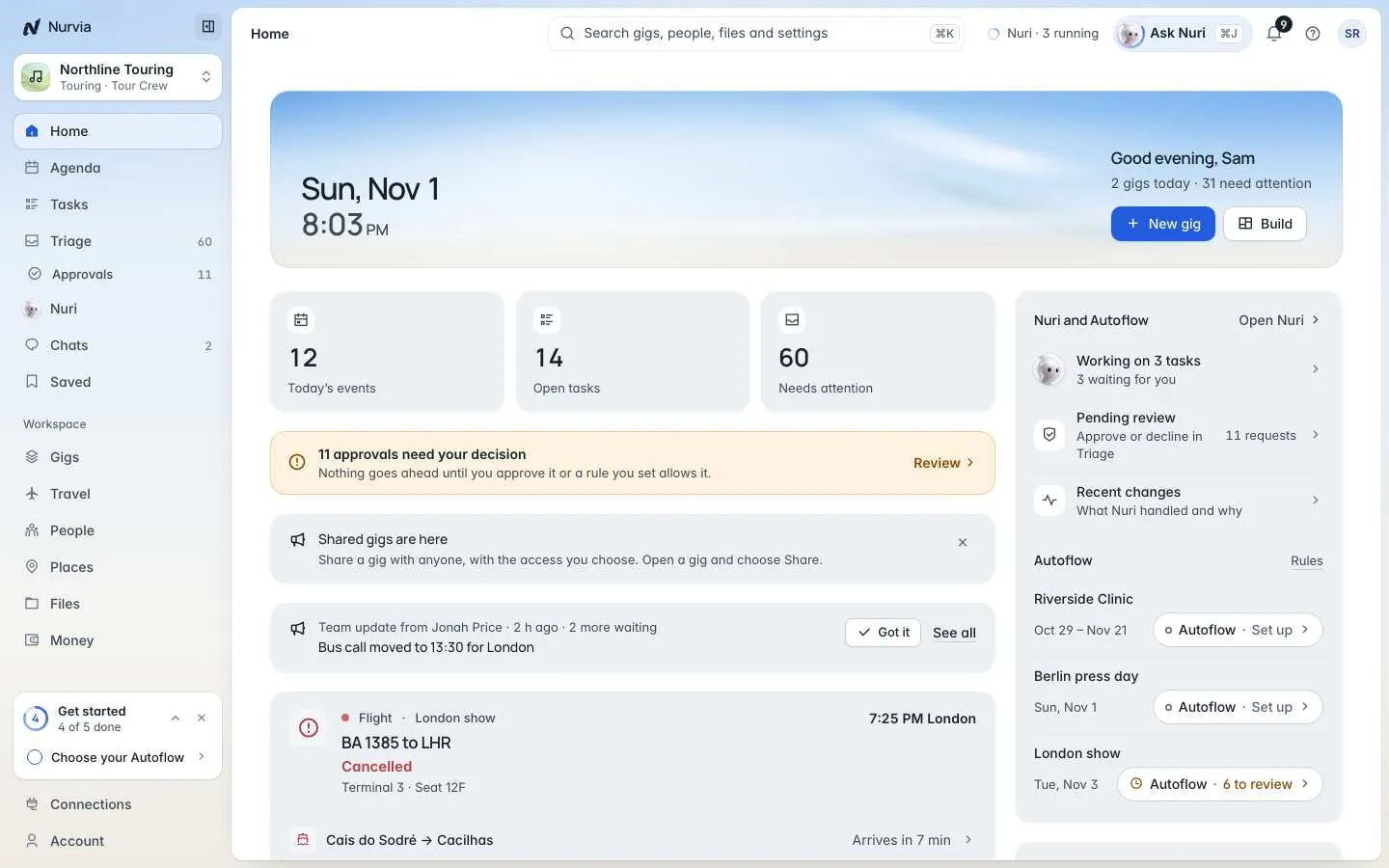
The sidebar sits on the left, the top bar runs across the top, and the page you have open fills the middle.
The sidebar
Workspace switcher
The top of the sidebar. Switch workspace, create a New workspace, Join with a code, or open Workspace settings. Agencies also see an All artists view of every artist they look after.
Main
Home, Agenda, Tasks, Triage (with Needs a decision under it), Nuri, Chats and Saved. These are the same in every workspace.
Workspace
Gigs or Plans, Travel, People, Places, Files and Money. Some names follow the workspace kind — a Production workspace calls Files Call sheets, a Sports workspace calls People Squad.
Footer
Connections (email, calendars and apps) and Account (your settings).
Counts only show what waits on you: Triage shows how many things need you, Needs a decision shows open approvals, and Chats shows unread conversations.
The top bar
| Control | What it does |
|---|---|
| Search | Find plans, people, places, flights, files and settings. Press ⌘ K from anywhere. See Search. |
| Ask Nuri | Opens Nuri in a side panel without leaving the page. Press ⌘ J. |
| Bell | Your notifications, grouped by plan. See Notifications. |
| ? | Where things are — a quick guide, Keyboard shortcuts and Help and support. |
| Your photo | Profile, Usage and billing, Theme (Daylight, Graphite or System) and Sign out. |
Works at every width
The web app works on a laptop, a tablet or a phone browser. On travel days, the iPhone app adds live flight status, widgets and Live Activities.