Teams & settings
Spending policies for flights, hotels and ground travel, who approves each kind of request, and saved lists for every plan.
The spending limits every plan in the workspace follows, and who a request over a limit goes to. Rules are checked on every request — whether it comes from Nuri or a teammate.
Where to find it
SettingsRules on the web, with three tabs: Policies, Approvals routing and Saved lists. Rules are set on the web; approvals then reach people on the web and iPhone.
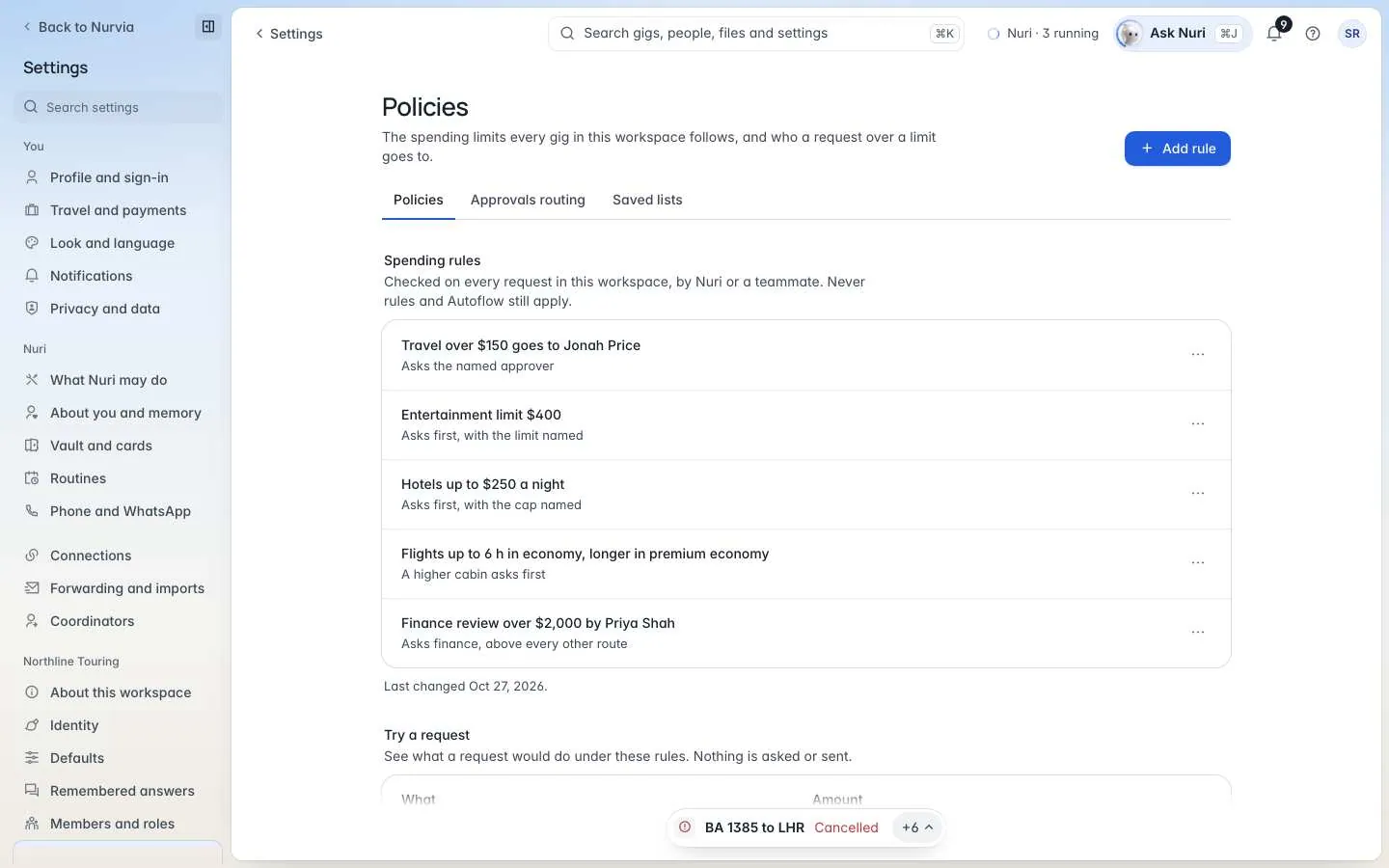
Add a spending rule
Choose Add rule
On Policies, choose Add rule.
Pick the kind of rule
Choose the Rule, what it's For, the amount, and who it Applies to — Everyone, a group or a person.
Try a request
Use Try a request to see what a request would do under your rules. Nothing is asked or sent. You're done when the result matches what you expect.
Kinds of rule
Rules can be for Travel, Hotels, Meals, Entertainment, Ground transport or Any spending.
Never rules and Autoflow still apply on top of your policies.
Approvals routing
Choose who decides each kind of request in this workspace — for example, travel approvals to an assistant, or a finance review above a set amount. Requests then land in that person's Triage.
Saved lists
Checklists and crew lists you can add to any plan in one click.
Limits for Nuri
Each plan can also set its own Autoflow limits, on top of the workspace's policies. Organizations can add rules across workspaces — see Organization.