Get started
Invite the people on your plan with the right roles, then check what they'll see. Money and guest lists stay private by default.
Your plan is built. Now bring in the people involved — colleagues on a trip, family for a wedding, a crew for a show. Each person's role decides what they see. In your Personal workspace you can still share a single plan without adding anyone to a team — see Sharing plans.
What you'll do: invite people with the right roles, then preview your plan as one of them.
Open Workspace invites
Go to SettingsMembers and roles and open the Workspace invites tab. Under How to invite, choose Several emails.
Invite most people as Members
Paste their addresses into Email addresses, set Access to Member, and choose Send invites. Members are free and see the plans shared with them.
Give editors the right role
Anyone who books or changes travel and stays should be a Manager (a paid seat; music workspaces call it Tour Manager). Someone who only looks after their own items can be a Contributor, which is free.
Check what they'll see
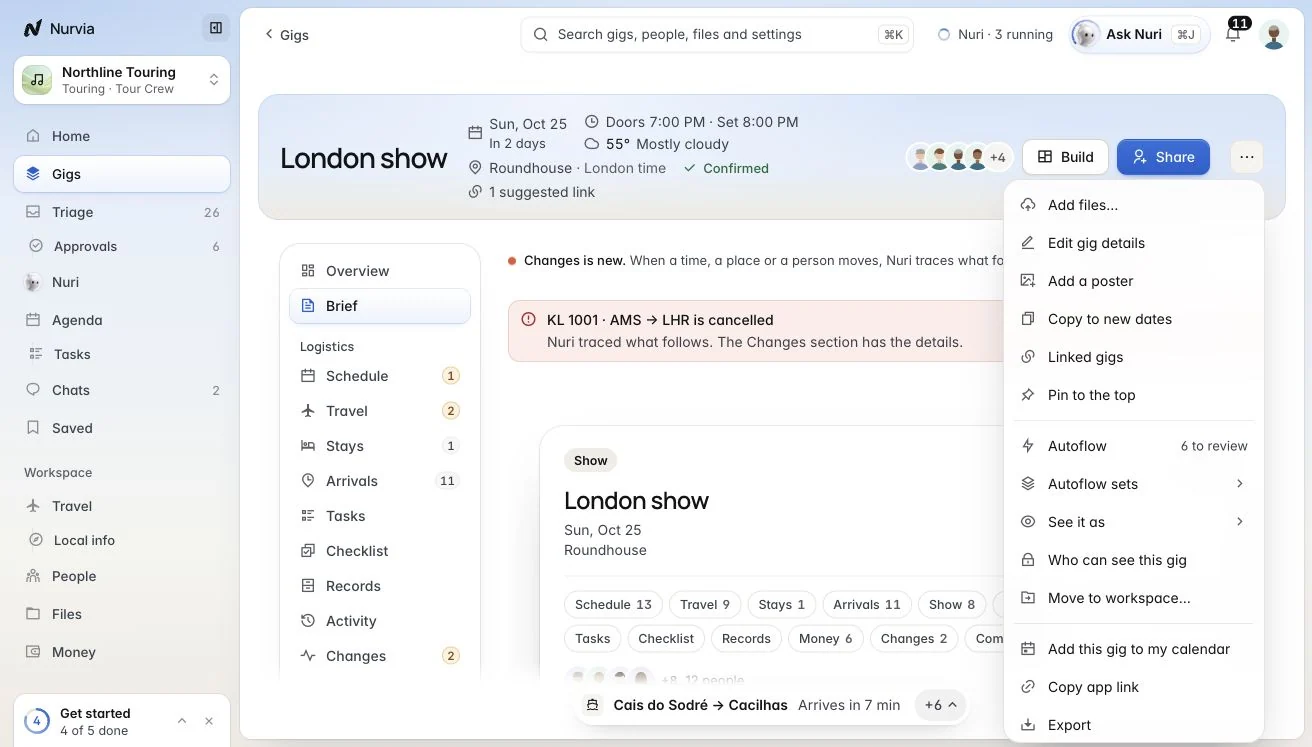
Open your plan, click ⋯, choose See it as and pick Member. You see the plan the way they will — the schedule, travel and place, without money or guest lists. Nothing on the plan changes.
What each role sees by default
| Role | Guest list | Money | Travel and stays |
|---|---|---|---|
| Owner, Admin | Change | Change | Change |
| Manager | Change | See | Change |
| Contributor | Hidden | Hidden | Change their own |
| Member | Hidden | Hidden | See |
An Owner or Admin can change any of these per area on the Roles tab.
You're done when
Your invites show as pending (or accepted) on Workspace invites, and See it as > Member shows your plan without money or guest lists.
On iPhone
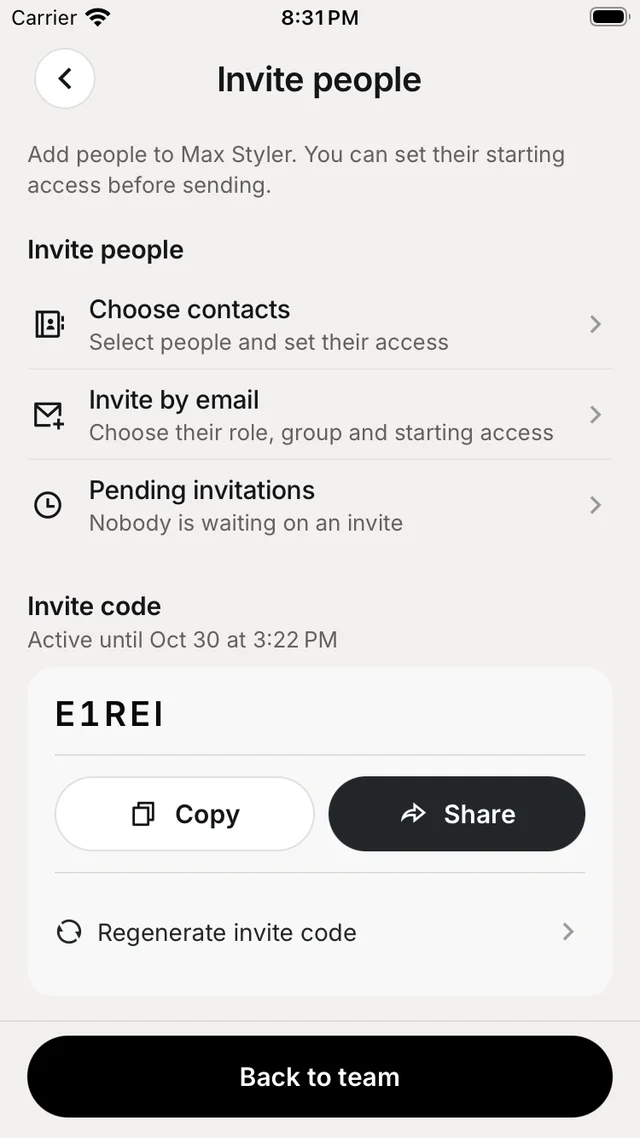
Open your team from ProfileTeams and tap Invite team members. Choose Invite by email to set each person's role, or Share the team's invite code.