Get started
Connect the mailbox your bookings arrive in, and send them to the right workspace.
Your confirmations — flights, hotels, tickets, venue or supplier emails — are already in your inbox. Connect that mailbox and Nurvia reads them for you. Reading your mail is separate from sending: Nuri sends only with your approval or a rule you set.
What you'll do: connect Gmail or Outlook and point its bookings at your workspace.
Open Connections
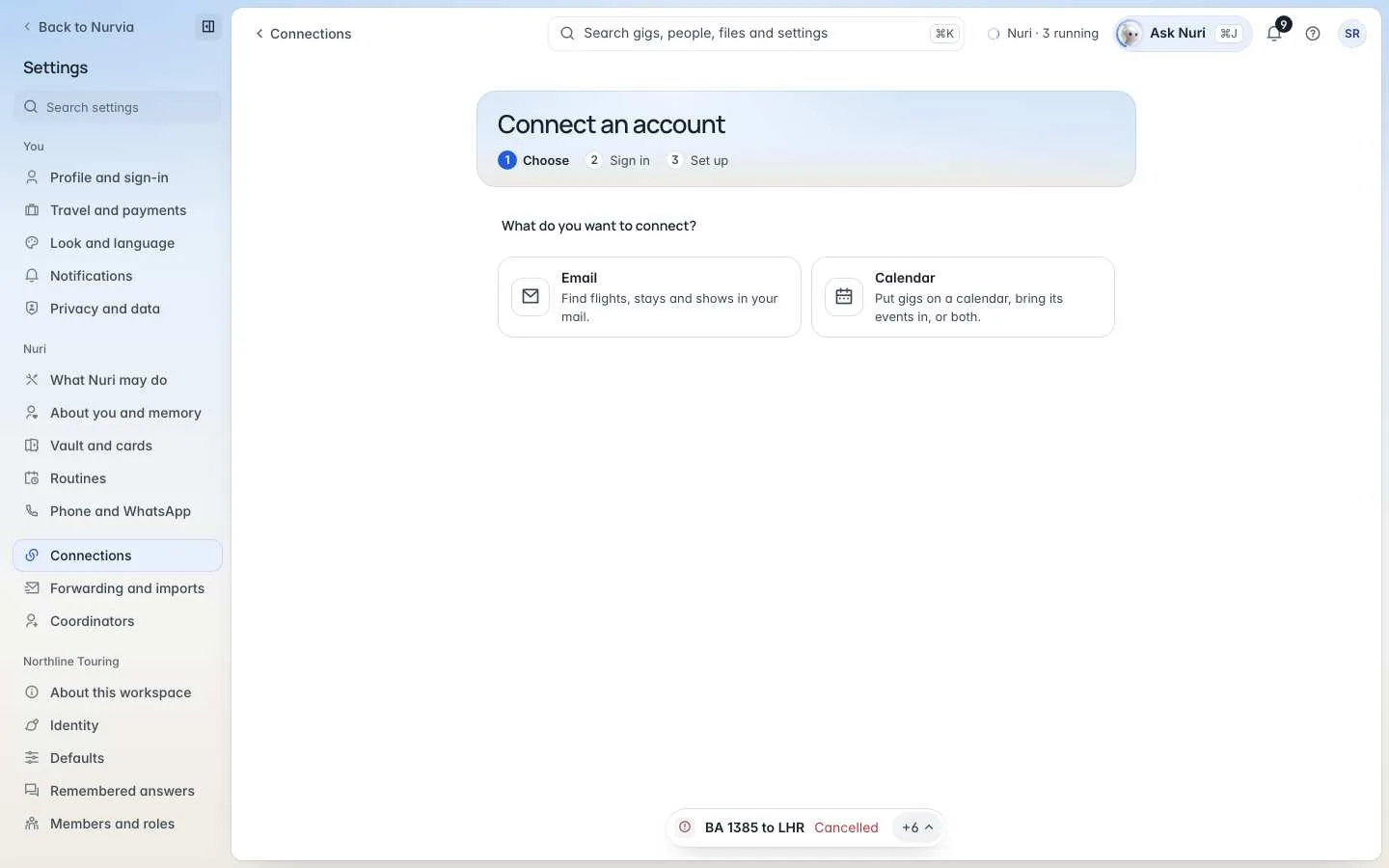
Click Connections at the bottom of the sidebar, then Connect an account.
Choose Email and your provider
Under What do you want to connect?, choose Email. Under Which account?, choose Google for Gmail or Google Workspace mail, or Microsoft for Outlook.
Sign in on the provider's page
Sign in and allow access on Google's or Microsoft's own page. You come straight back to Nurvia.
Send its bookings to your workspace
Under Where should its bookings go?, pick your workspace. Under When Nurvia finds a booking, choose Adds automatically — confirmed bookings go straight onto the right plan, and anything unsure still waits for you. Choose Done.
You're done when
Your mailbox shows under Email on Connections with Reading past emails, and says which workspace its bookings go to.
Open the mailbox on Connections and turn on Only confirmed bookings. Holds, quotes and enquiries then stay out until they're confirmed.
Go to ProfileManage connections and connect Gmail or Outlook. If you're still in setup, the Connect your email step does the same.
Forward each confirmation to import@nurvia.cc or your workspace's forwarding address. See Forwarding.