Get started
Who can see and change what in a team workspace — the seven roles, access per area, extra abilities, and what stays hidden from Members.
Every person in a team workspace has one role. The role decides who runs the workspace and sets each person's starting access. Owners and Admins can then fine-tune access area by area, for one person or a whole group.
Where to find it: on the web, SettingsMembers and roles, then the Roles tab. On iPhone, go to ProfileTeams and choose your team.
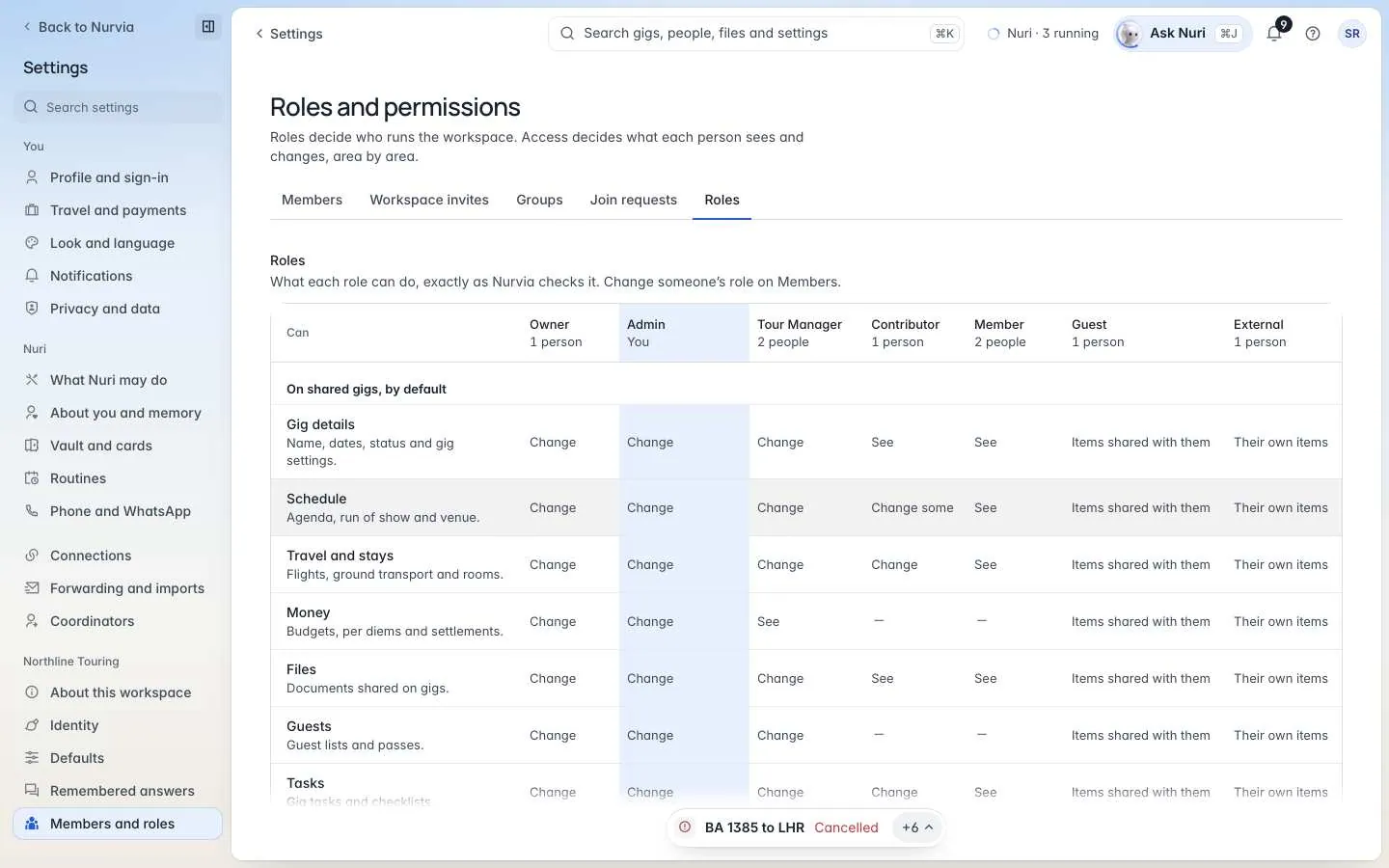
The roles
| Role | What it can do |
|---|---|
| Owner | Owns the workspace and its billing. There is one Owner. |
| Admin | Manages members, roles, groups, invites and settings. |
| Manager | Edits shared plans, travel and stays. A paid seat. |
| Contributor | Edits the items they are responsible for. Free. |
| Member | Sees shared plans and keeps their own details up to date. Free. |
| Guest | Sees only the items shared with them. |
| External | A driver or a front desk. Sees only their own pickups or items. |
Only the Owner can transfer ownership, delete the workspace and change billing. Admins make or remove other Admins only when the Owner allows it.
Seats
Only Managers use a paid seat. The Owner, Admins, Members and Contributors never do, and Members are unlimited on every plan.
Role titles
A role's title can change with the workspace kind. The Manager role shows as Tour Manager in music, Team Operations in sports, Executive Assistant in executive and Production Coordinator in production. Admins can rename titles, but what a role may do never changes with its name.
Access per area
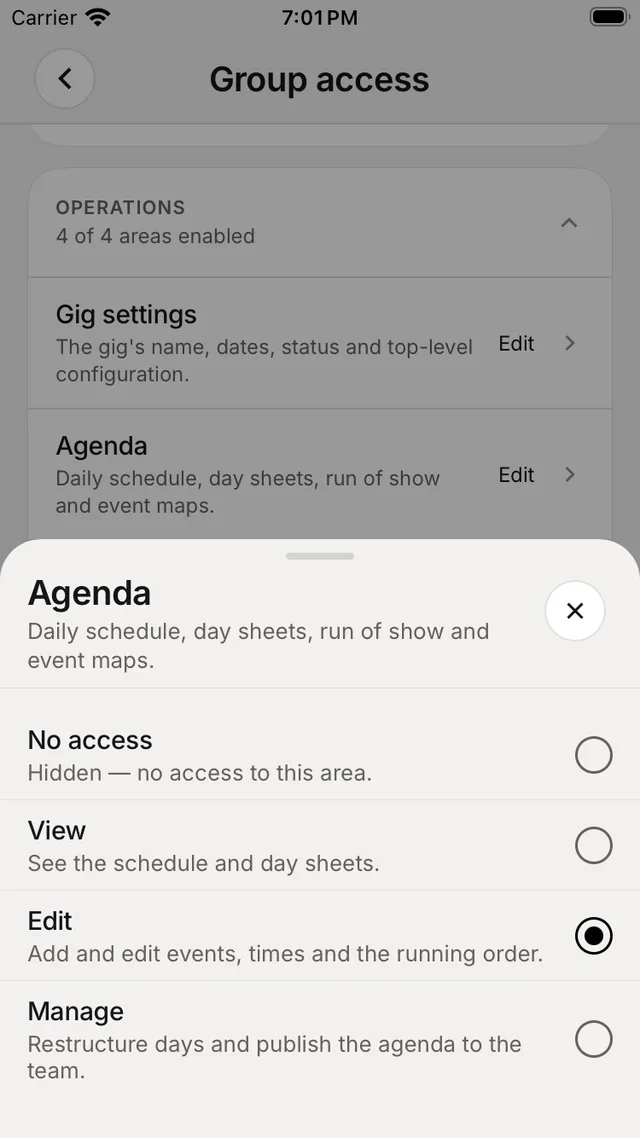
Access is set per area at one of four levels:
| Level | Means |
|---|---|
| Off | Hidden. No access to the area. |
| View | Can see it, can't change it. |
| Edit | Can add and change items in it. |
| Manage | Full control, including other people's items. |
Areas are grouped into five bands:
| Band | Areas |
|---|---|
| Operations | Gig or plan settings, Agenda, Run of show, Checklists |
| Logistics | Travel, Accommodation, Local info |
| Event | Venue, Guest list |
| Communication | Chat, Contacts, Documents |
| Team and data | Expenses and finances, Team and permissions, Crew data, Location sharing, Settings, Your profile |
Set access on the Roles tab with Access by person or Access by group, or start from an Access preset for a common job. You can't change your own access. Only the Owner can give Manage on Team and permissions.
On iPhone
Open your team, choose a group or a person, then tap an area to pick its level. Each choice explains what it allows for that area. For the Agenda, Edit means adding and editing events, times and the running order.
Abilities
Abilities sit on top of area access. Turn them on for a person or a group on the Roles tab:
| Ability | What it allows |
|---|---|
| Create plans | Start new plans and tours. They manage the plans they make. |
| See money figures | Amounts on expenses, budgets and settlements. |
| Share their live location | During a run, within the sharing window. |
| See the team map | Teammates who share their live location. |
Some abilities belong to one person and are set from their name on Members:
| Ability | What it allows |
|---|---|
| Invite and manage people | Invite people and change roles up to their own. Never Admins. |
| Make people Admins | Make or remove other Admins. Only the Owner gives this, and only to an Admin. |
| Change workspace settings | The name, picture, words and tone. |
| Manage imports | Stop or allow the email and calendar rules that feed the workspace. |
| Edit Nuri's instructions | What Nuri follows for this workspace. |
| Contribute logistics from email and calendars | Connect their own accounts to import bookings for the workspace. They choose what to share. |
The Owner holds all of these. Admins hold all but Make people Admins.
Hidden from Members by default
- Guest lists are their own area, and a Member's default has no access to it.
- Money stays hidden below Manager unless the person is given access. That covers budgets, deal terms, per diems, expenses and deposits.
- Door codes and Wi-Fi stay visible to Members in the app, because crew need them on the day. They're hidden from Guests and Externals and left out of every export and calendar.
See a plan as someone else
People who run a plan can check exactly what someone else gets. Open the plan's ⋯ menu and choose See it as, then pick a person, a group or one of these presets. Nothing on the plan changes.
| Preset | What they see |
|---|---|
| Manager | Everything, with rates and budgets |
| Member | The plan without money or personal items |
| Assistant | A delegate with flights and stays, no money |
| Guest | A summary: the schedule and the place |
| Driver | Only the pickups, from a driver link |
| Organizer | Runs the day: schedule, people, travel and bookings, no budgets |
| Staff | Works the day: the schedule and contacts, no travel or money |
Plan-level access
On top of workspace roles, each plan is open to Everyone in the workspace or Only people added. When you share a plan with someone, they get Owner, Can edit or Guest access to it. Private travel, documents and contacts are never part of a plan invitation. See Sharing plans.
That's the default for Members. Give them access to the Guest list area on the Roles tab, by person or through their group.
The person's level for that area is View. An Owner or Admin can raise it to Edit on the Roles tab.
Organizations that run several workspaces have their own roles: Owner, Admin, Billing, Auditor and Member. See Organization.