Get started
Open the plan Nurvia built from your email, check where a detail came from, and answer what Triage asks.
A few minutes after you connect the mailbox, Nurvia has read your recent mail and built or updated your plans from it. Confirmed bookings are already on them. Only what Nurvia couldn't settle waits for you.
What you'll do: open your plan, check its dates, travel and stays, trace one detail back to its email, and clear Triage.
Open your plan
Click your plans in the sidebar (Plans, or your workspace's word for them) and open the one you're organising. The header shows its dates, place and status. No plan yet? Choose New plan and describe it in a sentence — Nurvia attaches matching bookings to it.
Check travel and stays
Open the plan's Travel and Stays sections to see the flights, trains, rides and hotels Nurvia found. The number beside each section shows how many items it holds.
See where a detail came from
Open any item. Its Source says which email it came from and when it was read. Choose Show the original email to read the message itself. For the whole plan, open the ⋯ menu and choose Sources and sync.
Answer Triage
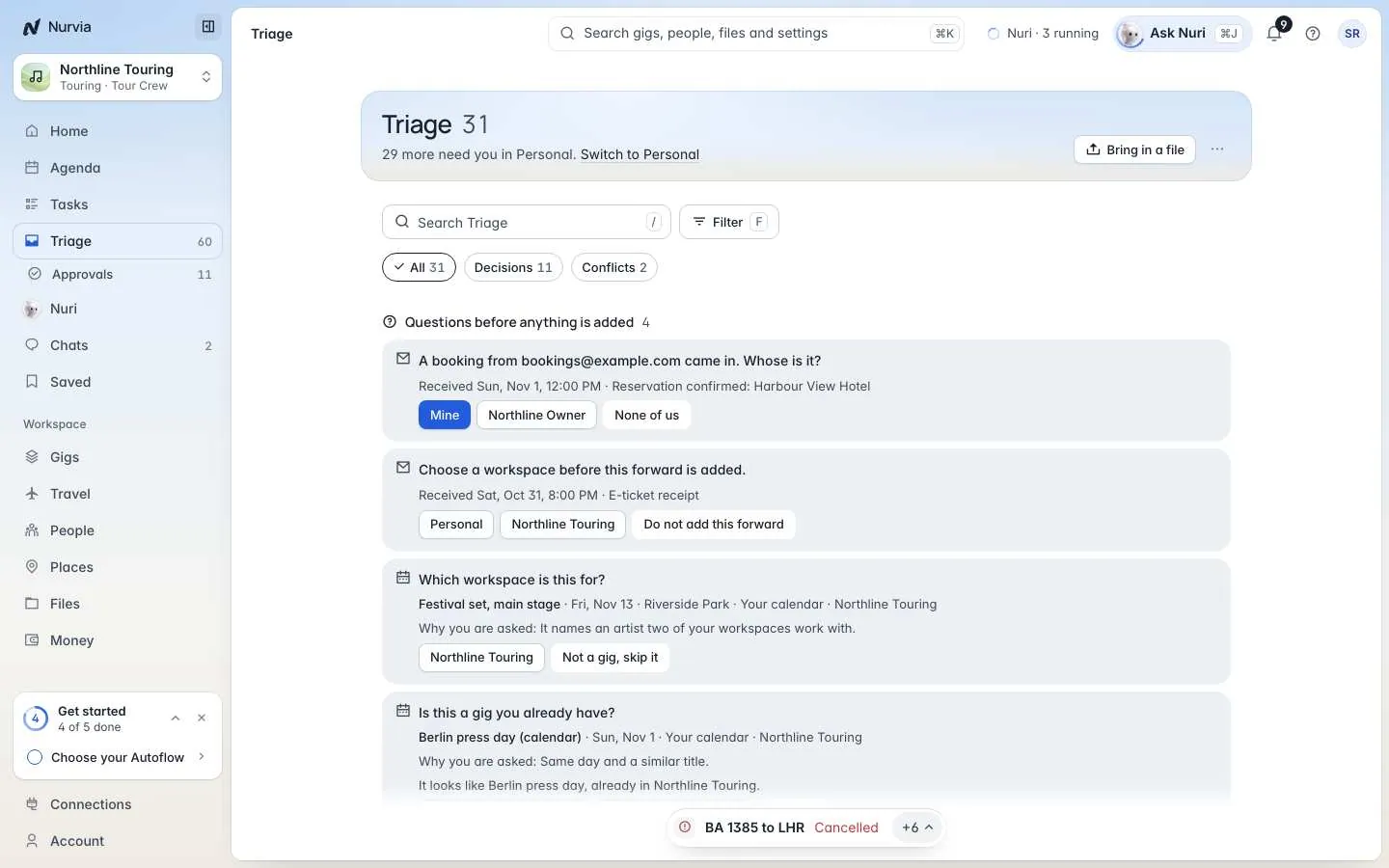
Click Triage in the sidebar. Under Questions before anything is added, you'll see the few things Nurvia couldn't decide alone — for example, whose booking an email is. Pick an answer and Nurvia files it where you said and remembers next time.
You're done when
Your plan has its dates, travel and stays, and Triage has nothing waiting.
Clear matches are added without asking. Only the doubtful part of an email waits for you, never the whole email.
Open your plans tab and tap the plan. On Home, the Triage button opens the same questions.
Give it a few minutes: past mail is read in the background. If it still isn't there, check which workspace the mailbox sends bookings to, or open Triage and choose Bring in a file to add the email or PDF yourself.