

Web app
Invite people to a plan, give delegates access, send no-account links to drivers and guests, and accept invitations.
Share one plan with someone outside your workspace — a promoter, a venue, a partner — without adding them to your team. Or send a driver or guest a link to just the item they need, with no account at all.
Where to find it
- Web: open the plan and choose Share in its header. Delegates and approvers live in the plan's People section, under Sharing. Invitations you've received are on the Invitations page — press ⌘ K and choose Invitations.
- iPhone: open the plan and use Invite people. See The plan hub.
Invite someone to a plan
Open Share
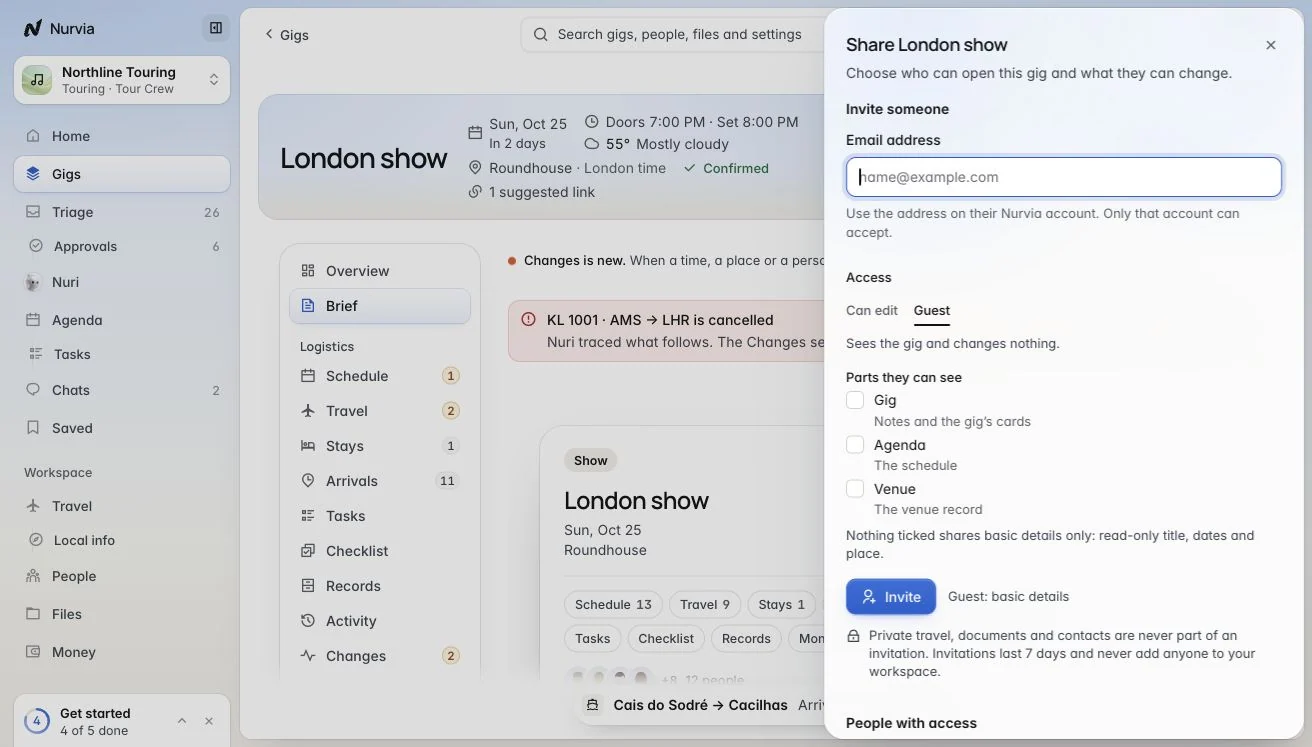
Open the plan and choose Share.
Enter their email
Under Invite someone, type the email address on their Nurvia account. Only that account can accept.
Choose their access
Pick Can edit or Guest, then tick the Parts they can see — the plan's notes and cards, the Agenda, the Venue. With nothing ticked, they see basic details only: a read-only title, dates and place.
Invite
Choose Invite. The invitation lasts 7 days, and the person shows under People with access.
| Access | What they can do |
|---|---|
| Owner | Everything on the plan. |
| Can edit | Change text and saved details in the parts you share. Dates and addresses stay as saved. |
| Guest | See the plan and change nothing. |
An invitation never adds anyone to your workspace
Accepting adds the plan to the person's own Nurvia. Private travel, documents and contacts are never part of an invitation. Invitations need a verified email.
Delegates and approvers
In the plan's People section, Sharing also covers:
- Delegates and representatives — a delegate acts for you, like an assistant who looks after your bookings; a representative speaks for you, like an agent or manager. Each gets only the access you give.
- Who approves — send each kind of approval (travel, stays, spending) to one person, like travel approvals to your assistant.
Invitations page
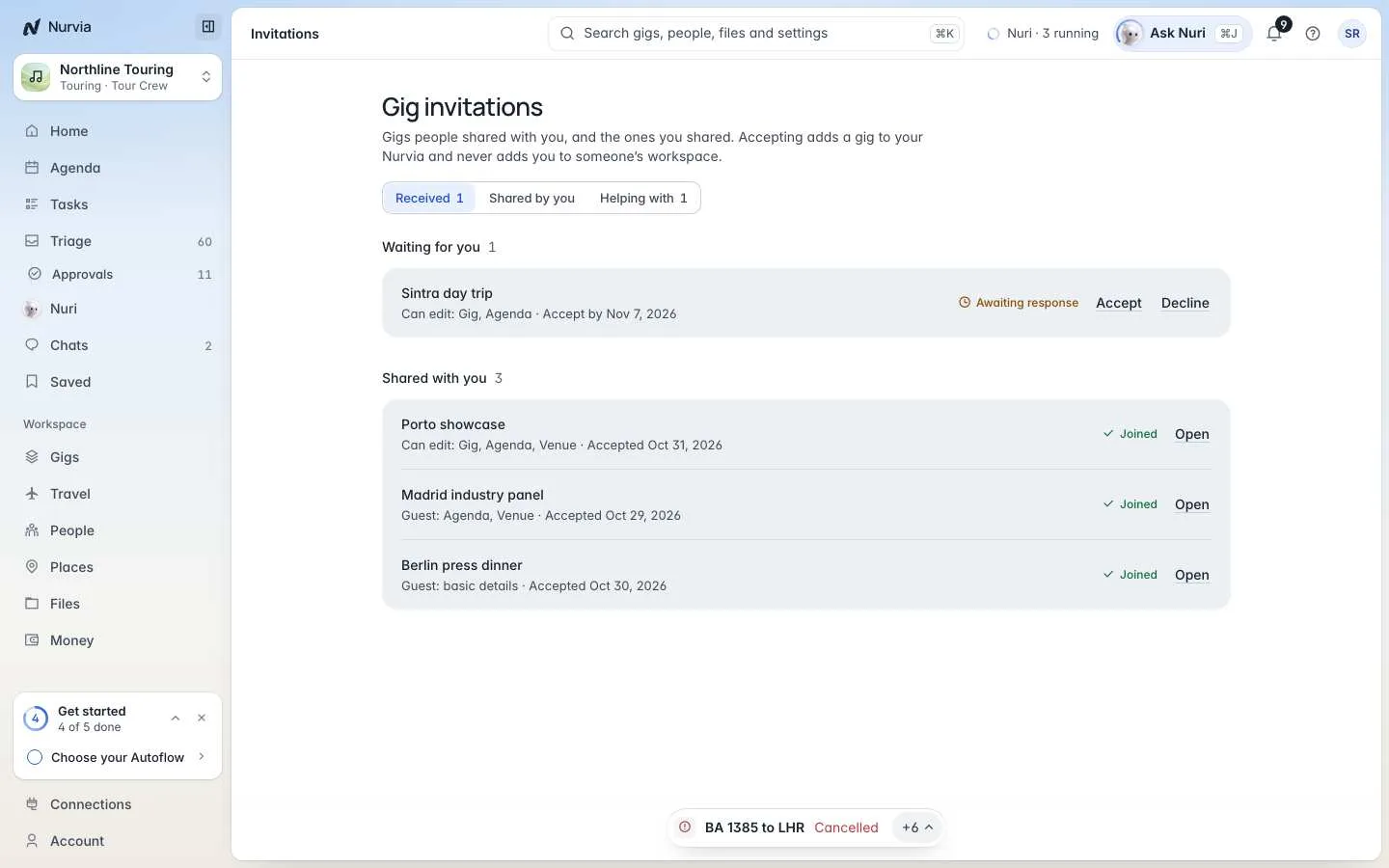
Gig invitations (or Plan invitations) has three tabs: Received, Shared by you and Helping with. Accept or Decline what's waiting for you, open plans shared with you, or Remove access for someone you invited.
Links for one item
For a driver or a guest, send a link to a single item — no account needed. In the Share panel, open Links for one item, then New link.
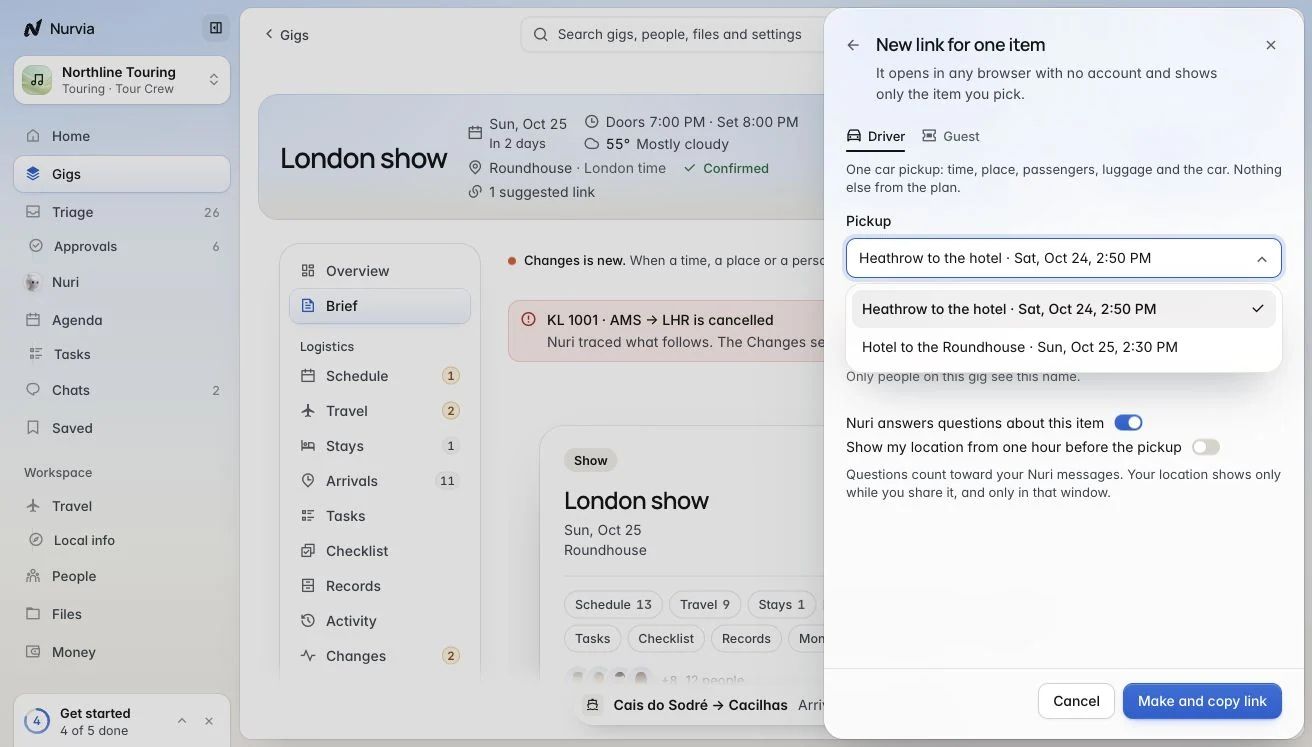
- Driver — one car pickup: time, place, passengers, luggage and the car. Nothing else from the plan.
- Guest — one item on the schedule: when and where. Nothing else from the plan.
Say Who it is for, and choose whether Nuri answers questions about this item and whether to Show my location from one hour before the pickup. Then Make and copy link. Each link shows how often it was opened; Turn off ends it.
Pages people may receive
| Link | What it is |
|---|---|
| Shared item | A single pickup or item, with Open in Maps and preset questions for Nuri. |
| Guest request | Ask for a spot on a guest list. |
| Door check-in | The door team's live check-in list. |
| Promoter allocation | Add your guests; see only the names you add. |
| Plan invitation | Sign in with the invited email and Accept invitation. |
| Advance form | Answer questions, add files and flight numbers, then Send answers. |
| Shared panel | A panel someone shared with you. |
| Email preferences | Change what Nurvia emails you, without signing in. |
| Privacy request | Ask to see, correct, move or delete your data — no account needed. |
Related

History, sources and disruptions
See where every detail came from, lock fields, handle a cancelled flight, and work with sheets, tour grids, linked plans and print.
Build and panels
Describe what you want to see and Nurvia builds a live panel — a run of show, a seating plan, a shift grid — from your plan's data.