iPhone app
Your day at a glance — Nuri, Triage, the plan you're viewing, today's travel and cards you choose.
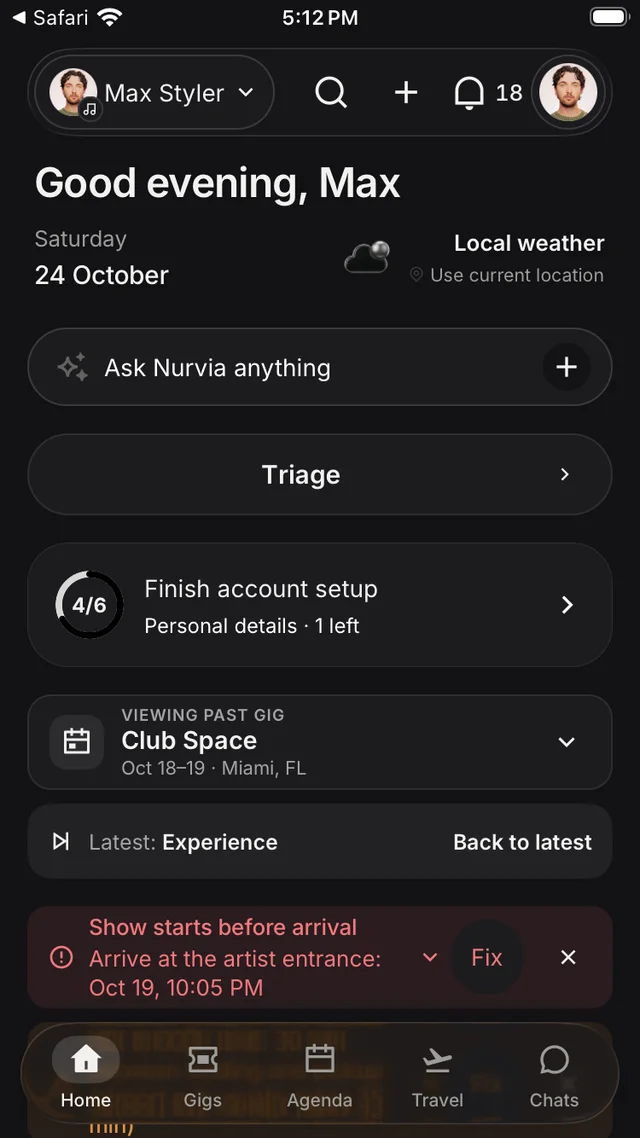
Home is the first tab. It describes your day for the workspace you have open and puts the two things you use most — Nuri and Triage — right at the top.
At the top
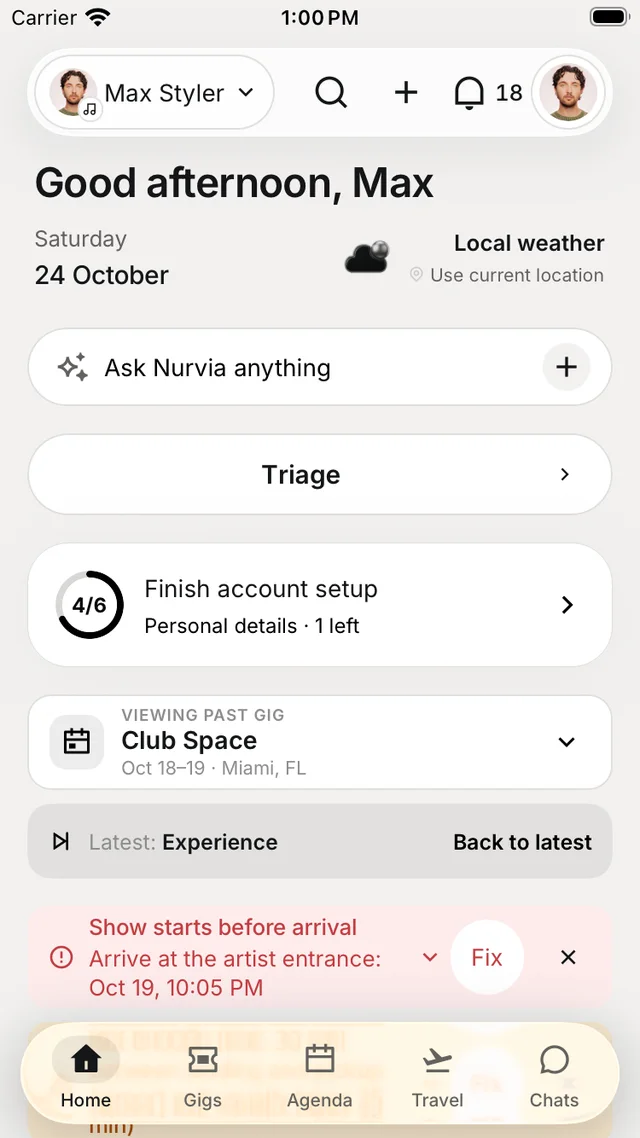
Home greets you by time of day, with the date and local weather. Below that:
- Ask Nurvia anything — opens Nuri.
- Triage — what's waiting for your decision. It reads Triage · 3 when three things wait.
- Finish account setup — shows until your profile is complete.
- Viewing gig — the gig or plan Home describes. Tap it to pick another; Back to latest returns to the newest.
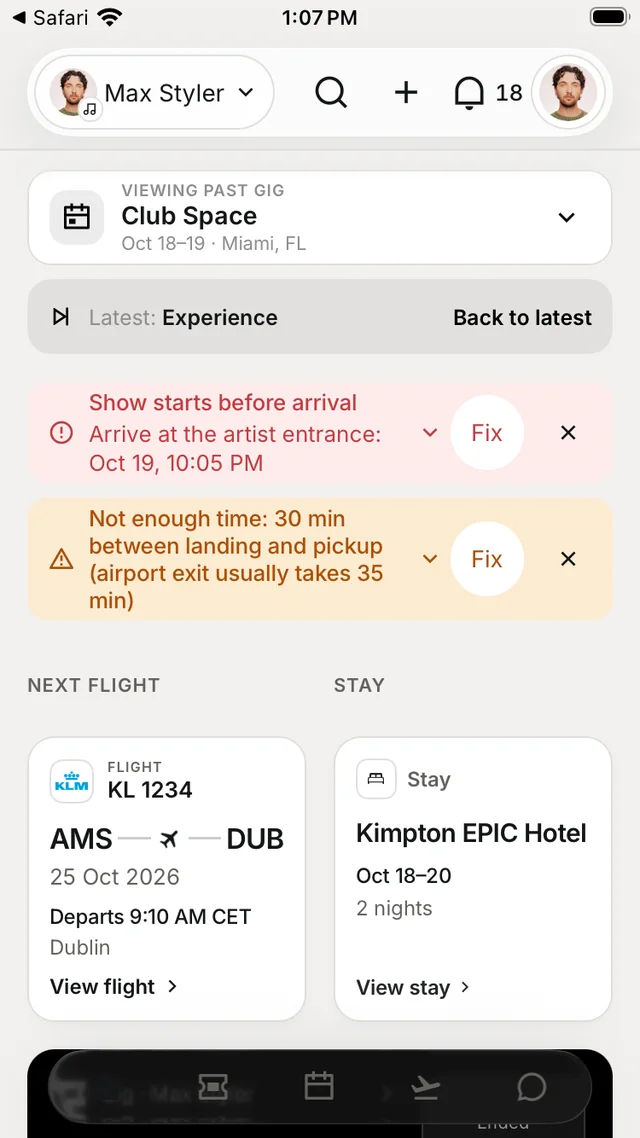
- Needs attention — a clash such as a show that starts before you land, with Fix.
The cards below
Home adds cards when they matter for the plan you're viewing:
| Card | When you see it |
|---|---|
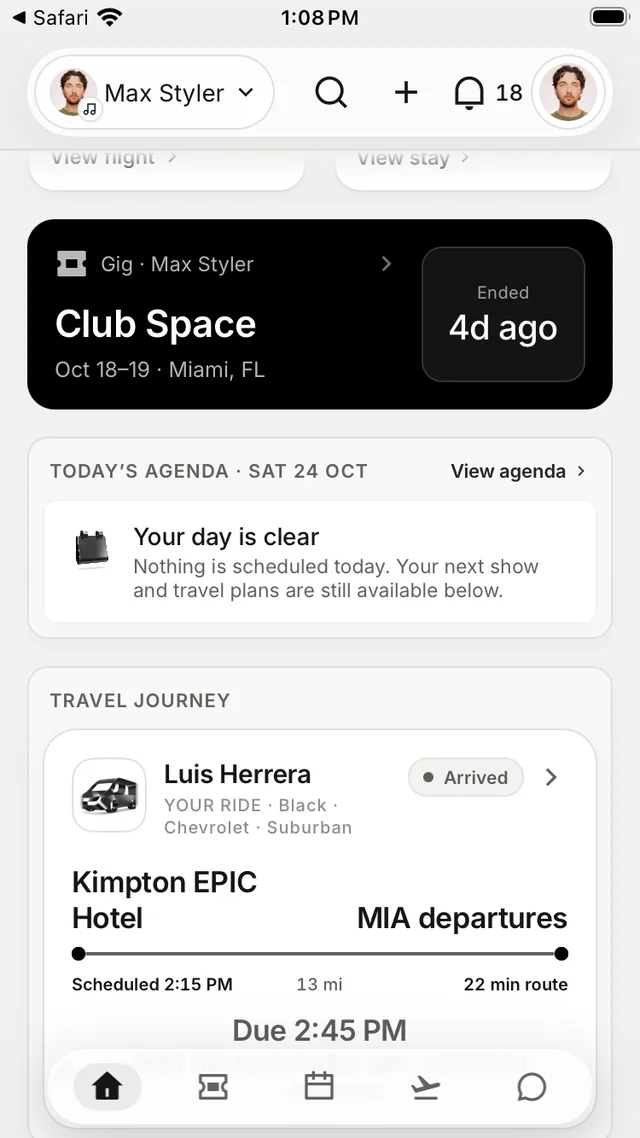
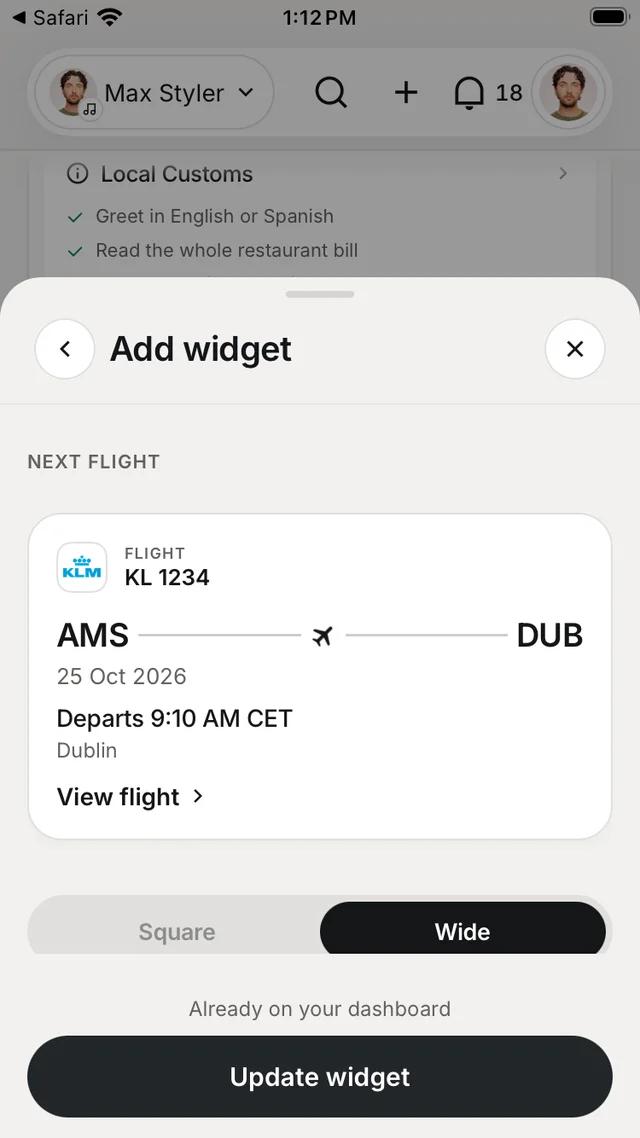
| Next flight and Stay | You have travel for that gig — tap View flight or View stay. |
| Today's agenda | What's on today, with View agenda. |
| Travel journey | A ride or transfer is under way — driver, route and drop-off time. |
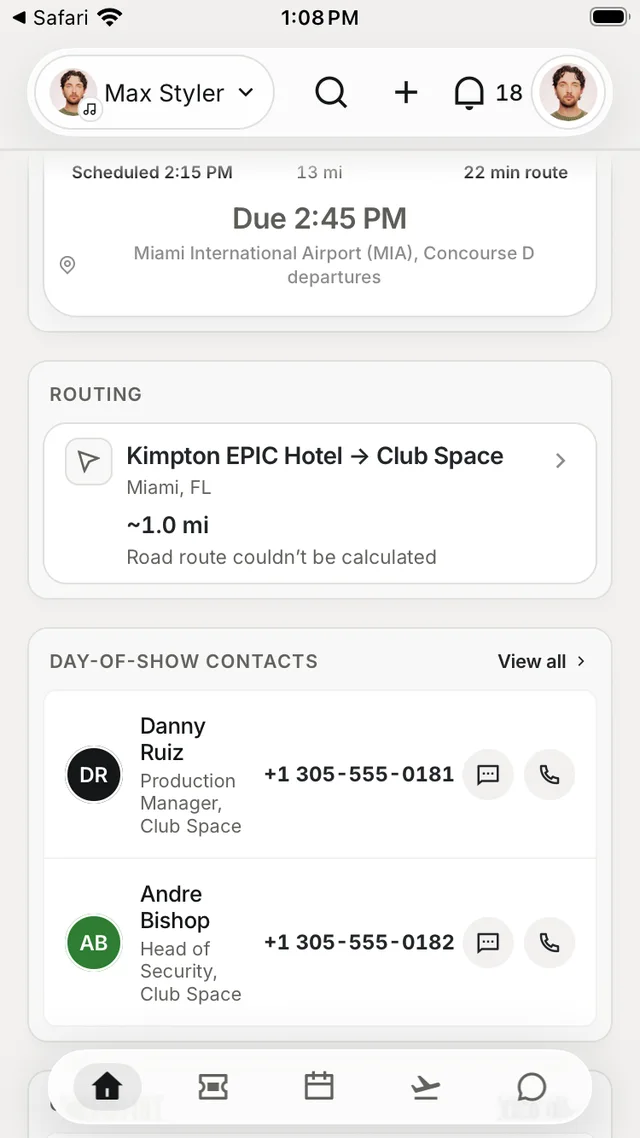
| Routing and Day-of-show contacts | Show day: how to get from the hotel to the venue, and who to call. |
| Checklist | Tasks assigned to you, by Personal, Gig or Team. |
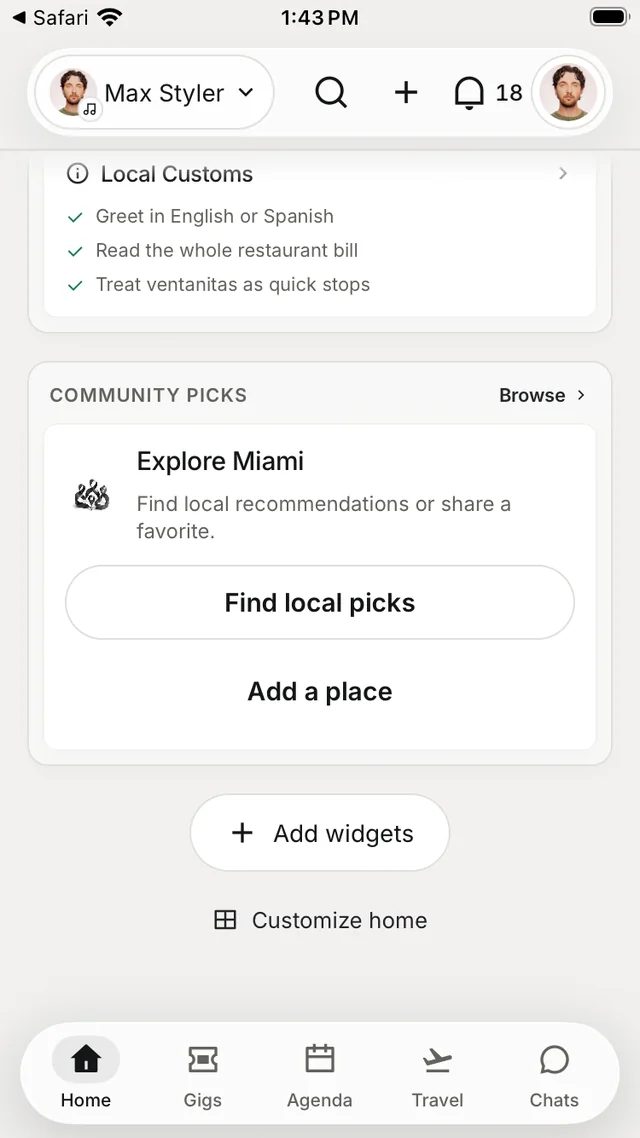
| Sunrise & sunset, Bookmarks and Local info | Useful on the road — daylight, your saved places, local phrases and customs. |
Make Home yours
Scroll to the bottom of Home for Add widgets and Customize home.
Add a card
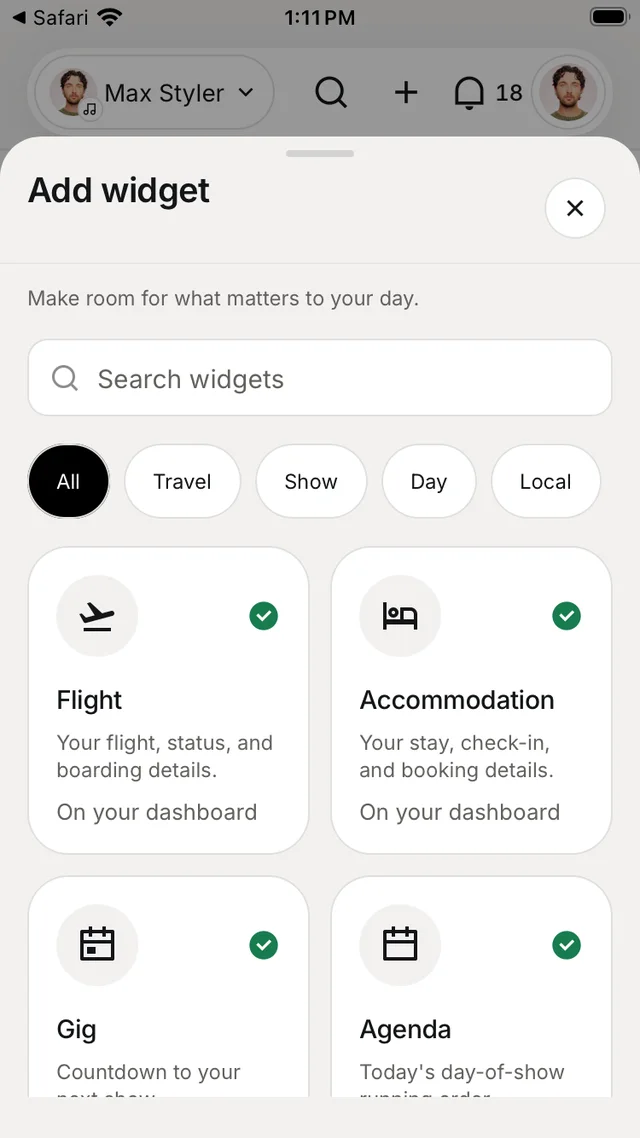
Tap Add widgets and browse by Travel, Show, Day, Local, Money and Tools, or search. Pick a card to preview it, choose Square or Wide, and add it.
Arrange them
Tap Customize home to drag cards into a new order, resize them or hide the ones you don't need. Restore default layout puts everything back.
These cards live inside the app. For widgets on your iPhone's Home Screen and Lock Screen, see Widgets and Live Activities.
Light and dark
Nurvia follows your iPhone's appearance setting, or you can choose a mode and accent colour in SettingsAppearance.