iPhone app
The notification list, snoozing, and choosing which alerts reach your phone, your inbox and your Lock Screen.
Nurvia tells you when something changes — a delay, a gate change, a new message, a guest request. You decide which alerts reach you and how.
The notification list
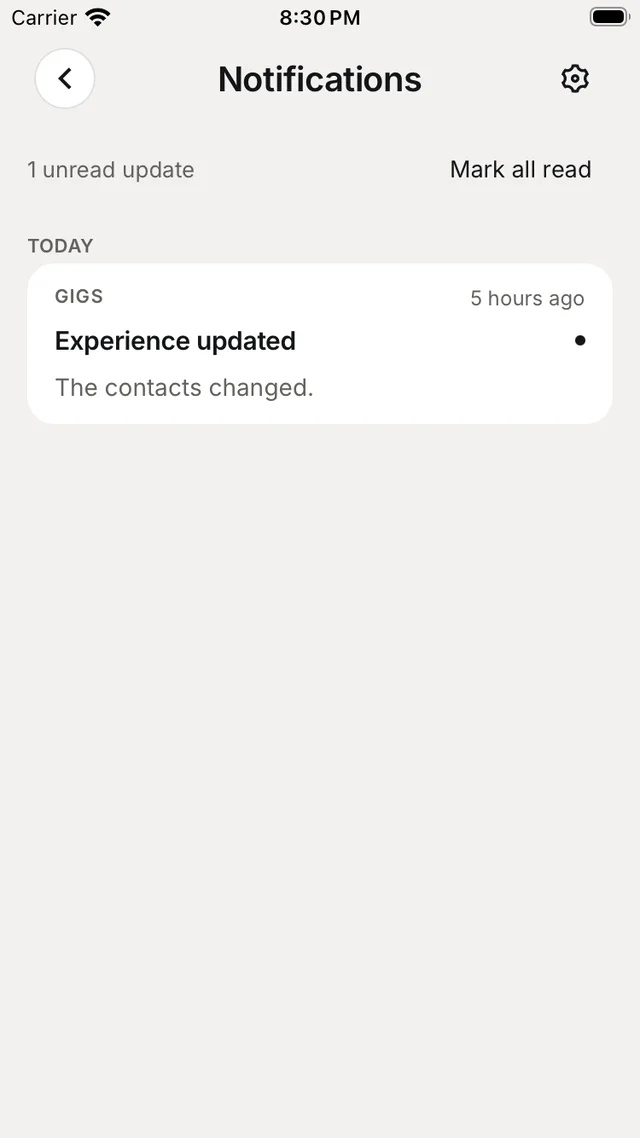
Tap the bell at the top of Home, Gigs, Travel or Chats. You'll see gig changes, flight updates, guest approvals, team announcements, task updates, check-in reminders and disruptions, grouped by day.
- Tap a notification to open what changed.
- Mark all read clears the unread count.
- Swipe a notification to snooze it; swipe again to wake it. Hide snoozed tidies the list.
- The gear opens notification settings.
Notification settings
Open SettingsNotifications, or tap the gear in the notification list.
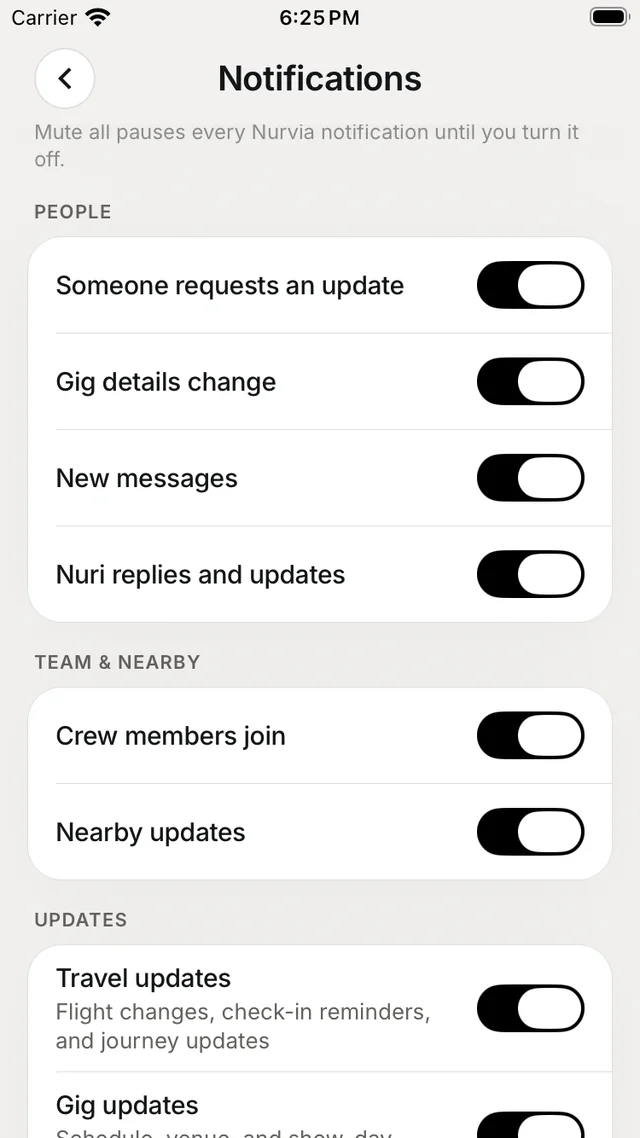
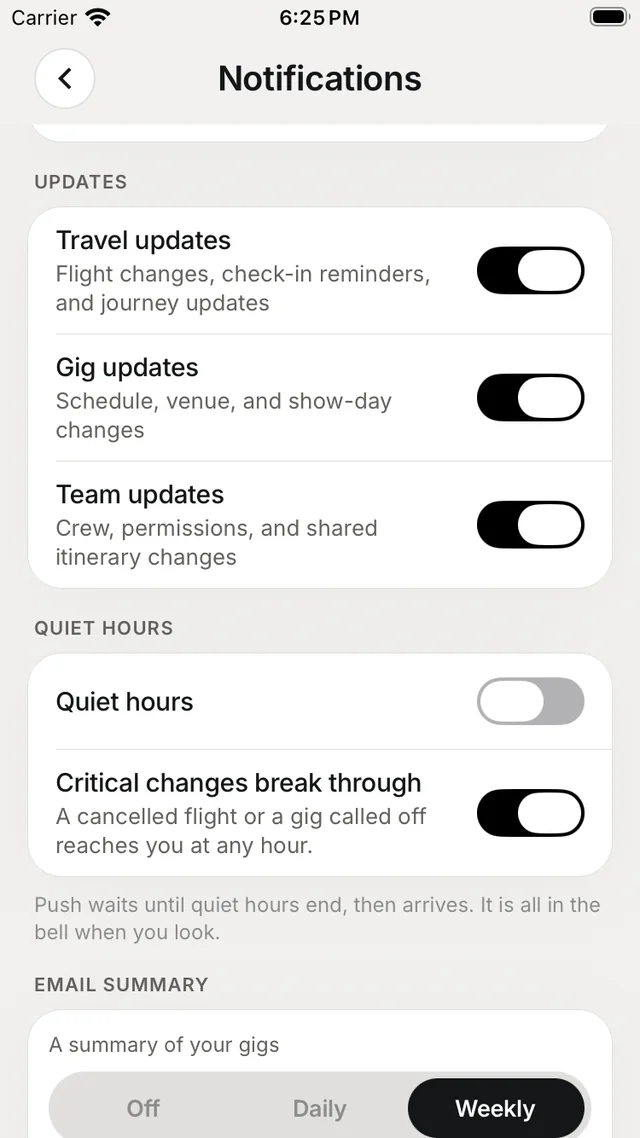
| Group | Switches |
|---|---|
| Delivery | Mute all notifications, Email notifications, Push notifications, In-app notifications, Lock Screen notifications |
| People | Someone requests an update, Gig details change, New messages, Nuri replies and updates |
| Team & nearby | Crew members join, Nearby updates |
| Updates | Travel updates, Gig updates, Team updates |
| Quiet hours | Quiet hours and Critical changes break through — a cancelled flight or a gig called off still reaches you |
| Email summary | Off, Daily or Weekly |
Mute all notifications pauses everything until you turn it off, and keeps your other choices. During quiet hours, pushes wait until the end and arrive then — everything is still in the bell when you look.
Push notifications not arriving?
If push says it's blocked, tap Open system settings and allow notifications for Nurvia. If it offers Reconnect this phone, tap that.