iPhone app
Send files from any app to Nurvia, import documents and photos, read receipts, and pick up unfinished drafts.
Most bookings arrive on their own from your connected email. For everything else — a PDF from a promoter, a screenshot of a boarding pass, a photo of a rider — share it to Nurvia or import it, and review what Nurvia read before it's saved.
Share from another app
Share to Nurvia
In Mail, Files, Photos or any app, tap Share and choose Nurvia. A copy is saved on your iPhone.
Choose where it belongs
Open Nurvia. Shared with Nurvia shows the saved copy — review it, then choose the gig or plan to add it to.
Choose who sees it
Under Who can see these files?, pick Only you or People on this gig (or plan).
Anything you shared but haven't placed yet waits in SettingsShared with Nurvia. Files already added to a plan stay there if you discard the saved copy.
Use details from a Nuri message
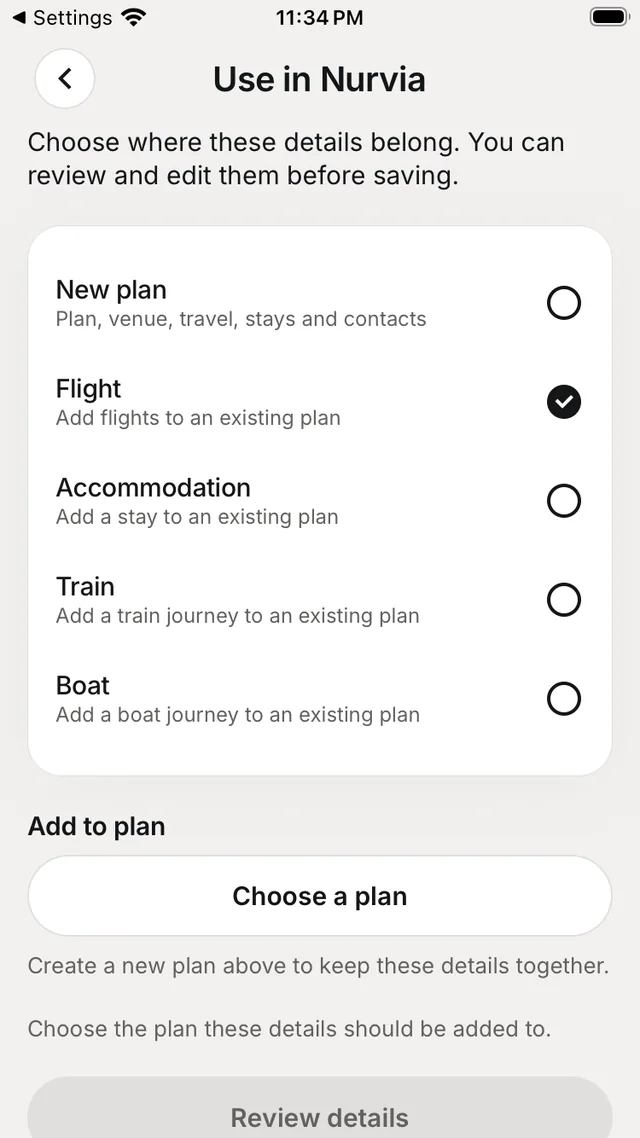
When Nuri reads a booking from something you sent it, tap Use in Nurvia on the message. Choose what the details are — a New plan, a Flight, Accommodation, a Train or a Boat — then Choose a plan and Review details before anything is saved.
Import a document
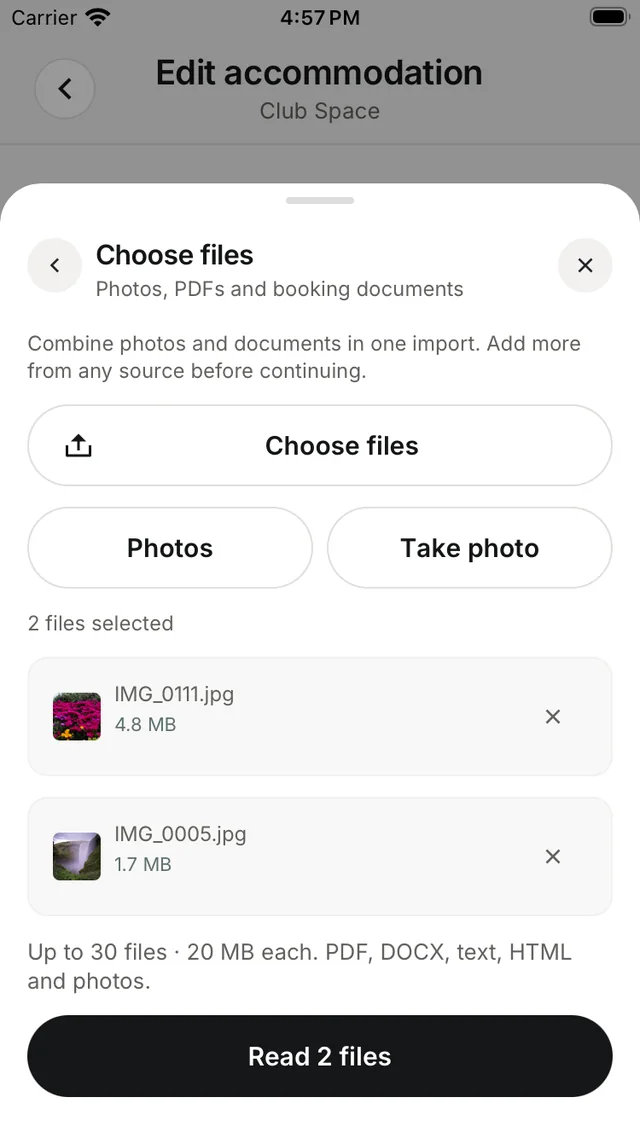
In a create or edit form, such as a stay, choose Auto-fill from booking, then Choose files, Photos or Take photo. You can combine up to 30 files from any source in one import — PDF, DOCX, text, HTML and photos, up to 20 MB each.
- Review what Nurvia read, with View source to check it against the original.
- Continue in background lets you keep working; keep the app open until the upload finishes.
- Importing the same file twice is detected.
Receipts
In an expense, choose Read a receipt instead to fill in the amount, or Attach receipt from the camera, Photo Library or Files.
Drafts
If you leave a create form, choose Save draft to finish it later. Find drafts in SettingsDrafts. They're saved on this device for this workspace, and only you can see them.
Bookings in your connected email arrive on their own — see Email & calendar.