Web app
Your day at a glance — the next plan, today's travel, what Nuri is doing, and what needs you.
Home pulls together what matters right now in the workspace you have open: today's schedule, your next plan, travel in the next two days, and anything waiting on you. Start your day here.
Where to find it
- Web: Home at the top of the sidebar, or press G then H.
- iPhone: the Home tab. See Home on iPhone.
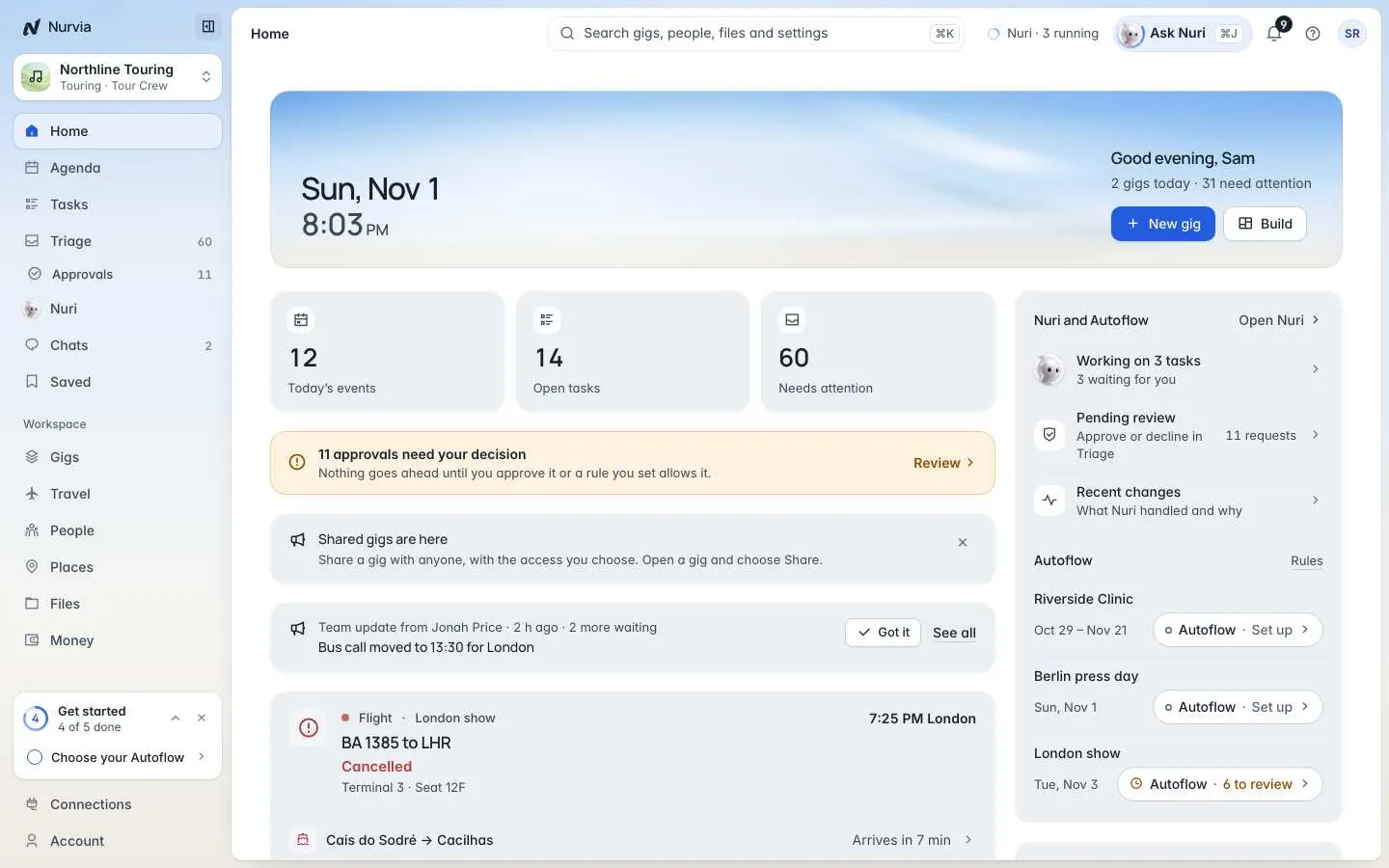
At the top, Home shows the date and time with two buttons: New gig (or New plan) and Build. Below are three counts — today's agenda, open tasks and what needs attention — each one a way into that page.
Common jobs
Deal with what needs you
The Needs you panel lists the decisions waiting on you, with your Triage count. Choose a row to act on it, or Triage to see them all. An approvals banner also shows when something can't go ahead without you.
Add something quickly
Type into the Add anything bar the way you'd say it — "Flight BA 117 Friday" or "Hotel The Hoxton 12-15 Oct" — or attach a file. Nurvia works out what it is and where it goes.
Check your next plan
Next up shows the next plan with a countdown, place, people, doors and set times, landing and pickup. When you have more than one plan ahead, you can pick which one Home follows.
What's on Home
| Panel | What it shows |
|---|---|
| Get started | Setup steps you haven't finished, with progress. Hide it when you're done. |
| Announcements | Team updates. Choose Got it, or See all for the team feed. |
| Next up | The next plan and what comes after it. |
| Coming up | Today's agenda and the rest of the week, with Open agenda. |
| Advance and changes | The next plan's advance and what changed this week. |
| Travel and stay | Check-in when it opens, Travel · next 48 hours (gate, terminal, Airport by time and your stay) and Getting around (road legs with leave-by times). |
| Needs you | What waits on your decision, with Triage. |
| Nuri and Autoflow | What Nuri is working on, Pending review, Recent changes and each plan's Autoflow. |
| Quick access | Tasks, Saved, People and Places. |
| Weather | The forecast where your next plan is. For shows it adds a delay and cancellation risk — a guide, not the venue's own limits. |
Panels only show when they have something to say. Until you connect a mailbox, Home also shows Connect your email so Nuri can do more — see Connections.
Nothing Nuri prepares goes out without your approval or a rule you set. The Nuri and Autoflow panel always shows what's waiting on you.
Your panels
The bottom of Home holds Your panels — live cards like your next flight or stays, and panels you kept from Build.
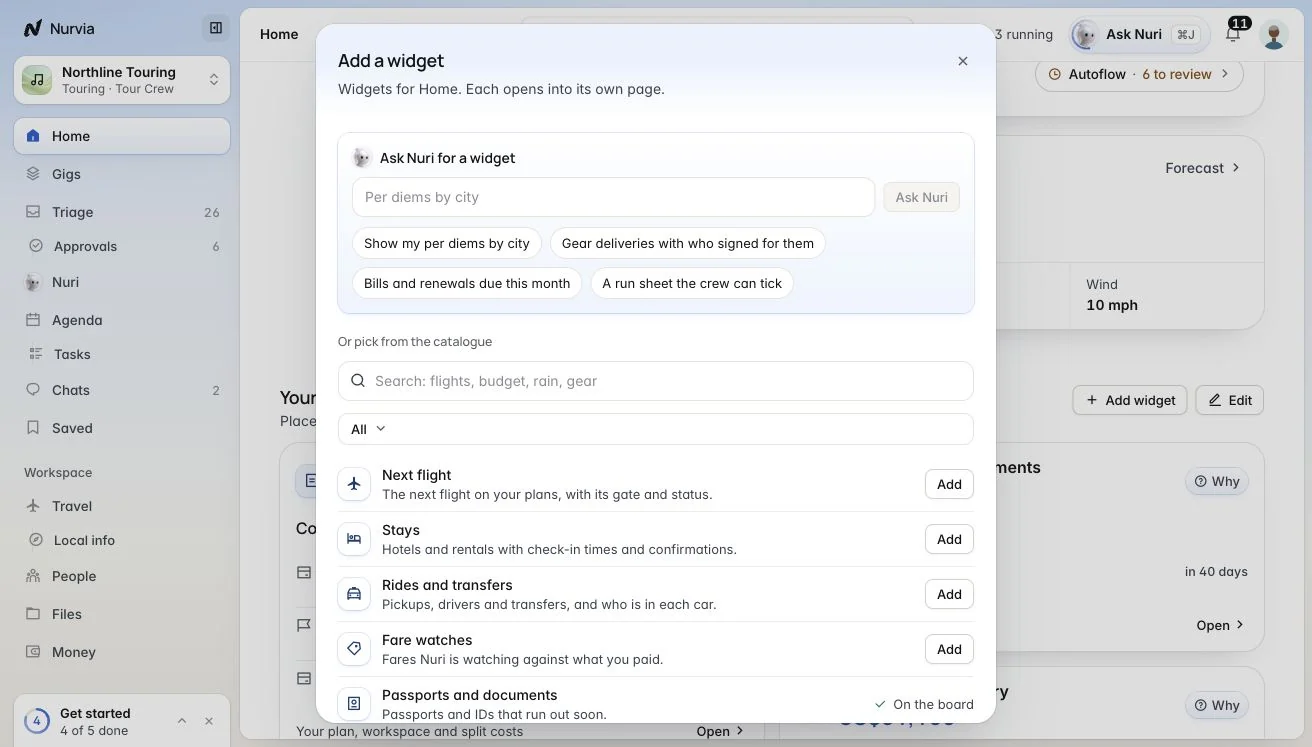
- Add panel — ask Nuri for one in words, or pick from the catalogue.
- Edit — drag to reorder, pick a size, pin one to hold its place, or hide what you don't need. Restore default puts Home back as it was.
- All panels — opens the Panels page, with panels you kept but took off Home.
Home follows your workspace
Home shows the workspace you have open. Switch workspace at the top of the sidebar to see another team's day.