iPhone app
Follow flights, rides and set times live on the Lock Screen and Dynamic Island, and put your next trip, stay, plan and sunset on the Home Screen.
Live Activities and widgets let you check what's next without opening Nurvia. Live Activities follow something happening right now; widgets show what's coming up.
Live Activities
Nurvia shows live progress on the Lock Screen and Dynamic Island for flights, private charters, rides, trains, boats, walking and bike routes, show and set times, and hotel check-in and check-out.
Only one Live Activity shows at a time, chosen by priority:
- Critical — final boarding, boarding closed, a cancellation, a diversion or a delay past your threshold.
- Urgent — boarding open, a departure or pickup within 15 minutes, a set about to start.
- Active — in the air, collecting bags, a ride under way, on stage.
- Upcoming — a flight within three hours, a set within the hour.
- Informational — a hotel check-in or check-out window.
Within a level, the sooner thing wins. To keep one agenda item on your Lock Screen, open it and turn on Pin to my Lock Screen.
Live Activity settings
Open SettingsLive Activities.
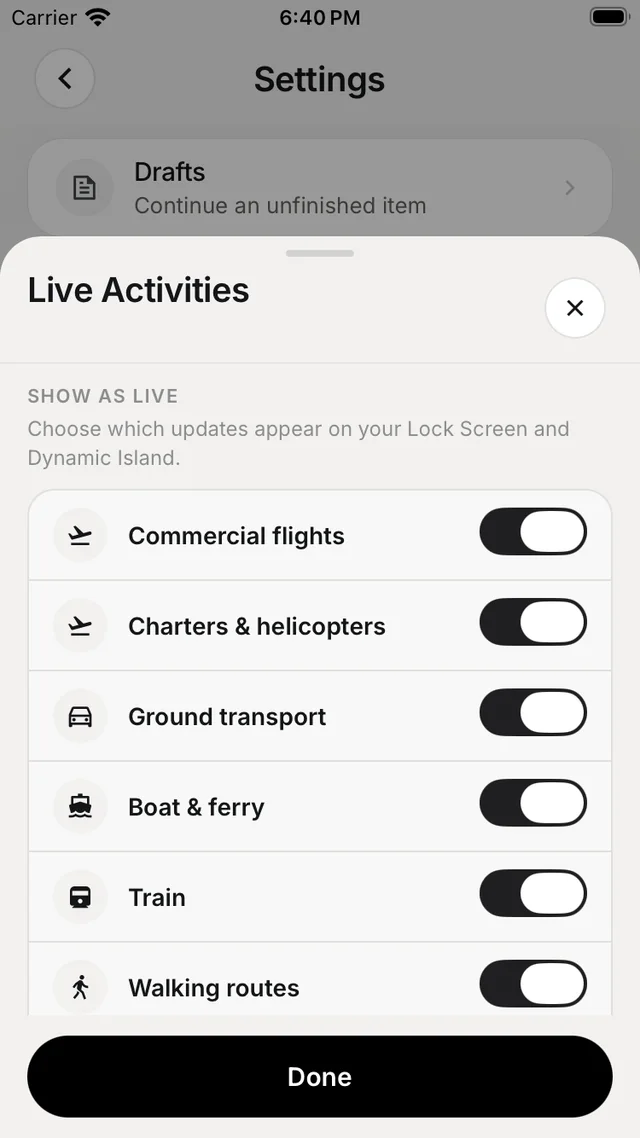
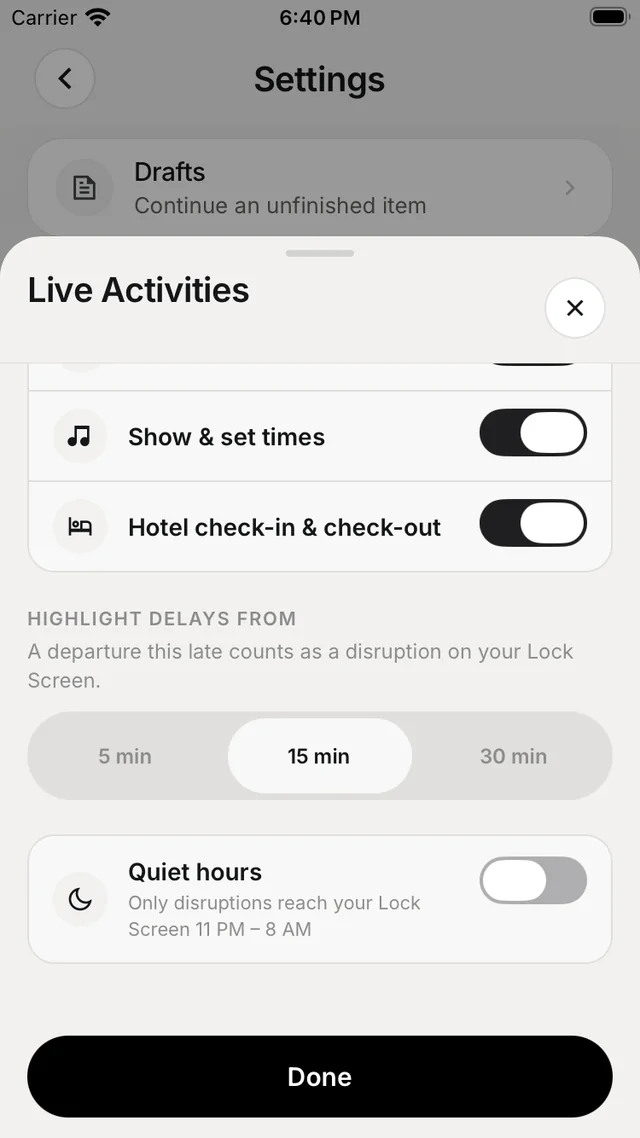
- Show as live — a switch for each kind: commercial flights, charters & helicopters, ground transport, boat & ferry, train, walking routes, bike routes, show & set times, and hotel check-in & check-out.
- Highlight delays from — 5 min, 15 min or 30 min. A departure this late or later counts as a disruption on your Lock Screen.
- Quiet hours — only disruptions reach your Lock Screen from 11 PM to 8 AM, on your iPhone's clock. Notification quiet hours are set separately.
Nothing showing?
iOS can turn off Live Activities for Nurvia in SettingsNurvia. Your choices in Nurvia stay saved either way.
Home Screen and Lock Screen widgets
Touch and hold your Home Screen or Lock Screen, tap Edit or +, and search for Nurvia.
| Widget | Sizes | Shows |
|---|---|---|
| Nurvia Travel | Small, medium, large and Lock Screen | Your current flight, connection, arrival or stay — route, gate, terminal and status |
| Nurvia Stay | Small, medium and Lock Screen | Your stay, check-in and booking details |
| Nurvia Dashboard | Small, medium, large and Lock Screen | Your selected gig or plan and the travel that matters now |
| Nurvia Sun | Small, medium and Lock Screen | Sunrise and sunset where your next gig or plan is, on its date |
After an app update, open Nurvia once so your widgets refresh.
Looking for the cards inside the app? Those are Home cards — see Make Home yours.