iPhone app
Every plan opens its hub — the place card, a tile for each part of the plan, sharing, export and where it came from.
Tap any plan — on Home, in the plans tab or in search — to open its hub. It's the one place for everything about that plan: where and when, who's travelling, who to call and what's been spent. The tab and the hub use your workspace's word, so in a music workspace they say Gigs and Gig Details; the screenshots below come from one. A trip, a meeting or a dinner gets cards built for that kind of plan.
The top of the plan
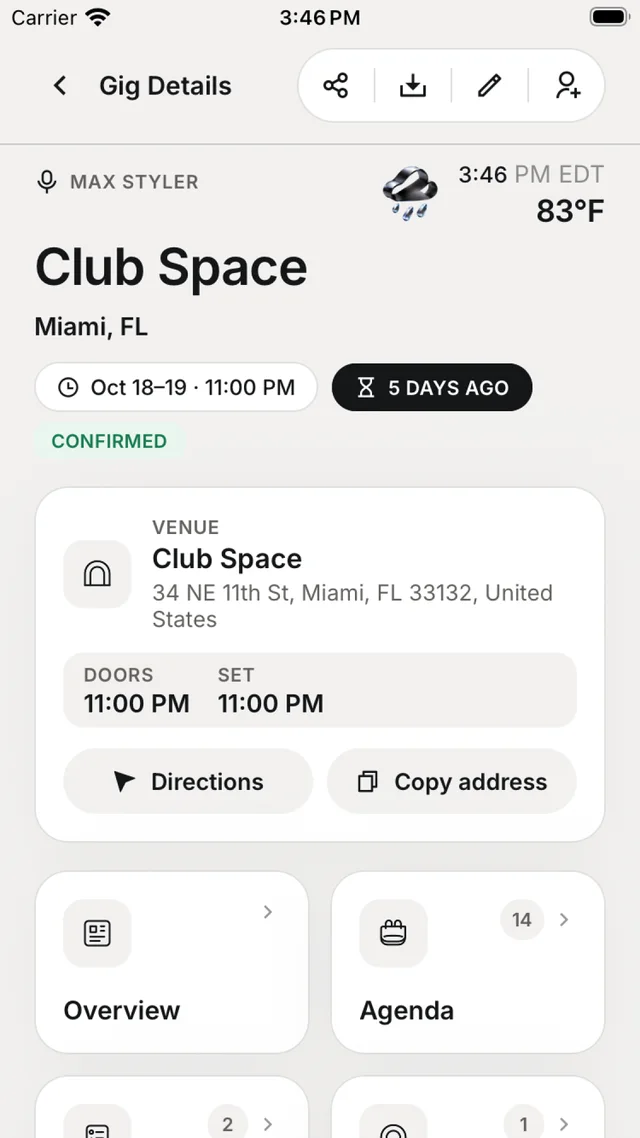
The plan's name, city, dates and status (for example Confirmed), the local weather, and the place card (the venue card for a gig):
- The venue name and address, with Doors and Set times.
- Directions — opens Apple Maps, Google Maps or Waze, whichever you have.
- Copy address.
When a plan covers an area rather than one venue, the card says Location and View area.
Tiles
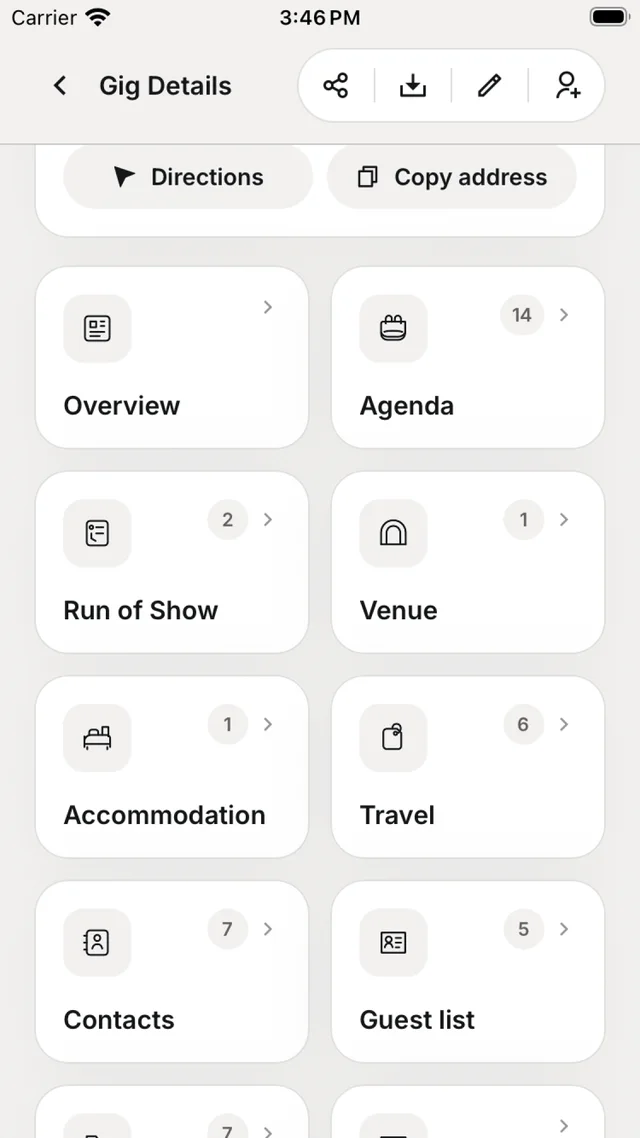
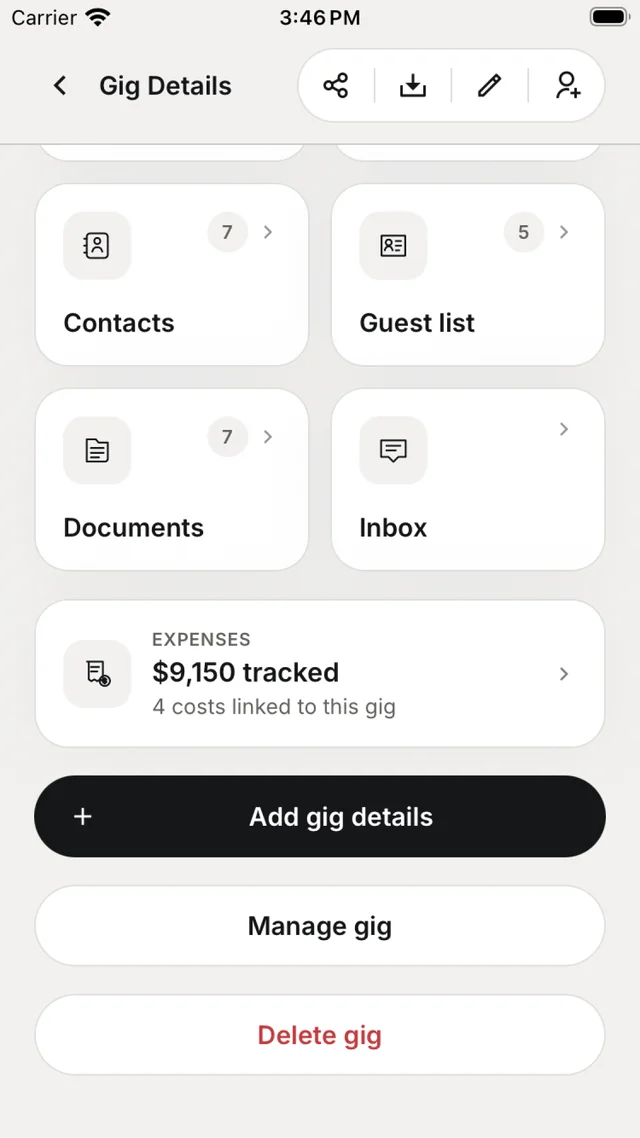
Overview, Agenda, Run of Show, Venue, Accommodation, Travel, Contacts, Guest list, Documents and Inbox (the gig chat). Each tile shows a count. Below them, Expenses shows the total tracked for the gig.
Add gig details opens a searchable list of every area, so you can jump straight to what you need to fill in. Finds from your email show up here too, with a source chip and Undo.
A tile says View only?
Your role can see that area but not change it. A team admin decides who can edit — ask them if you need access.
The header buttons
| Button | What it does |
|---|---|
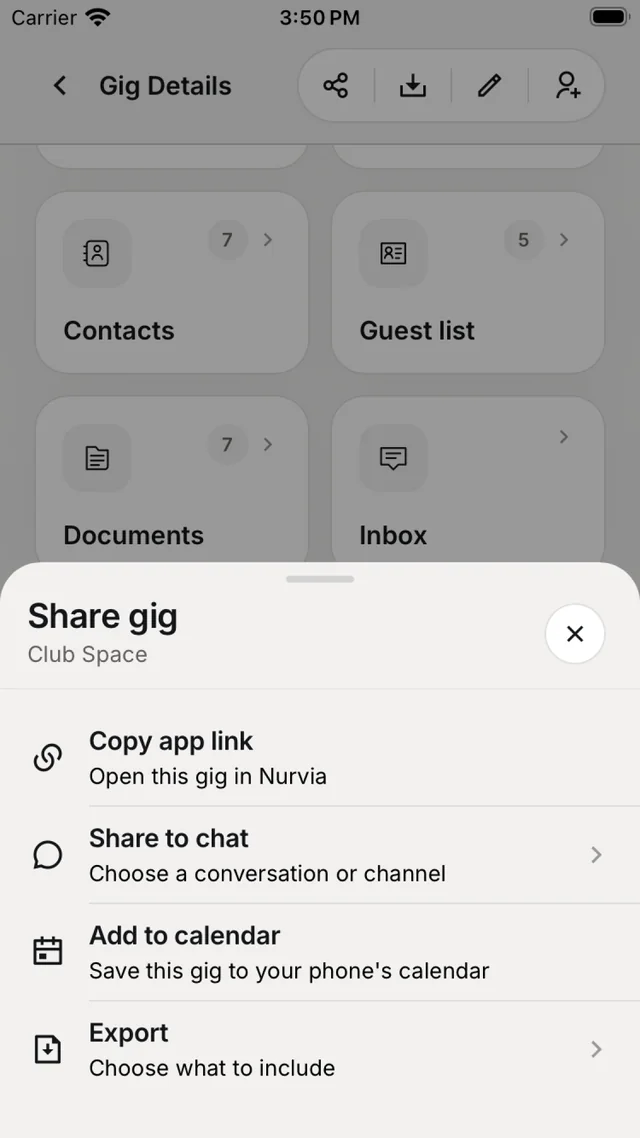
| Share | Copy app link, Share to chat, Add to calendar or Export. |
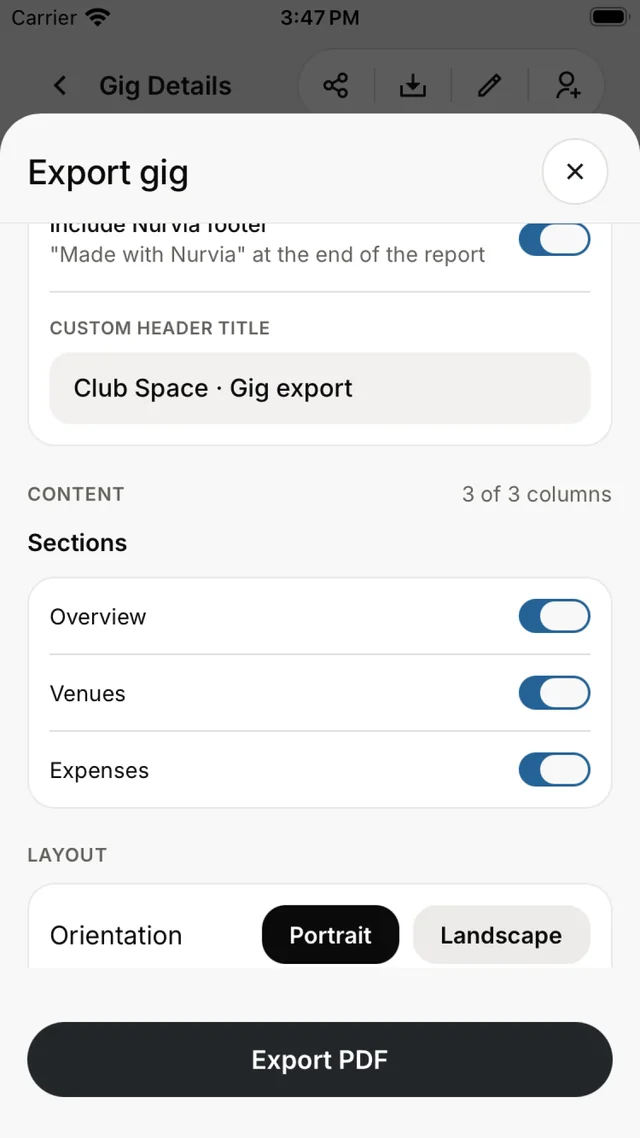
| Export | A PDF or CSV of This gig or the Whole tour — choose sections, A4 or Letter, portrait or landscape, a header title and whether to include your team name. |
| Edit | Change the gig's details. |
| Invite | Share this plan with someone outside the team. |
Manage gig holds Pin to the top, Copy to new dates, Copy a day, Move to workspace, Ask for missing details and Archive. After a move you get Undo move.
Invite someone outside the team
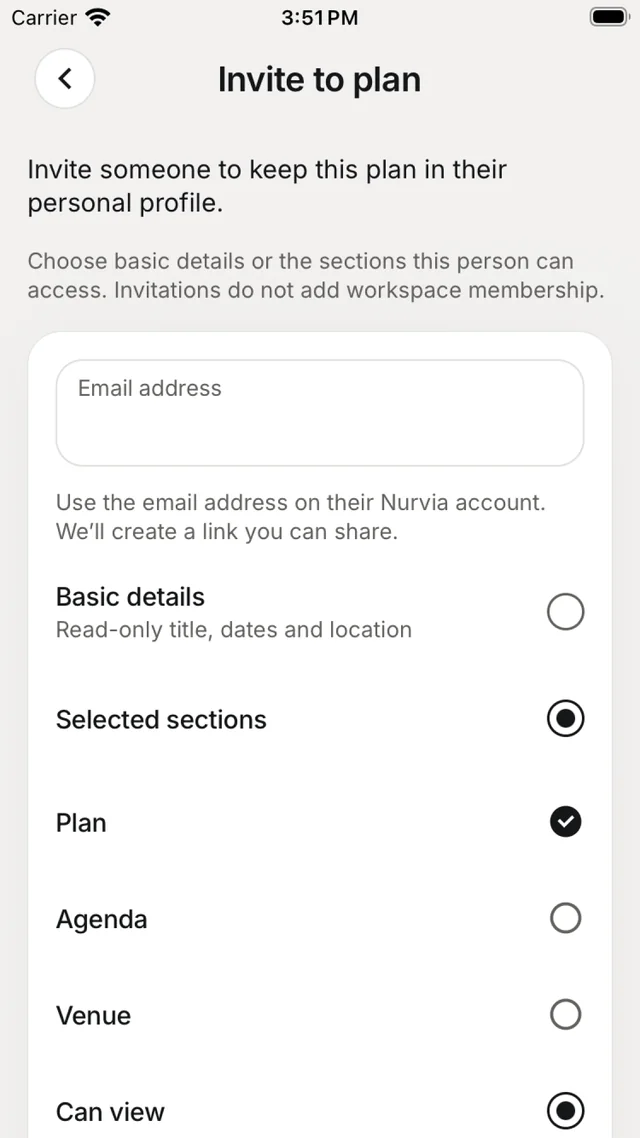
Invite opens Invite to plan. Enter the email on their Nurvia account, choose Basic details (title, dates and location) or Selected sections, and tap Create invitation — Nurvia makes a link for you to share. Accepting adds the plan to their personal profile without making them a workspace member. Private travel, documents and contacts are never shared.
Where it came from
A gig added from email shows where it came from — the source, the account and when — with View original to open the email.
The venue page
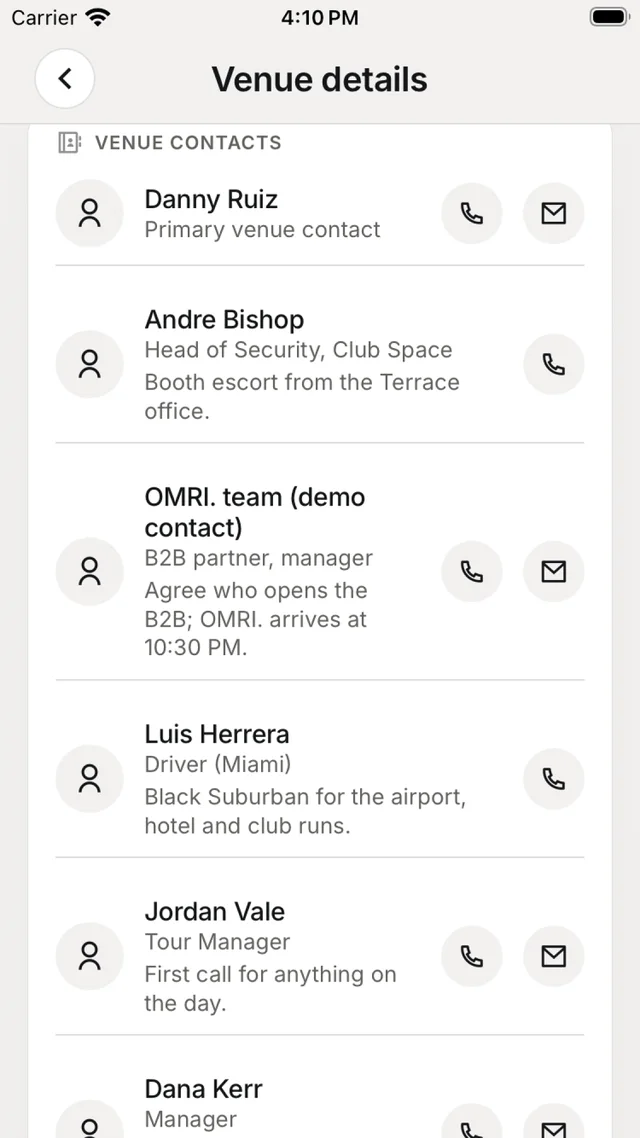
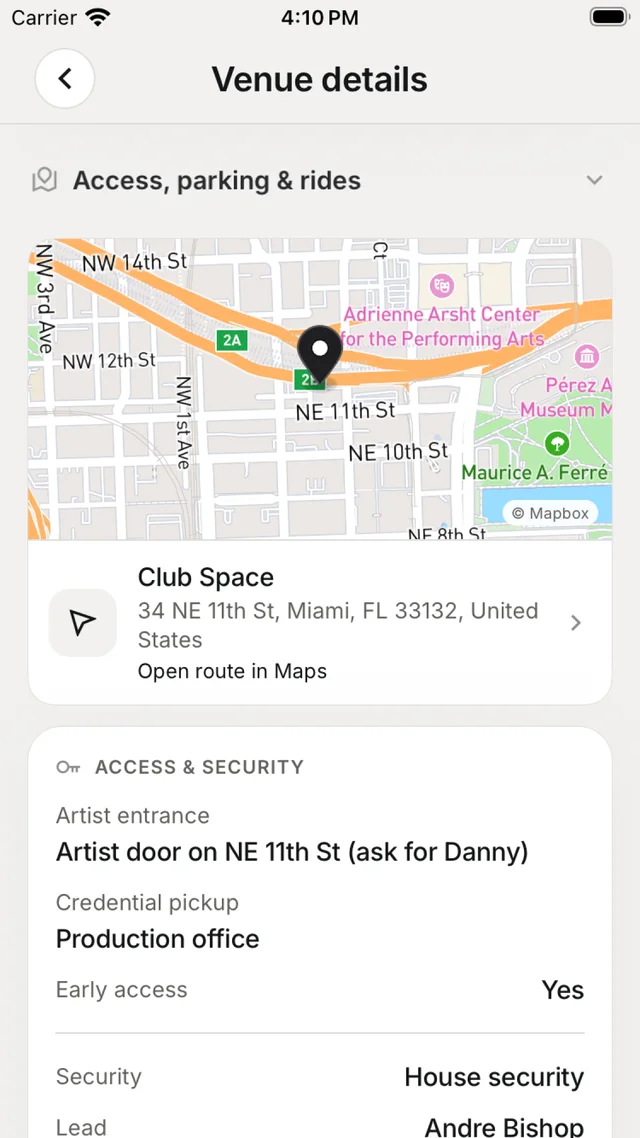
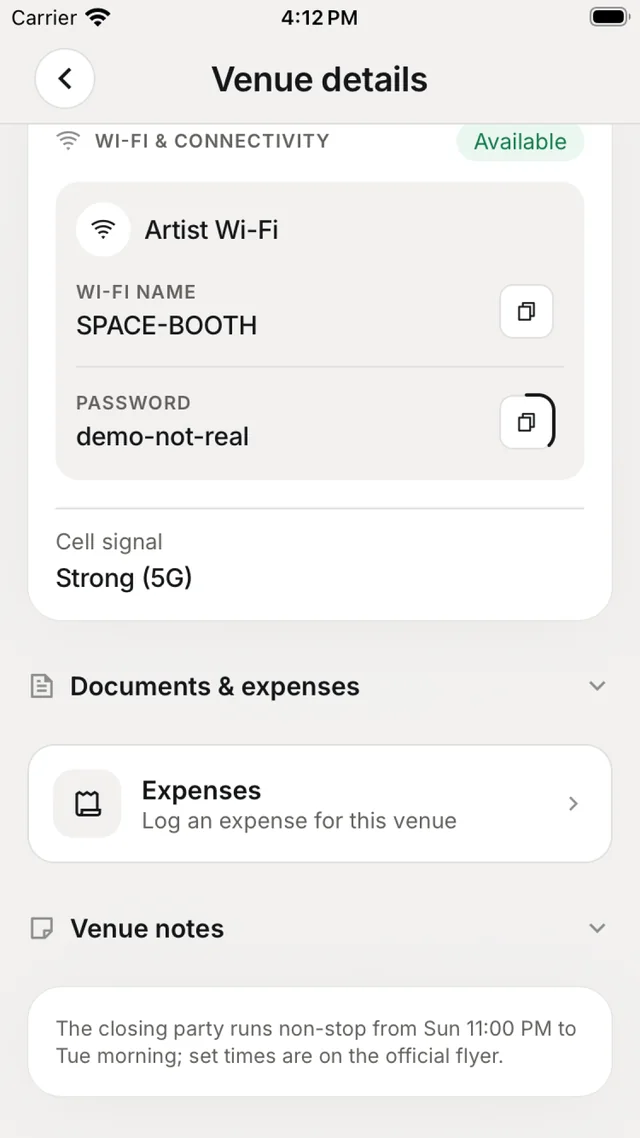
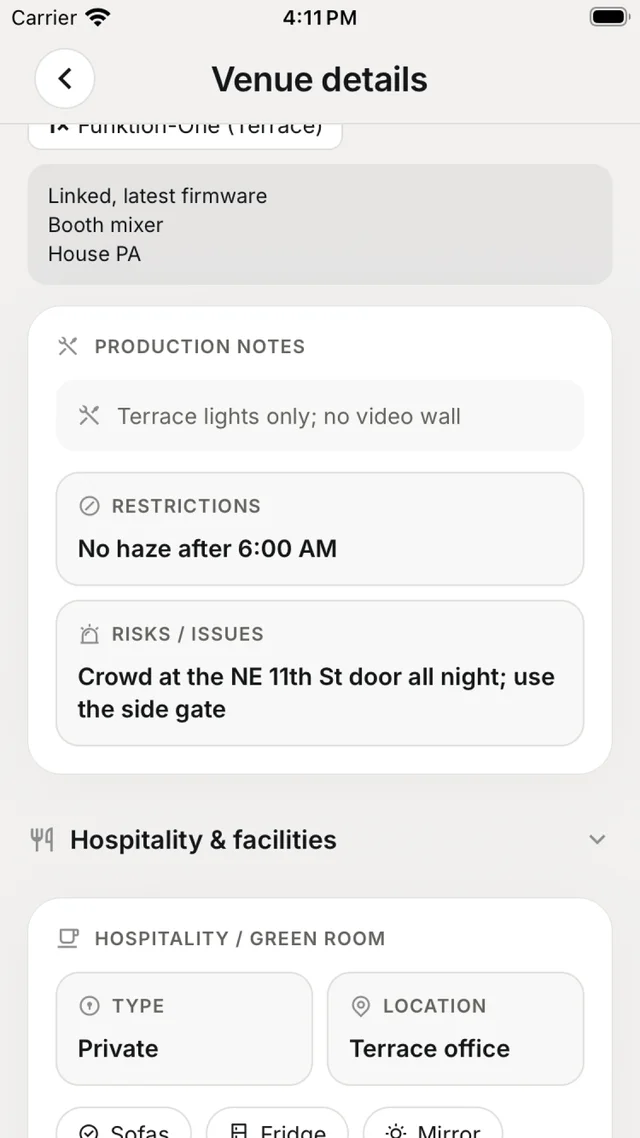
Tap the Venue tile for Venue details: show-day times (set, curfew, load-in, load-out), Access, parking & rides, Hospitality & facilities, Wi-Fi & connectivity, stage and technical notes, Production notes and the venue's own contacts.
Wi-Fi passwords
A Wi-Fi password stays hidden until you tap Show, and covers itself again after 30 seconds. Tap the copy button to paste it straight into iOS Settings.
Contacts, stays and documents
- Contacts — the one list of who to call on the day. Tap a contact to call, message, WhatsApp, Telegram or email them.
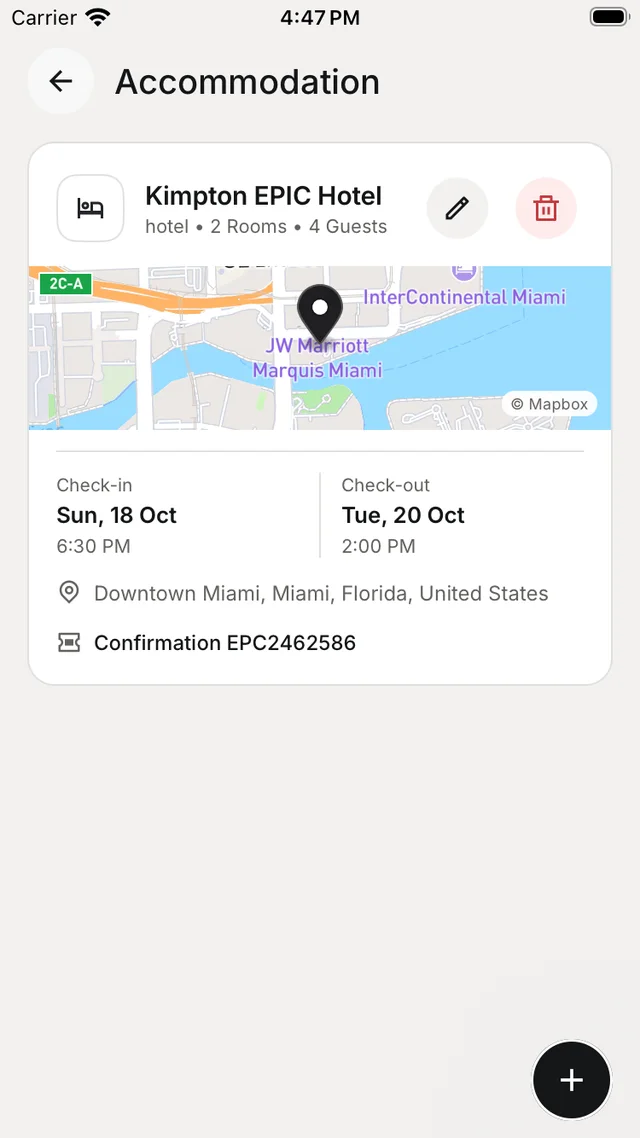
- Accommodation — check-in and check-out, Booked under, confirmation code, rooms and guests, Wi-Fi, payment and notes. Share stay details uses the iOS share sheet.
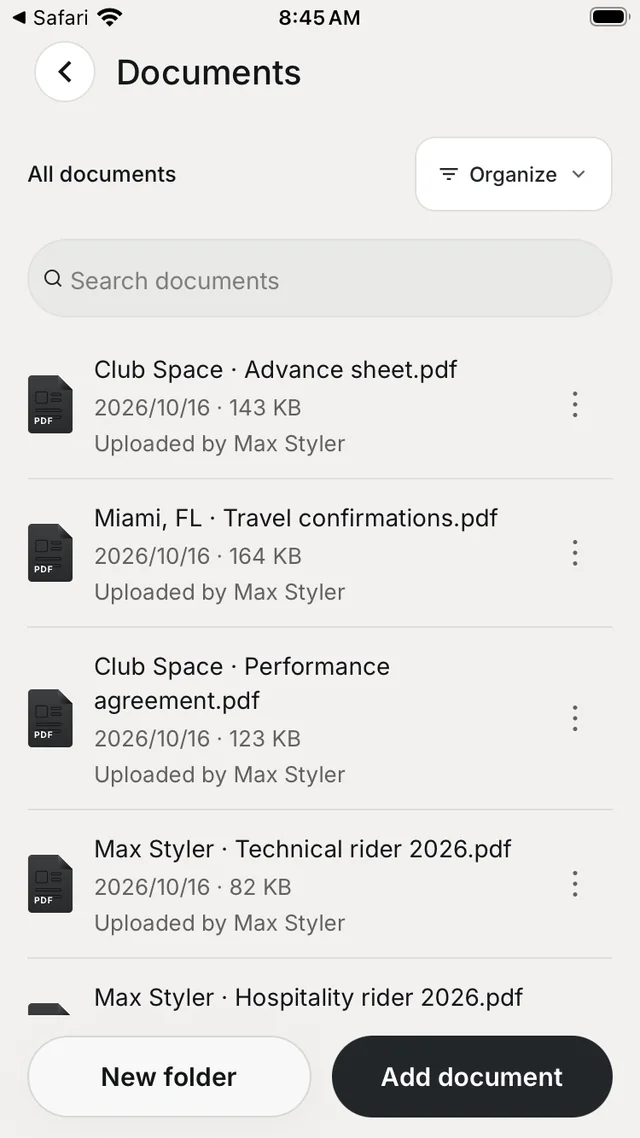
- Documents — contracts, riders and files in folders, with preview, New folder and Add document.