iPhone app
The tab bar, the header on every main screen, switching workspaces, search and the gestures that save time.
Every main screen shares the same tab bar and header, so once you know them you can reach anything in two taps.
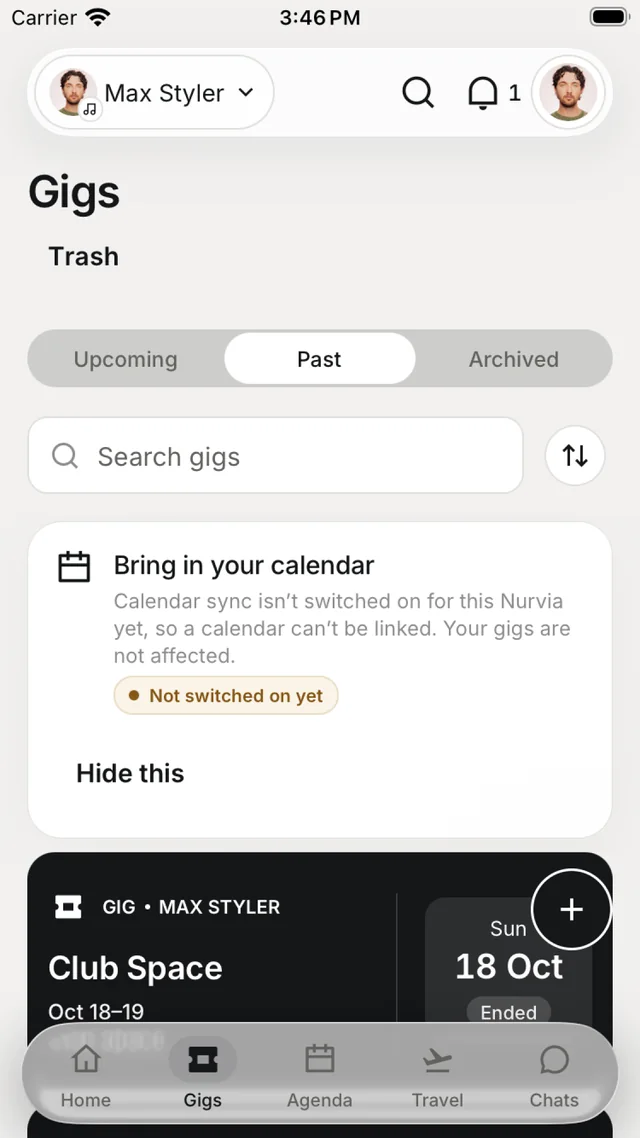
The tab bar
Five tabs run along the bottom of the screen:
- Home — your day at a glance, with Nuri and Triage at the top.
- Gigs (or Plans) — every gig in the workspace, split into Upcoming, Past and Archived, with search and sort. Trash holds deleted gigs.
- Agenda — a list, day, week or month view.
- Travel — flights, stays, rides and travel tools.
- Chats — team messaging, with an unread badge.
The second tab takes your workspace's own word: Gigs in music, Plans in Personal, or whatever your team chose.
The header
The same bar sits at the top of Home, Gigs, Travel and Chats.
| Control | What it does |
|---|---|
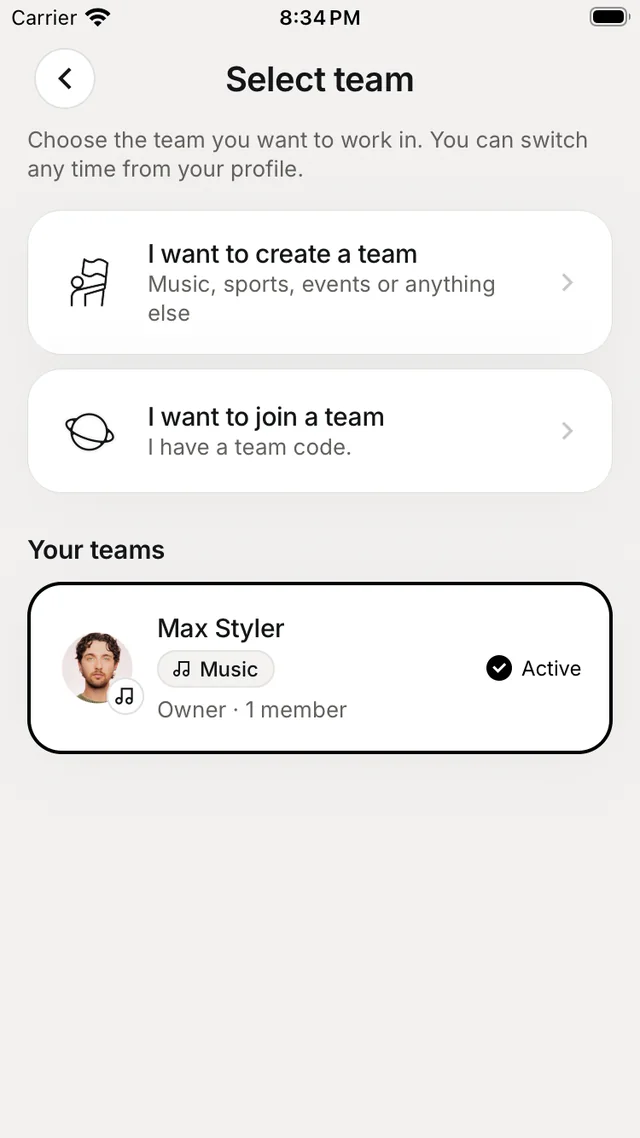
| Workspace name (left) | Opens Select team — switch workspace, create a team or join one with a code. |
| Search | Searches gigs, people, venues, stays, travel and documents. |
| + | Create a gig or plan, post an update to the team, or request a checklist. |
| Bell | Notifications, with an unread count. |
| Your photo (right) | Opens your profile; the gear there opens Settings. |
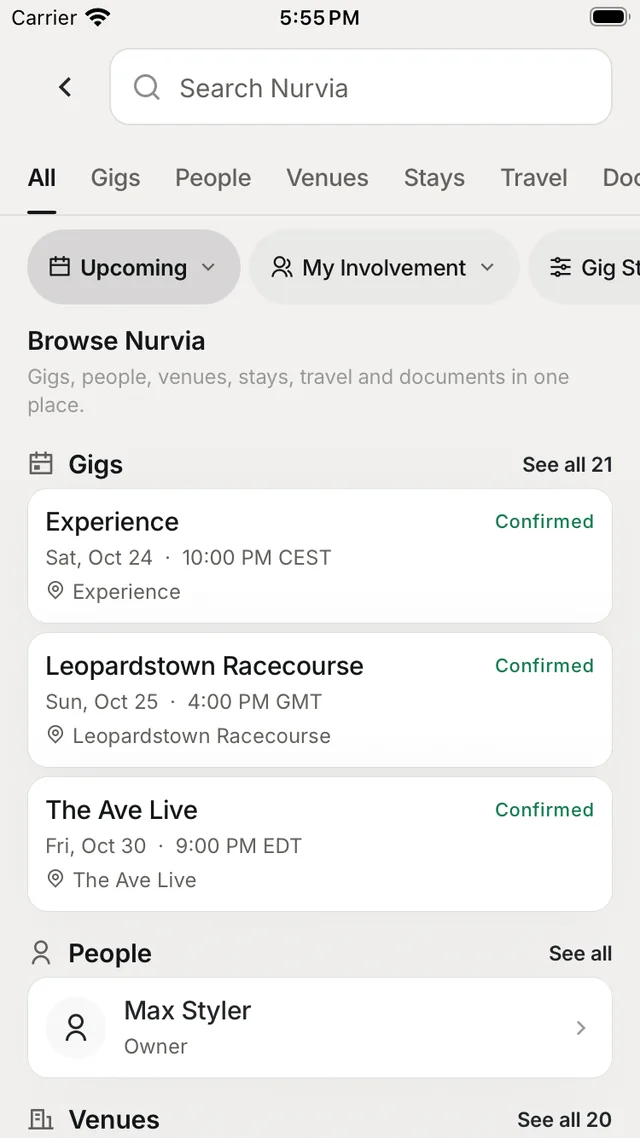
Search opens on Browse Nurvia: your gigs, people and venues in one place. Filter by time, your involvement or gig status, or switch tabs to search one kind of record. Archived plans are left out.
Gestures
| Where | Gesture | Does |
|---|---|---|
| Gigs list | Swipe right | Pin / Unpin |
| Gigs list | Swipe left | Archive or Delete |
| Travel list | Swipe right / left | Edit / Delete |
| Chats list | Swipe | Info, Mark read or unread |
| Message | Long-press | Reply, Copy, Pin, React, Delete for everyone |
| Notification | Swipe | Snooze (swipe again to wake) |
| Guest list + | Long-press | Add from the crew |
| Anywhere | Pull down | Reload |
Links
Nurvia links from email, chat or the web open straight in the app. If you're signed out, you land on the right plan after signing in.