Teams & settings
Run several workspaces from one organization — people, workspaces, artists, central billing, spending, policies, audit, webhooks and API keys.
An organization runs several workspaces from one place — an agency with a workspace per artist, or a company with teams, offices and clients. Private workspaces stay private: the organization sees only that a plan exists, never what it holds.
Where to find it
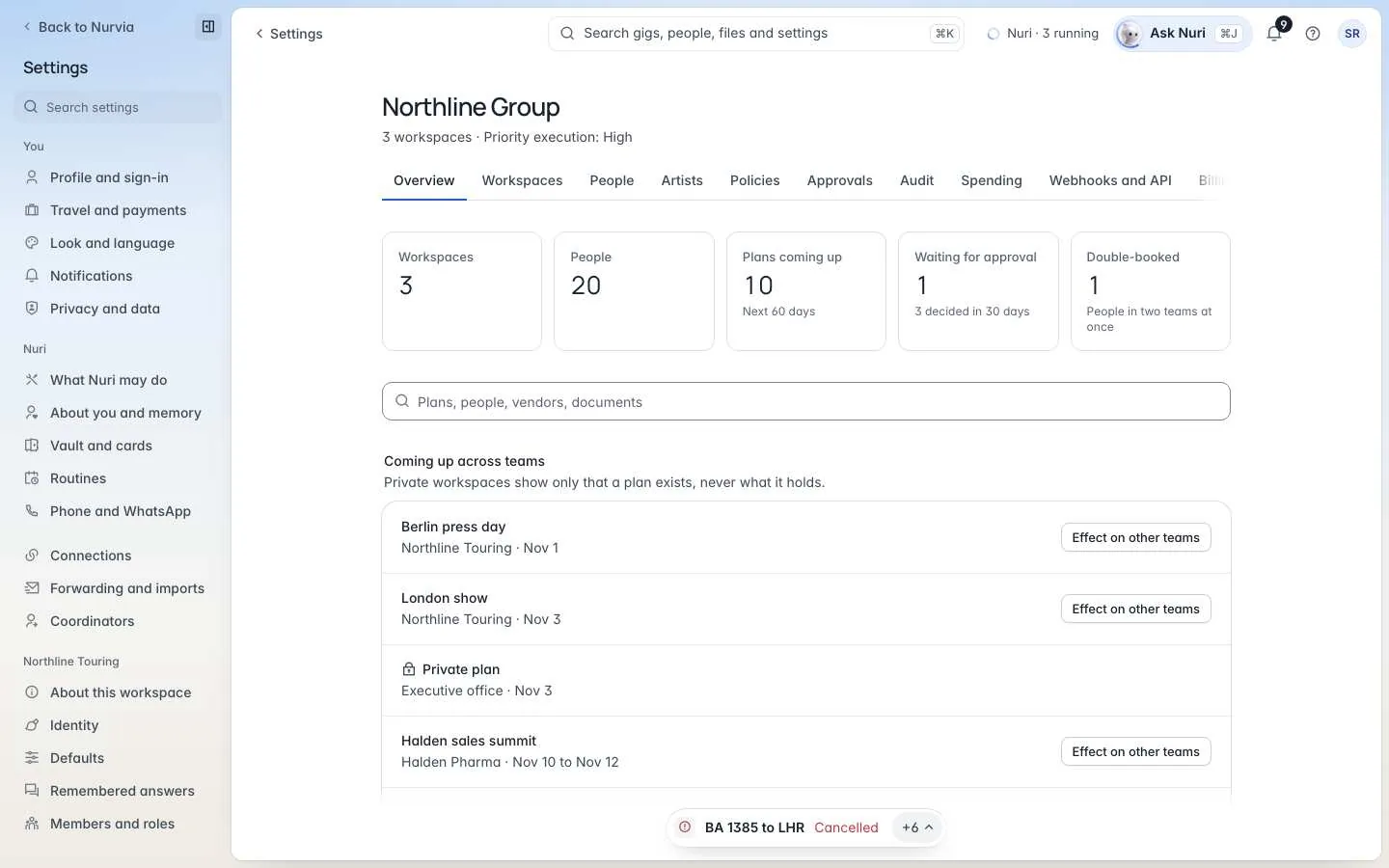
SettingsOrganization on the web. Its tabs are Overview, Workspaces, People, Artists, Policies, Approvals, Audit, Spending, Webhooks and API and Billing.
Add a workspace
Open Workspaces
Choose Add a workspace.
Create one, or link one you run
Choose New workspace, or One I run to bring in an existing workspace. Set its Kind — Client or Team or office.
Decide what the organization sees
Pick Organization sees outcomes, or Private so its plans stay with their owners. Add a Monthly spending limit if you need one. You're done when it shows in the Workspaces list.
Overview
- Coming up across teams and Waiting for approval.
- Double-booked — people in two teams at once.
- Search across teams — private workspaces are never searched.
- Default calendar format for the organization.
Sections
| Section | What's there |
|---|---|
| People | The directory and organization roles: Owner, Admin, Billing, Auditor or Member. |
| Workspaces | Teams and clients, a monthly spending limit per workspace, and what the organization sees. |
| Artists | Artists with and without a workspace. Their mail is never filed into another artist's workspace. |
| Policies | Organization rules and approvers per team. Check a request to test them. |
| Approvals and Audit | Records where each entry is chained to the one before, so an edited or removed entry shows. |
| Spending | This month by team. Private teams show a total only. Export it. |
| Billing | Bill every workspace together, with one Billing email. |
Webhooks and API
Nurvia-Signature header.