Teams & settings
Set access per area for people and groups, use presets, switch on extra abilities, and preview with See it as.
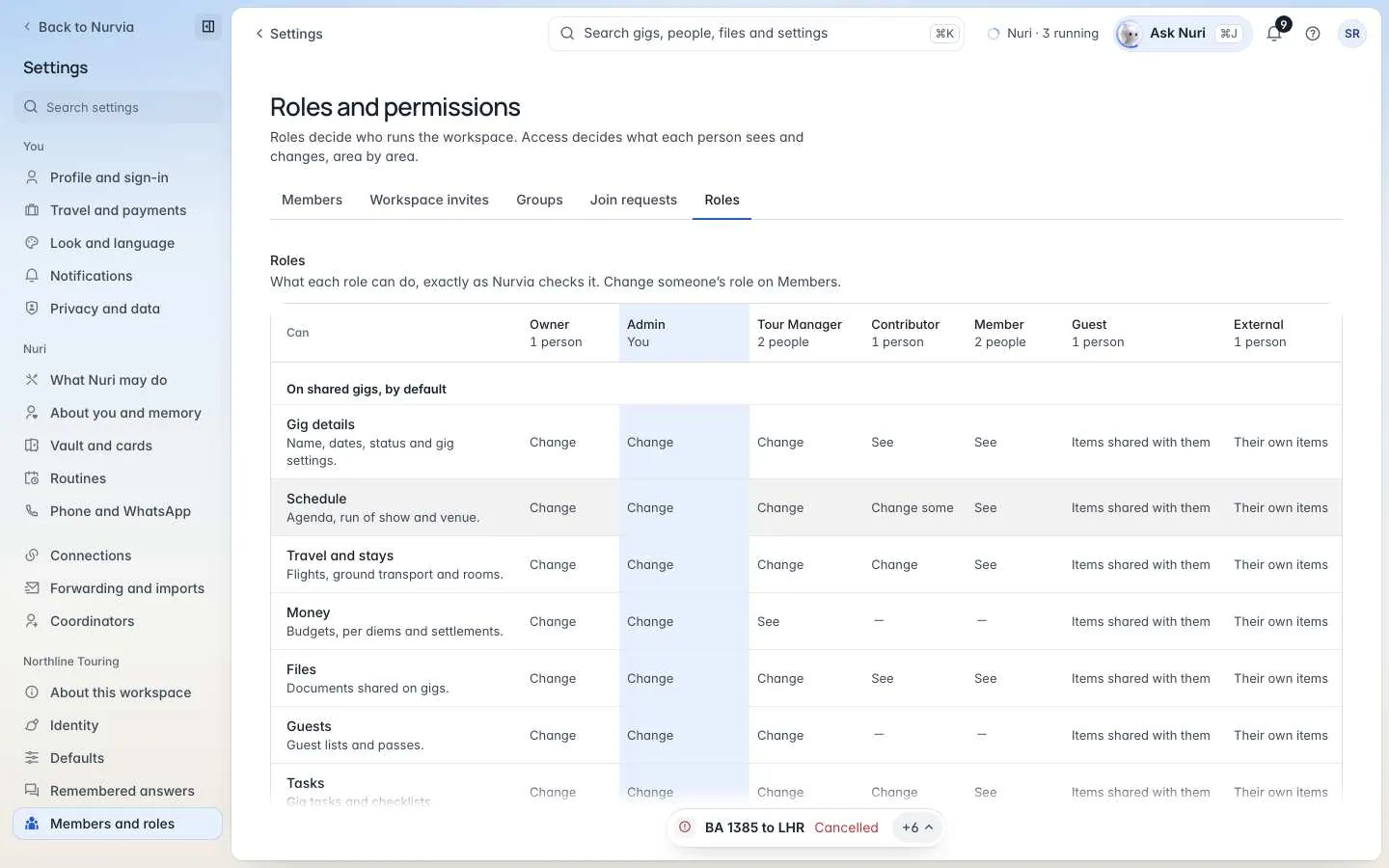
Fine-tune what each person or group can see and change, area by area. The grid shows what each role can do exactly as Nurvia checks it. For what each role means, see Roles and permissions.
Where to find it
| Platform | Path |
|---|---|
| Web | SettingsMembers and rolesRoles (Roles and permissions). |
| iPhone | ProfileTeams, then your team and its access settings. |
Change someone's access
Pick a person or a group
Switch the grid between Access by person and Access by group.
Set each area
For each area choose Off, View, Edit or Manage (on iPhone the top level is called Admin). Or use Access presets to apply a set in one click.
Check it with See it as
Use See it as to see the workspace through their eyes. Nothing changes. You're done when they see what they should, and nothing more.
Extra abilities
Switch these on for a person or a group:
Agenda, Travel, Accommodation, Venue, Guest list, Expenses & finances, Documents, Team & permissions, Chat, Location sharing, Run of show, Contacts, Crew data, Checklists, Settings and Local info. Extras: Approve guests, See finances, Share live location, See team location, Export data and Manage billing.
Admin, Manager, Standard, Logistics and Restricted.
You can't change your own access. A team admin sets who can change it — ask them for edit access.