Teams & settings
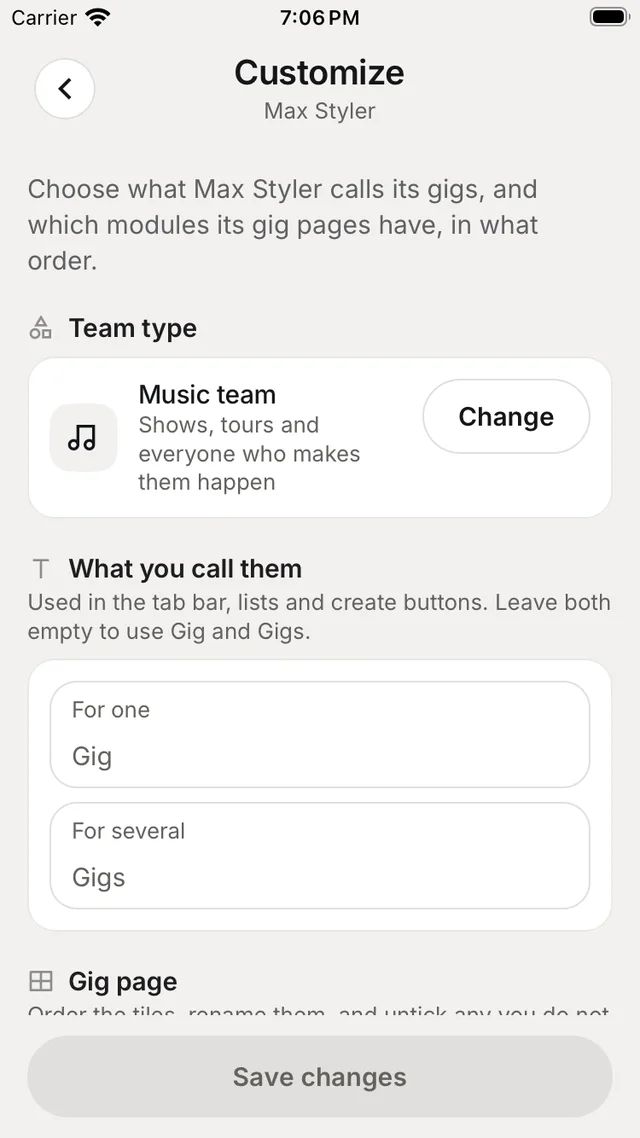
Create, join, customise, leave or delete a workspace — its name, logo, accent, the words it uses and its defaults.
A workspace holds a team's plans, people and settings. Admins set how it looks, what it calls things, and how new members, plans, chats and Nuri start out.
Where to find it
| Platform | Path |
|---|---|
| Web | The workspace switcher at the top of the sidebar, and the settings group named after your workspace: About this workspace, Identity, Defaults and Remembered answers. |
| iPhone | ProfileTeams to create, join or customise a team, or SettingsTeam settings. |
Create or join a workspace
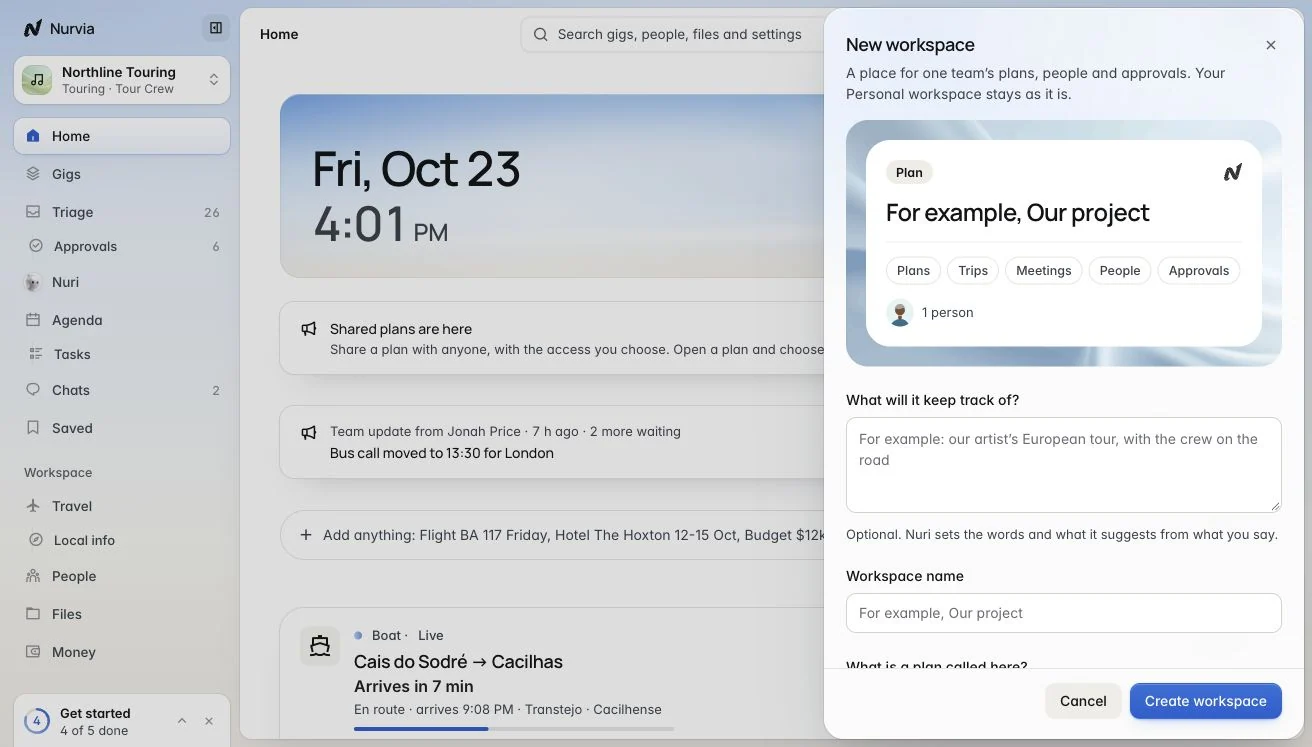
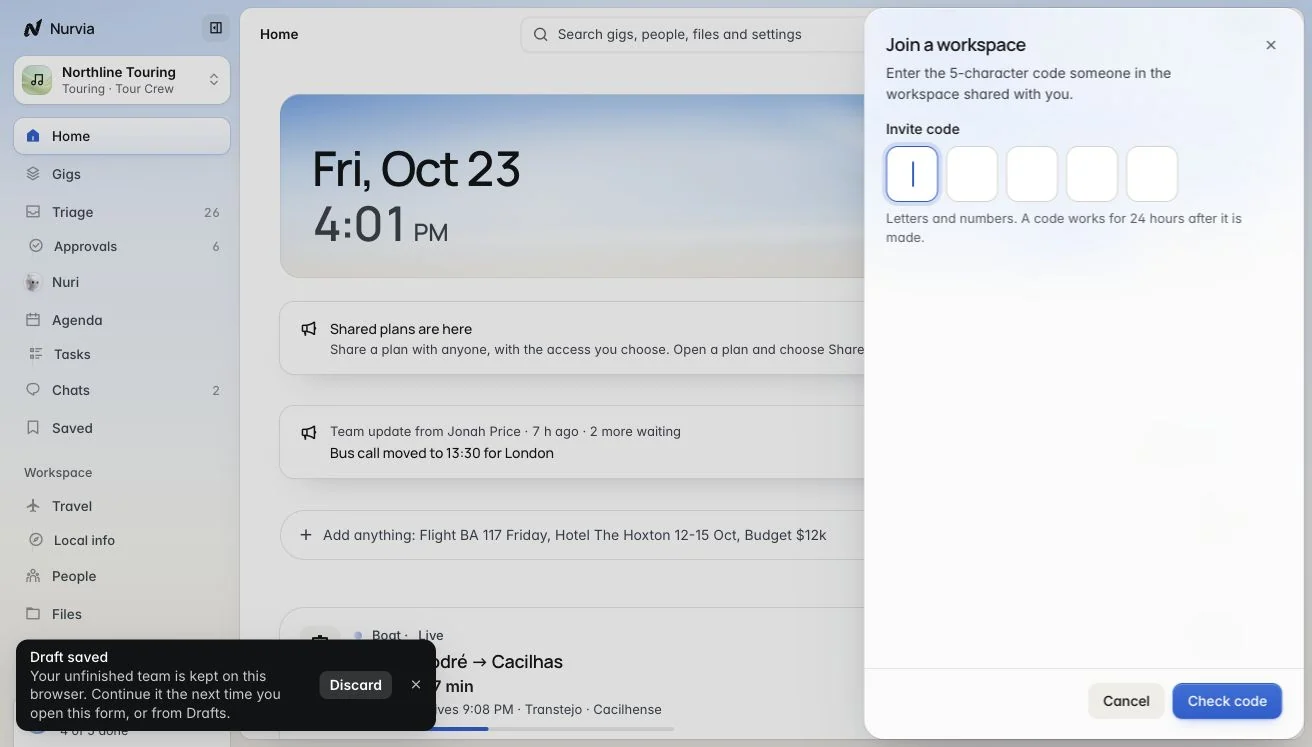
From the workspace switcher, or SettingsAbout this workspaceYour other workspaces:
- New workspace — you become its Owner.
- Join with a code — enter the 5-character team invite code and choose Check code. If you're already a member, your access stays as it is.
- Ask to join — open a workspace's ask-to-join link and add an optional note. An admin approves.
On iPhone, use ProfileTeams, then Create team or Join team.
Identity
SettingsIdentity — admins only. Each change saves at once.
Defaults
SettingsDefaults — admins only. Each person and chat can change their own afterwards.
Remembered answers lists the answers you chose to keep when making something new here. Ask me next time forgets one, so you're asked again.
Leave or delete
- Leave the workspace from About this workspace.
- Delete workspace (Owner only). You can download its data first, then type its name to confirm. Everyone else sees Leave instead.
Deleting removes it for everyone
Deleting a workspace removes every plan in it — with its travel, stays, files, guest lists and money — for everyone.
Your Personal workspace
Your Personal workspace is only yours. It has no members, roles, groups, team feed, team map, join requests or reimbursements. To plan with other people, create a team workspace — or share a single plan.