Skip to Content

Teams & settings

Notification settings

Choose what reaches your phone, browser and inbox — by topic — with quiet hours, a pause switch and critical changes that break through.

WebiPhone

What reaches you outside the app, and when. Pick topics for push and email, set quiet hours for the night, and decide whether a cancelled flight may wake you.

Where to find it

PlatformPath
WebSettingsNotifications, with two tabs: Push and quiet hours and Email.
iPhoneSettingsNotifications, and Live Activities just below it. See Notifications on iPhone.
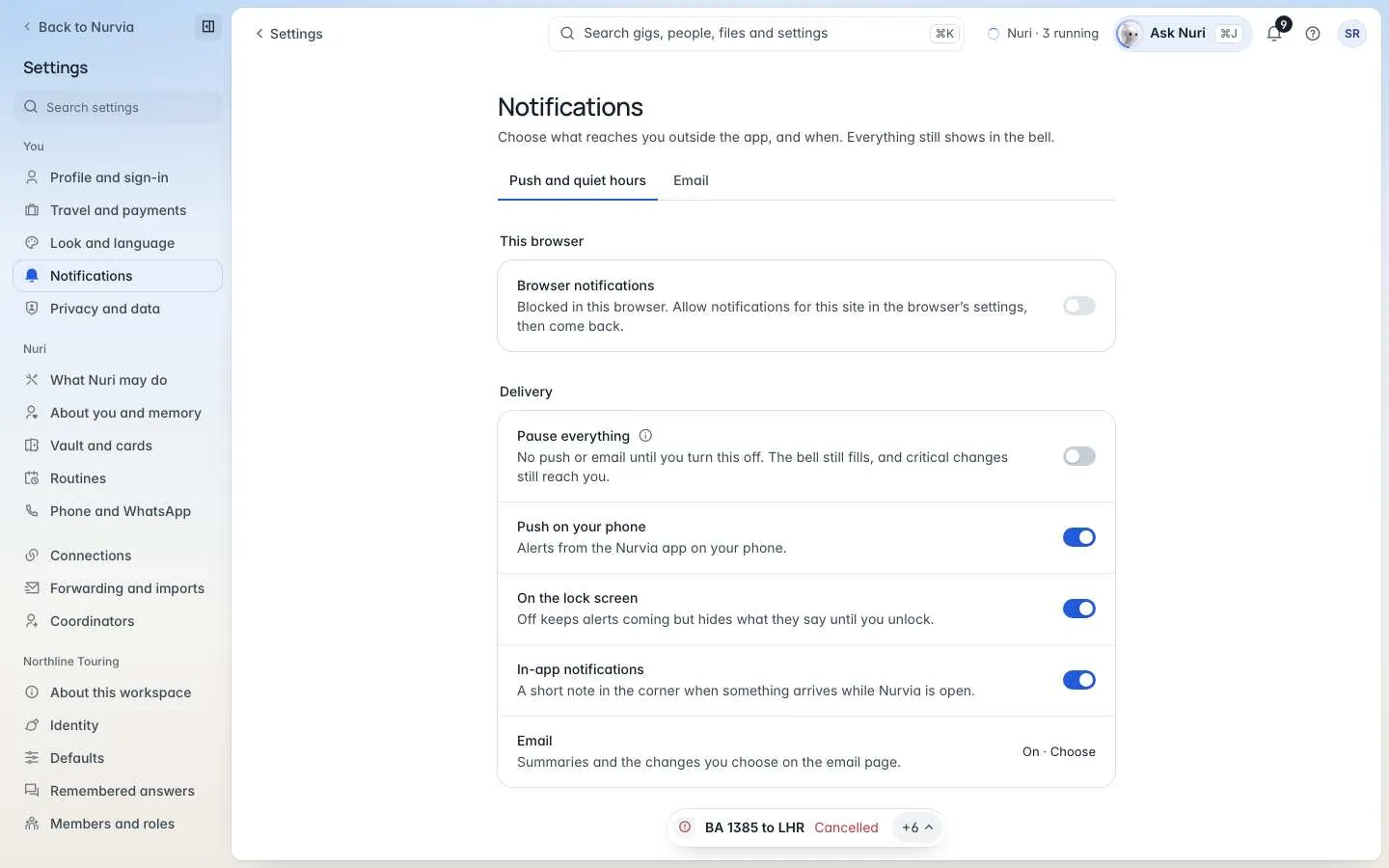
Notification settings with delivery switches, quiet hours and push topics

Delivery

Pause everythingSwitchDefault Off
No push or email until you turn it off. The bell still fills, and critical changes still reach you.
Push on your phoneSwitchDefault On
Alerts from the Nurvia app on your phone.
On the lock screenSwitchDefault On
Show alerts while your phone is locked.
In-app notificationsSwitch
Alerts while you're using Nurvia.
EmailSwitchDefault On
Changes and summaries by email. Set them up on the Email tab.

Quiet hours

Quiet hoursSwitchDefault Off
Hold pushes overnight. Reminders you set still fire at their time.
From and UntilTimeDefault 22:00–07:00
On your clock, in your time zone.
Critical changes break throughSwitchDefault On
A cancelled flight or a plan called off reaches everyone on it, at any hour. Turn it off and a cancellation during quiet hours waits until the morning.

Push by topic

Switch push on or off for each topic: Travel · Plan changes · Tasks and reminders · Messages · Nuri · Team updates · Usage and billing (warnings at 80% and 95% of a limit).

Flight delaysChoiceDefault 15 min or more
Any delay, 15 min, 30 min or 1 hour or more. Shorter delays stay in the bell. Cancellations always push.
Live journeySwitches
Follow Flights, Shows, Stays and Rides live — boarding and gate, doors and set times, check-in, pickups.
Daily push of what changedSwitch
One push a day with the changes from emails, calendars, files and people. It waits for your quiet hours.
PeopleSwitches
Tell me when someone asks for an update, changes plan details, sends me a message, Nuri replies, or Crew members join.

Email

SummaryChoice
Off, Daily or Weekly — a summary of your plans.
When a plan changesSwitch
An email when a plan you're on changes.
From NurviaSwitches
Product updates, Blog & stories and Events & invites, with Unsubscribe from all marketing email.

Account and security emails always keep coming while you have an account. Send a test email to check delivery. Every email links to a preferences page that works without signing in.

Get notifications in this browser

Turn them on

On the web, open the This browser section and switch on Browser notifications. Allow them when your browser asks.

Send a test

Choose Send a test. You're done when the test notification appears on your screen.
On this page