Web app
The bell, the Notifications page, and how changes reach you on the web.
Notifications tell you what changed on your plans, travel and messages — a flight that moved, a guest who asked for a spot, a reply from Nuri. Decisions you need to make live in Triage; the bell is for news.
Where to find it
- Web: the bell in the top bar opens your latest notifications, with a line to Triage at the top. For the full page, press ⌘ K and choose Notifications.
- iPhone: the bell at the top of Home. See Notifications on iPhone.
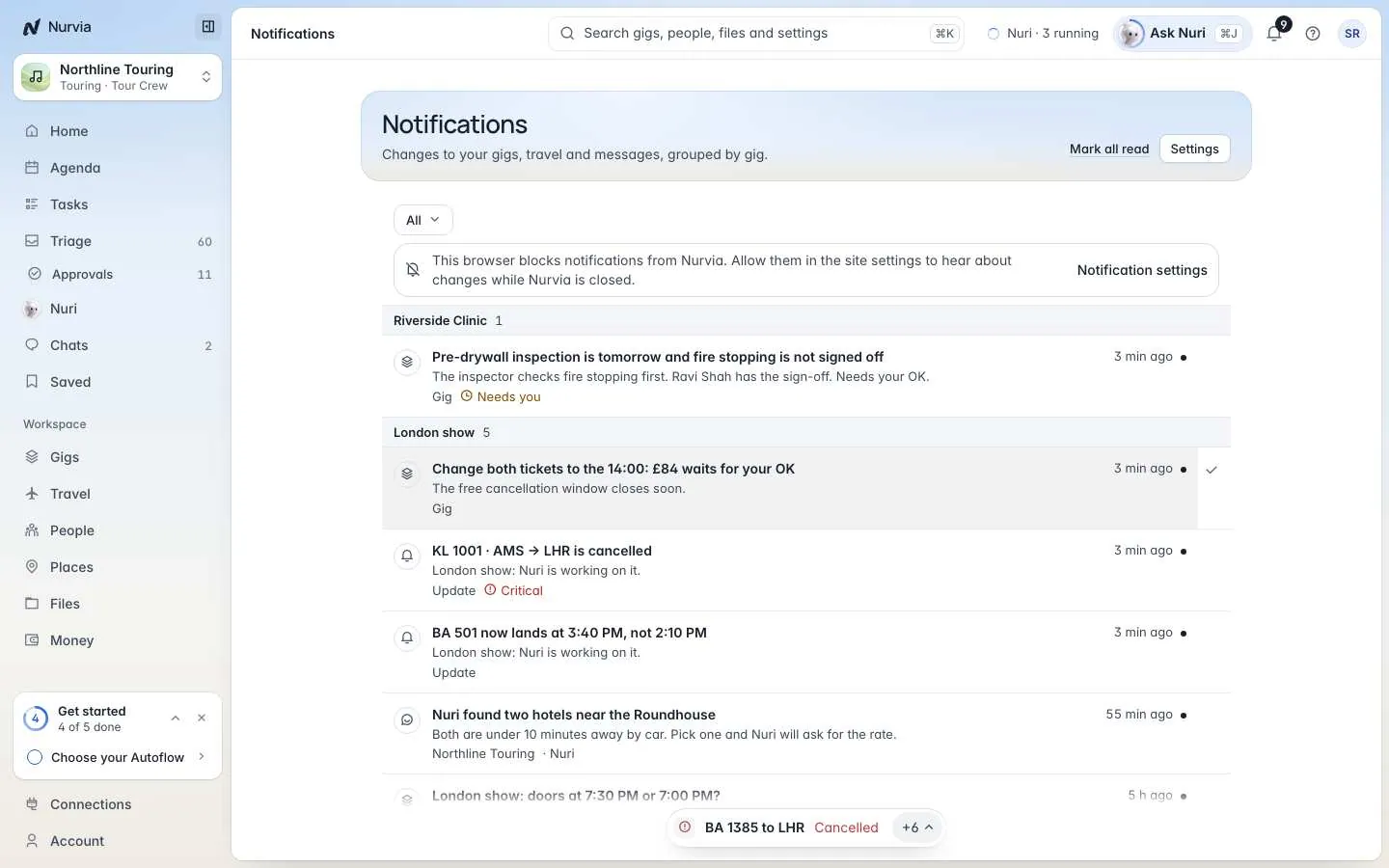
Notifications are grouped by plan, newest first. When you belong to more than one workspace, each row names its own.
Work through your notifications
- Filter to All, Travel, Messages or Nuri.
- Click a notification to open what it's about. Hover a row and choose Mark read to clear it without opening it.
- Mark all read clears the lot.
- Snooze a notification from its menu — Snooze for an hour or Snooze until tomorrow. It comes back on its own; Wake it now brings it back early. Show snoozed ones with the snoozed count at the bottom.
Get alerts in your browser
Open notification settings
Go to SettingsNotifications, or choose Settings on the Notifications page.
Turn on this browser
Under This browser, switch on Browser notifications and allow them when your browser asks.
Send a test
Choose Send a test to check it works.
If your browser blocks Nurvia, allow notifications for the site in your browser's settings, then come back. For phone alerts, install the iPhone app.
Critical changes break through
A cancelled flight or a plan called off reaches everyone on it, at any hour — even during quiet hours or when everything is paused.