Web app
The plan page — its sections, the More menu, editing details, saved views and who can see it.
Every plan has one page with everything about it — schedule, travel, stays, people, money and files. Open a plan whenever you need to see or change one thing in depth.
Where to find it
- Web: open Gigs or Plans in the sidebar and click a plan. You can also find it with ⌘ K.
- iPhone: tap a plan in the plans tab (Gigs in a music workspace) to open its hub. See The plan hub.
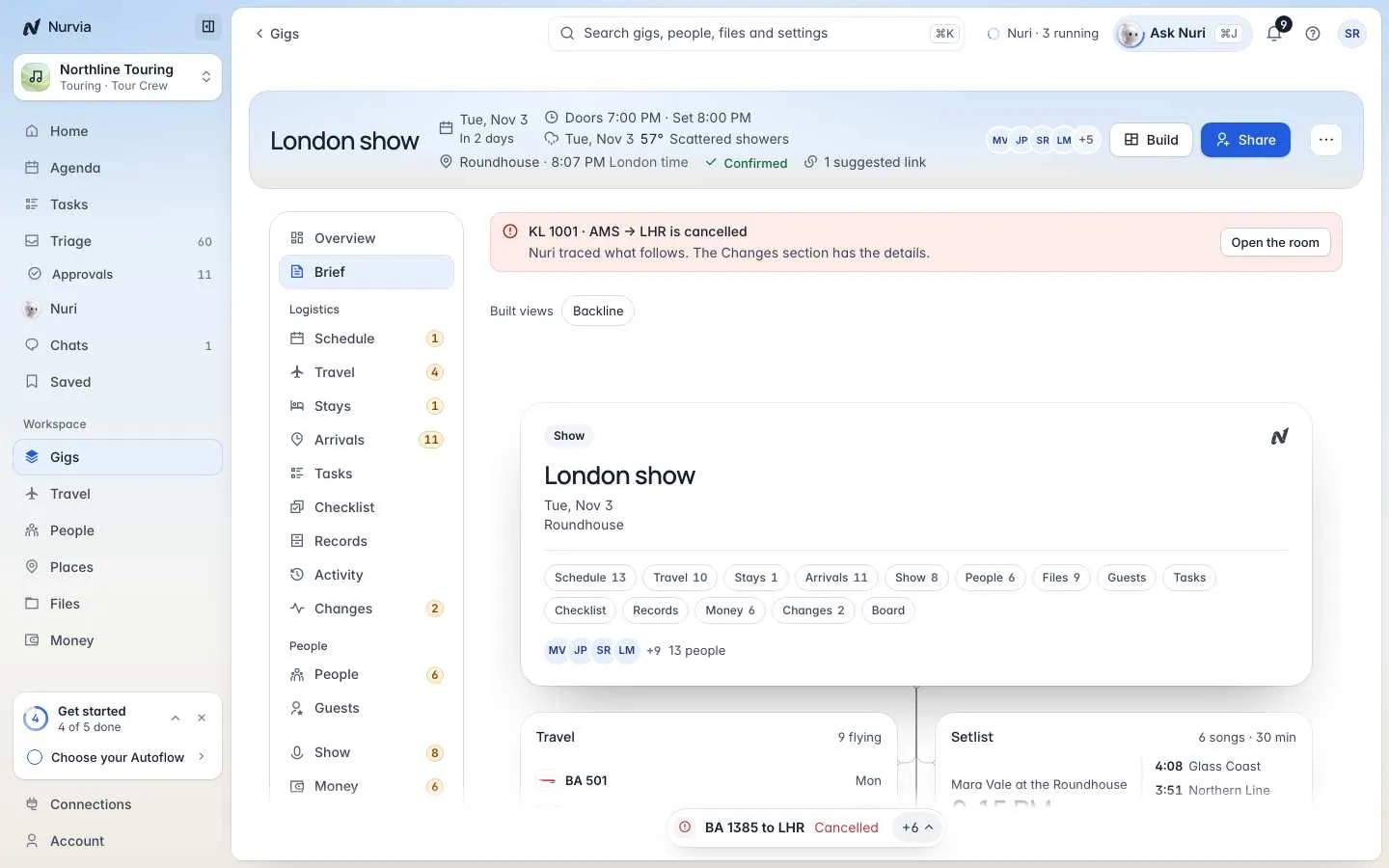
The header shows the plan's name, dates, place, local time (when it differs from yours), weather and status. On the right are the people on the plan, Build, Share and the ⋯ menu. Alerts like a cancelled flight sit just below — Open the room takes you to the disruption room.
Common jobs
Move between sections
Click a section in the list on the left. On a smaller screen they become tabs along the top. Press G then a letter to jump — see Keyboard shortcuts.
Add to the plan
Each section has its own Add — for example Add to schedule, Add travel or Add a stay. You can also paste rows from a spreadsheet or email, or forward the confirmation and let Nurvia file it.
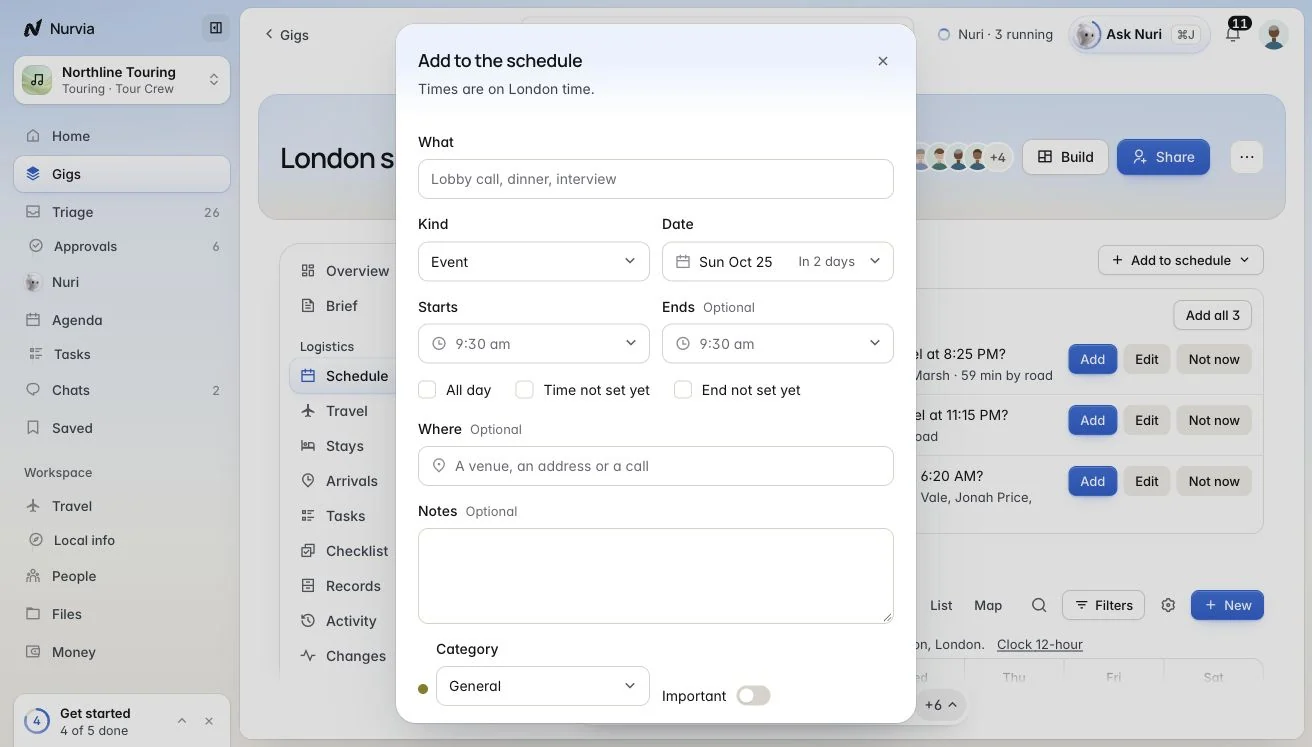
Arrange the sections
Choose Arrange to move sections up or down inside their group. Overview and Brief always stay first, and arranging never hides a section.
Sections
Sections are grouped into Logistics, People, Show, Money, Files and Panels. A plan starts with the sections that fit its kind, and names follow the workspace — for example Itinerary in Personal or Call sheet in Production.
| Section | What's in it |
|---|---|
| Overview | Key times, what's next, the stay with check-in and booking reference, directions, day contacts, weather, jet lag plan and latest costs. The Journey view lists everything in order and flags conflicts. |
| Brief | The plan at a glance, with a chip for every section. Each time is local to where it happens. |
| Schedule | The running order. Add to schedule, paste rows, or forward the day sheet. Schedule checks finds clashes. |
| Travel | Itinerary, Grid, People and Map views. Add travel, Import flights, Manage travellers, Export the itinerary. |
| Stays | Add a stay by hotel name, or paste or forward its confirmation. Compare stays. |
| Arrivals | Who lands when, with pickups. |
| People | Everyone taking part, with role and party. People from bookings are added for you. Sharing and delegates live here too. |
| Guests | The guest list. See Guest lists. |
| Show | Show timing (load-in, soundcheck, doors, set, curfew), venue access, parking, stage, hospitality and Wi-Fi. |
| Tasks / Checklist | To-dos for this plan. |
| Money | Expenses, budget, per diems, settle up and deposits. Hidden without money access. |
| Files | Uploaded files, plus files that came with the plan's mail. |
| Records | Permits, kit, passes, holds and a packing list. |
| Changes | Every change Nuri watched and who was told. What if lets you try a change before it happens. |
| Activity | Facts with their sources, where sources disagree, and history. |
| Board | Panels made with Build. |
The ⋯ menu
The ⋯ button in the header holds everything else you can do with the plan.
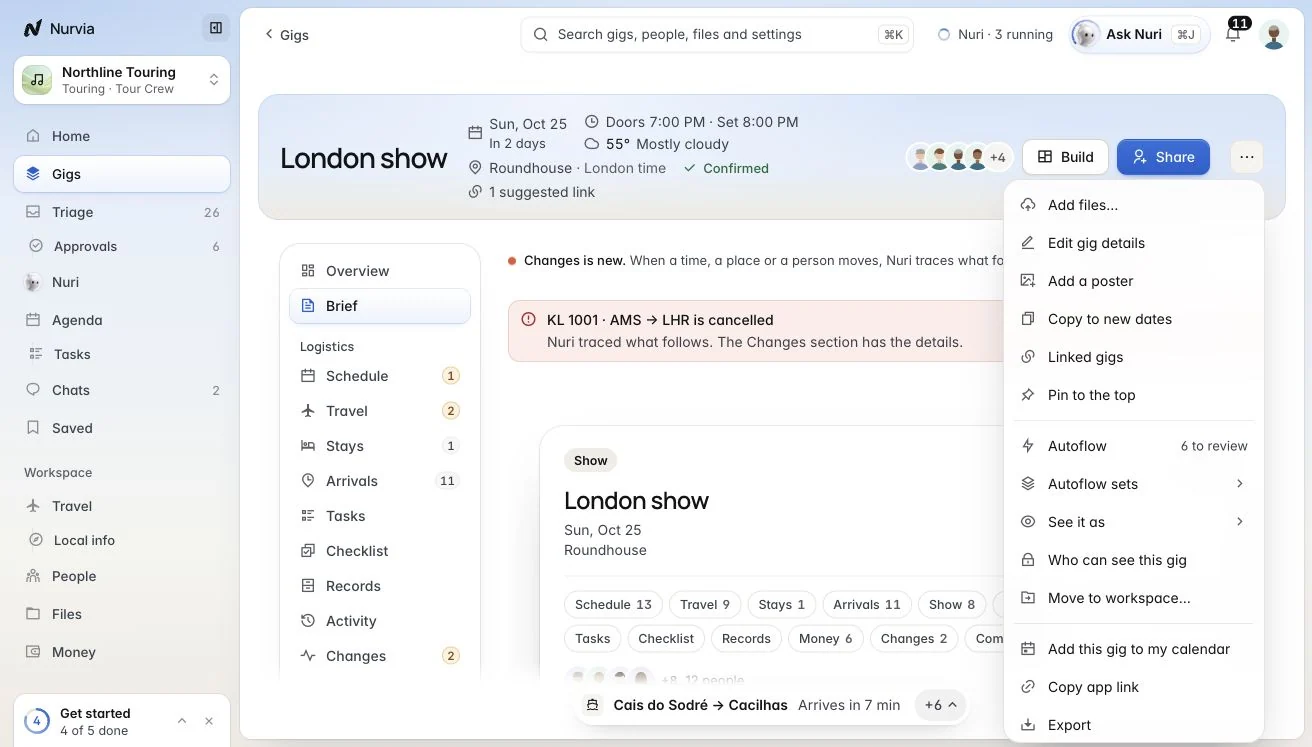
Top
Share
Manage
Move to workspace… shows what moves and what doesn't before you confirm, then offers Undo.
Edit plan details
Choose Edit gig details (or Edit plan details) in the ⋯ menu.
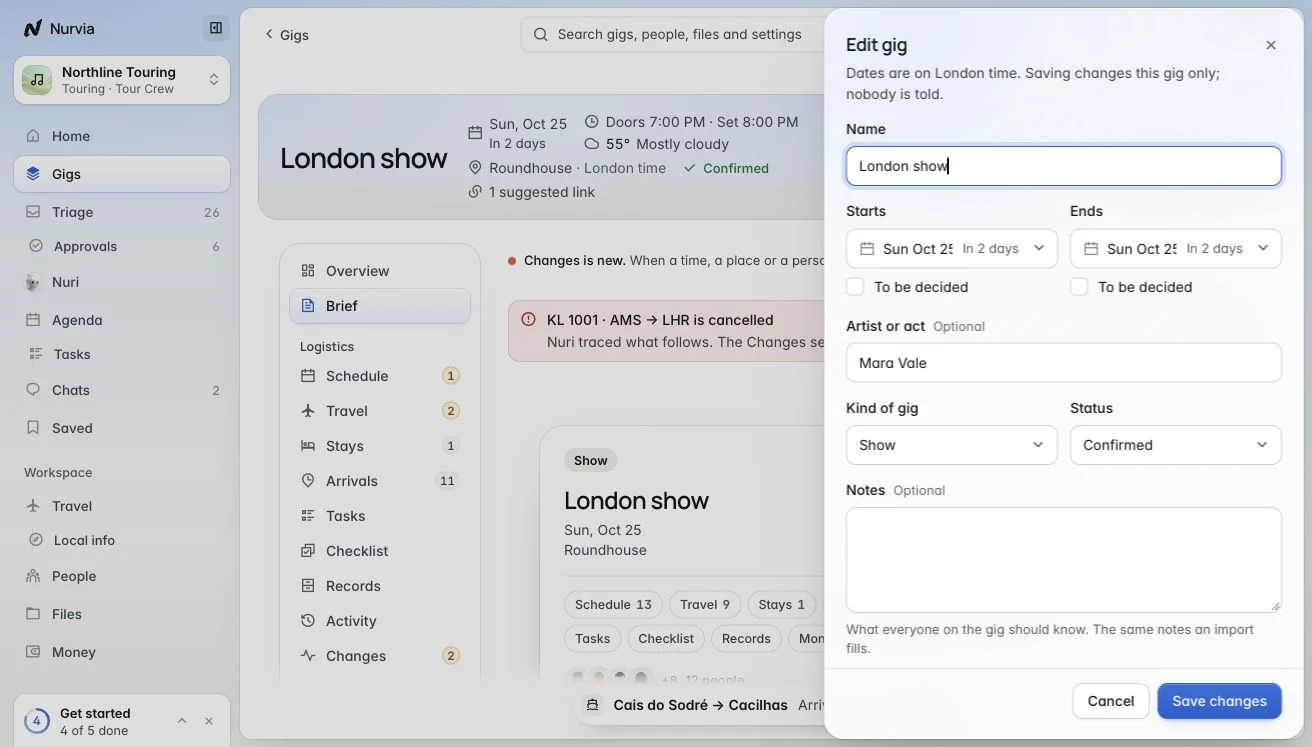
You can change the Name, Starts and Ends (or To be decided), Artist or act, Kind, Status and Notes — what everyone on the plan should know. Saving changes this plan only, and nobody is told.
Who can see this plan
In a team workspace, choose Who can see this plan in the ⋯ menu:
- Everyone in the workspace — Managers and up see all of it; View only members see its main details.
- Only people added — the people on this plan, plus the workspace's Owner and Admins.
Before you save, Nurvia names exactly who loses or gains access. To check what someone sees, use See it as and pick a role. See Roles and permissions.
Saved views
Arrange a plan the way you like it and choose Save view — for Just me, or for everyone on the plan (Managers only). You can also Pin to Home.