Teams & settings
Your profile, username and email, password, two-step sign-in, Google and Apple sign-in, and the devices you're signed in on.
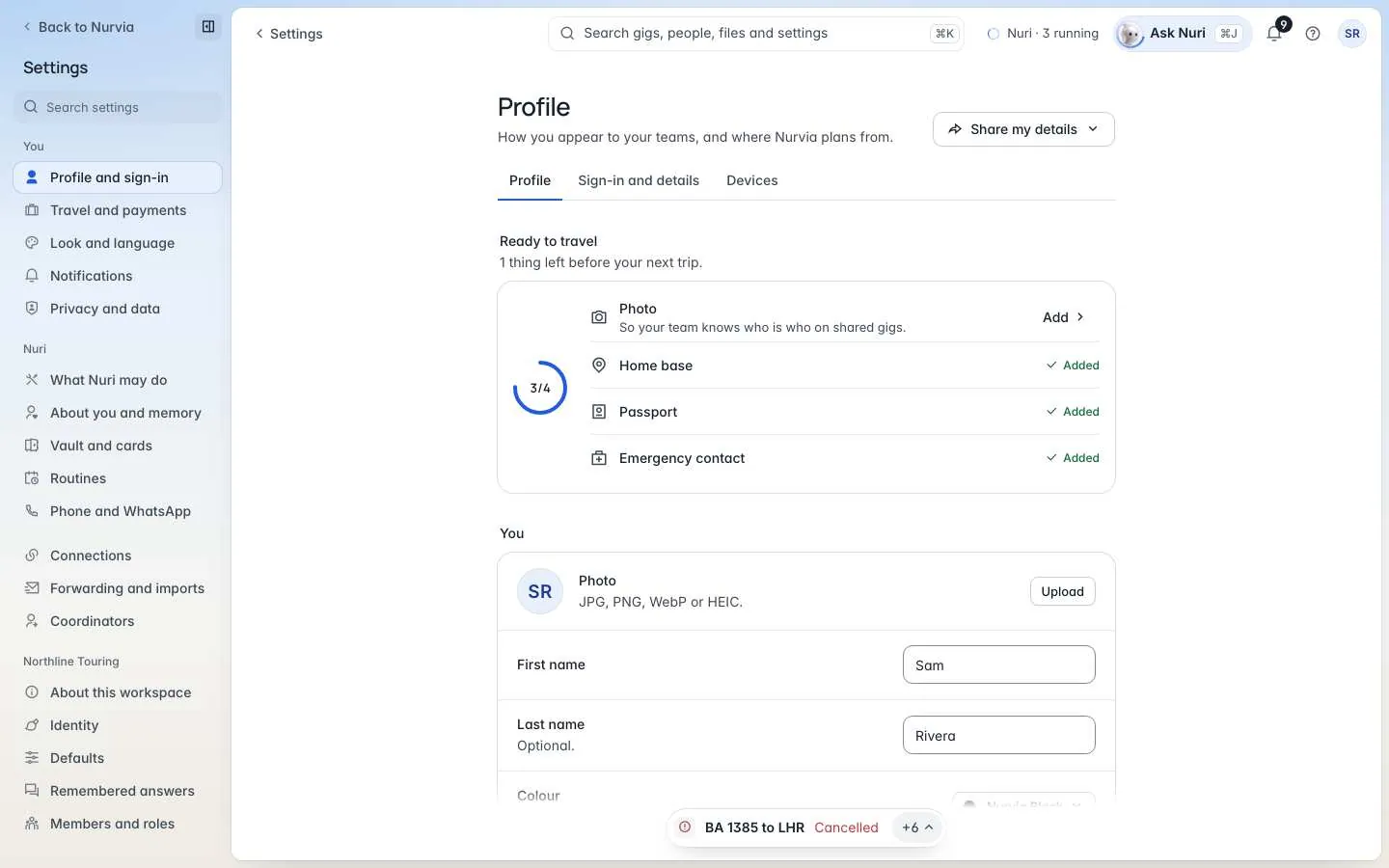
How people on your teams see you, how you sign in, and where you're signed in. Turn on two-step sign-in here — it's the single best way to protect your account.
Where to find it
| Platform | Path |
|---|---|
| Web | SettingsProfile and sign-in, with three tabs: Profile, Sign-in and details and Devices. |
| iPhone | SettingsAccount settings (the row shows your name), and SettingsDevices. |
Turn on two-step sign-in
Add Nurvia to your authenticator app
Choose Two-step sign-in, then scan the code. On iPhone you can tap Open in your authenticator app or copy the Setup key instead.
Save your recovery codes
Save Your recovery codes somewhere safe. Each works once, and they get you in if you lose your phone.
Sign in with a code
Next time you sign in, enter the 6-digit code from your app — or choose Use a recovery code instead.
Profile
The Ready to travel card shows what's left to add — photo, home base, passport and emergency contact. Share my details saves you as a contact card or copies your profile link.
Sign-in and details
Devices
Where you are signed in lists every session. Sign out of one, or Sign out of all other sessions. The web also lists the browsers that get notifications.
iPhone updates keep you signed in
The iPhone app keeps your session in the iOS Keychain, so app and over-the-air updates never sign you out. You only sign in again after Log out, if your session expires, or if you delete the app.
Choose Forgot password? on the sign-in page and enter your email. Enter the recovery code we send (it works for 15 minutes), then choose a new password. If you signed up with Apple or Google, sign in with those instead.
At sign-in, choose Use a recovery code instead and enter one of your saved codes. Then set up two-step sign-in again on your new phone and save the new codes.