Web app
Every file across your plans plus team folders — with what Nurvia read from each one and its versions.
WebiPhone
Files holds every file on your plans — riders, call sheets, contracts, itineraries, guest lists — with the plan named on every row. Open one to see what Nurvia read from it.
Where to find it
- Web: Files in the sidebar. Each plan also has its own Files section (press G then F on a plan).
- iPhone: a plan's Documents. See The plan hub.
Production workspaces call it Call sheets; Healthcare calls it Credentials.
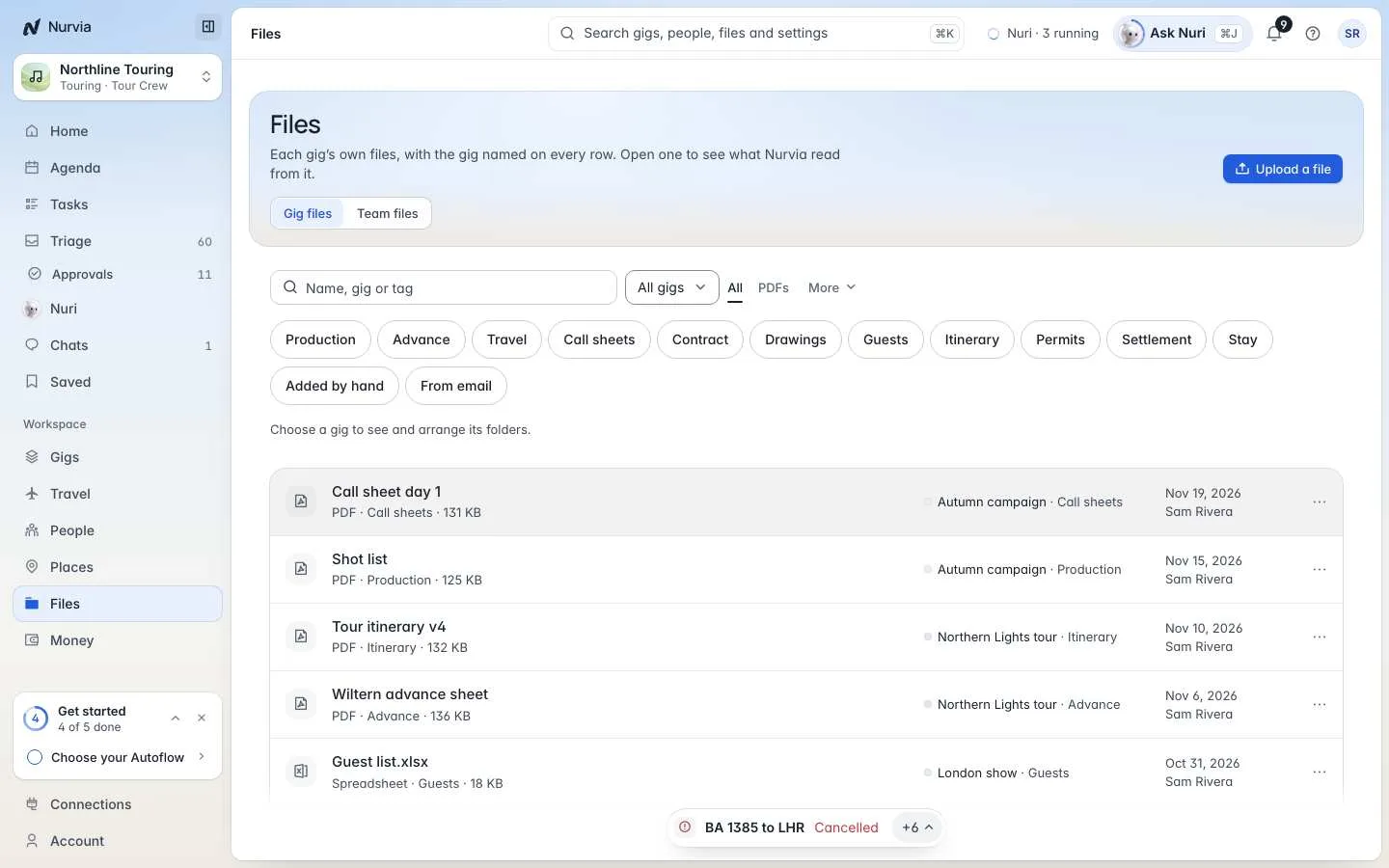
Find a file
- Switch between Plan files (in music workspaces, Gig files) and Team files — folders the whole team keeps.
- Search by name, plan or tag, and narrow by plan, type (PDFs, images, docs and sheets, other) or tag.
- Older copies are marked Replaced by a newer version.
Upload a file
Choose Upload a file
Choose Upload a file, or drop the file on a plan's Files section.
Pick the plan
Choose the plan it belongs to. Nurvia reads it and links what it finds to that plan.
Team files are added by the Owner, Admins and Managers; everyone on the team can read them.
A file's page
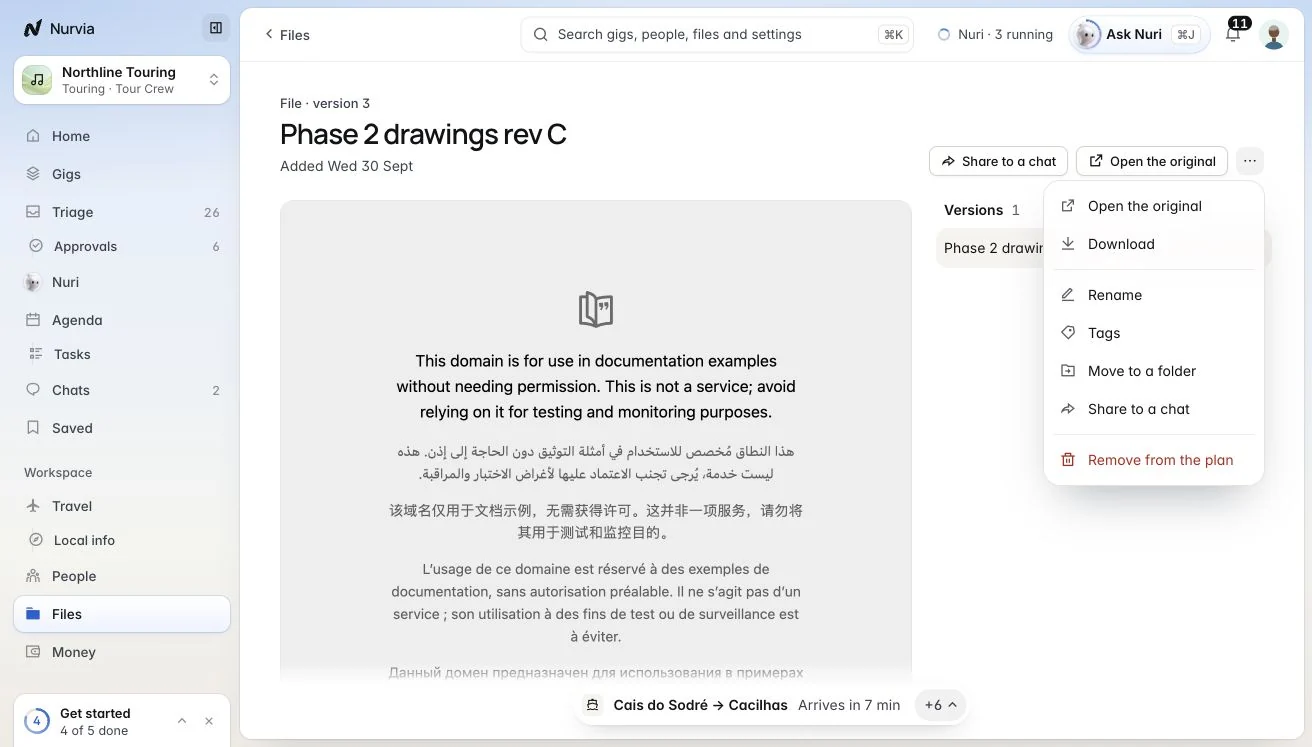
- What Nurvia read here — each value, marked where it was read from.
- Versions, a Preview, and Open the original — or Open with its password for a protected file.
- Who sees this — change who on the plan can see the file.
- Share to a chat.
Files are read as text
Nurvia shows what's in a file as text. It never follows instructions written inside a file.