

Email & calendar
Bring Google, Outlook, phone and iCal calendars into Agenda, put your plans on a calendar, and choose one-way or two-way sync.
Link a calendar and Nurvia keeps it and your plans in step: your calendar's events show in Agenda, your plans show in your calendar, or both. Each linked calendar has its own direction, and Nurvia only changes events it added.
Where to find it
- Web — SettingsConnections, then Calendars and feeds under Other ways in.
- iPhone — SettingsConnections, then Calendar rules.
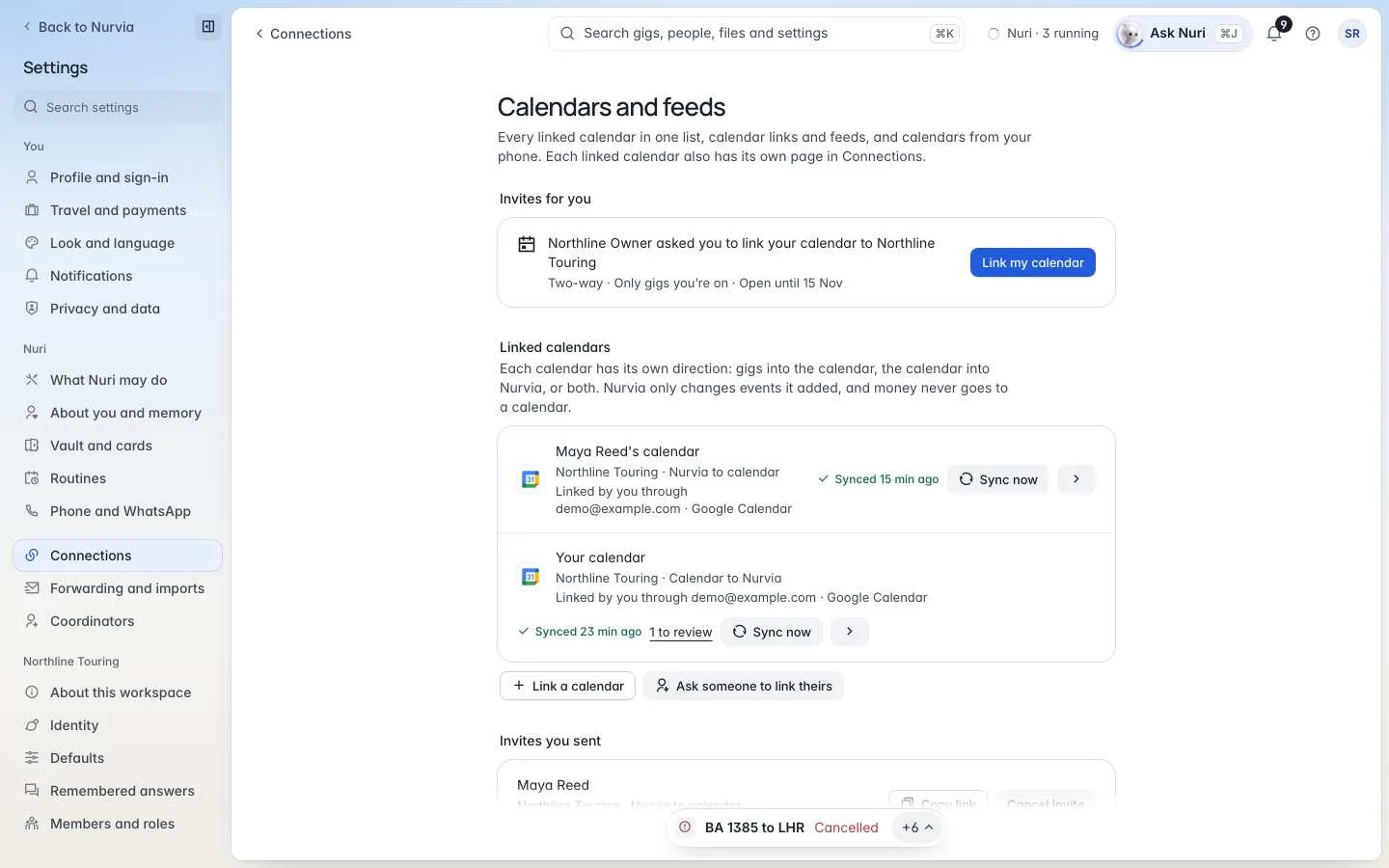
Link a calendar
Connect the account
Choose Link a calendar (or Connect an account > Calendar) and sign in with Google or Microsoft.
Pick the calendar
Under Which calendar?, pick one of your own calendars, or one shared with you that you can write to.
Choose where and which way
Link it to a workspace or Personal, then Which way?: Nurvia to calendar (your plans go onto it), Calendar to Nurvia (its events come into Agenda) or Two-way.
Choose what comes in
Pick the kinds of event — shows, flights, hotels and stays, ground transport, personal events, meetings — and, in agency workspaces, which artist's events to import.
Other calendars
- Google Calendar — pick which calendars to read into Agenda. Nothing is written until you allow it.
- Outlook — import an Outlook calendar into Agenda.
- Calendar links — subscribe to any iCal or webcal link: a booking site, a school or a team calendar. Events come in marked with where they came from.
- Phone calendars — on iPhone, pick calendars from your phone. Only the ones you pick, from 30 days back to a year ahead; never guests or alerts, and nothing on your phone is changed.
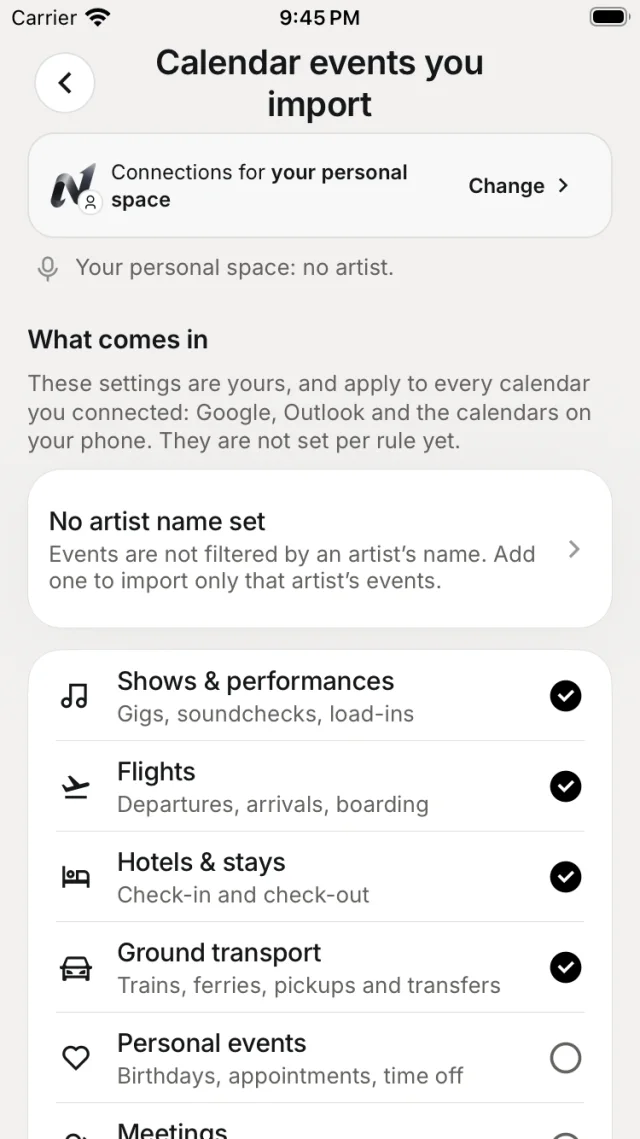
A linked calendar's page
Each linked calendar shows when it last synced and anything to review. On its page:
- Which way it syncs and How events are written — what goes on the calendar, how much detail, and a preview of how each event will read.
- Sync now, Pause and Unlink calendar — when you unlink, you can also remove Nurvia's events. Your own events are never touched.
- Activity — what it brought in and wrote.
A read-only calendar can bring events in, but Nurvia can't add events to it.
Two-way sync
Two-way changes to your calendar are opt-in: turn on Update my calendar when I change a gig in Nurvia (or plan). It updates only events you organised — times, place and title. Events with other guests ask you first, and nothing is ever deleted.
If both sides changed the same event, choose Keep Google's or Keep Nurvia's.
What never goes on a calendar
Entry and access codes, passport details, payment details, medical details and private notes are never written to any calendar. Fees and deal lines are left out too.
Teammate calendar invites
A workspace can ask you to link your calendar — it shows under Invites for you. Choose Link my calendar; only plans you're on go onto it. Admins can use Ask someone to link theirs to send an invite.
Related
Reviewing finds
Check what Nurvia read from an email next to the original, fix fields, pick the right plan, and bulk-import files.
Calendar export and feeds
Put your plans into Apple, Google or Outlook calendars — one item at a time, as the Nurvia calendar, as a feed, or as a synced workspace calendar.