Web app
Who's on which plan each day, where two plans need the same person — and the full log of everything that happened.
Web
Operations shows a team's people across all its plans, so you can spot double bookings before they happen. Activity is the record of everything Nuri, your rules and your team did, with the proof.
Where to find it
- Operations (team workspaces): press ⌘ K and choose Operations.
- Activity: in Triage, open the ⋯ menu and choose Every receipt in Activity, or follow Activity from a rule in Autoflow.
Operations
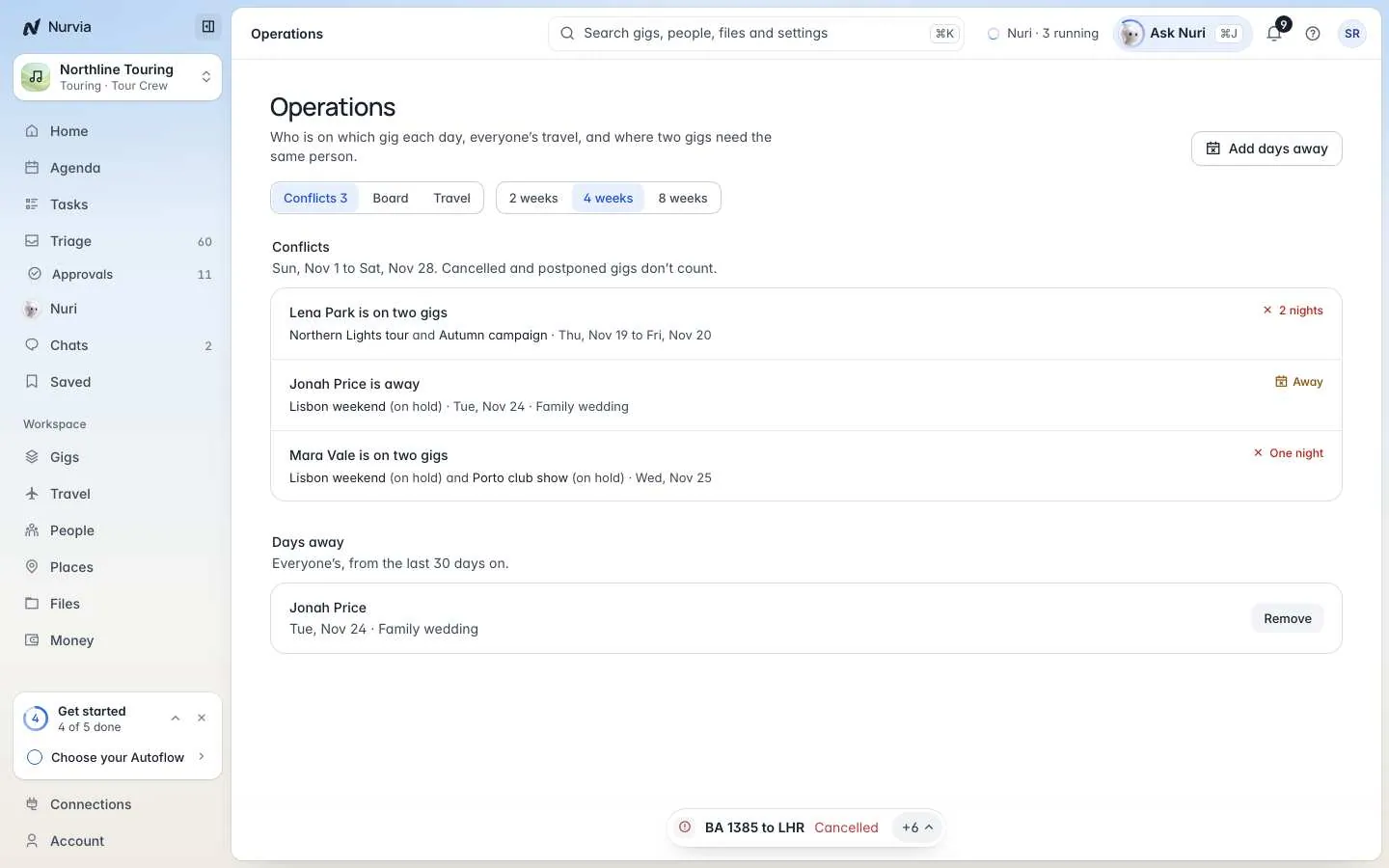
Switch between three views, over 2 weeks, 4 weeks or 8 weeks:
| View | What it shows |
|---|---|
| Conflicts | Where two plans need the same person at once, or someone is away. Cancelled and postponed plans don't count. |
| Board | Who is on which plan each day. |
| Travel | Everyone's travel across the plans. |
Add days away
Choose Add days away
Choose Add days away at the top of Operations.
Pick the dates
Set From and To, and add a Note if you like. Leads can add days away for someone else under Who. Leads then see the days against every plan, and they show under Conflicts when they clash.
Activity
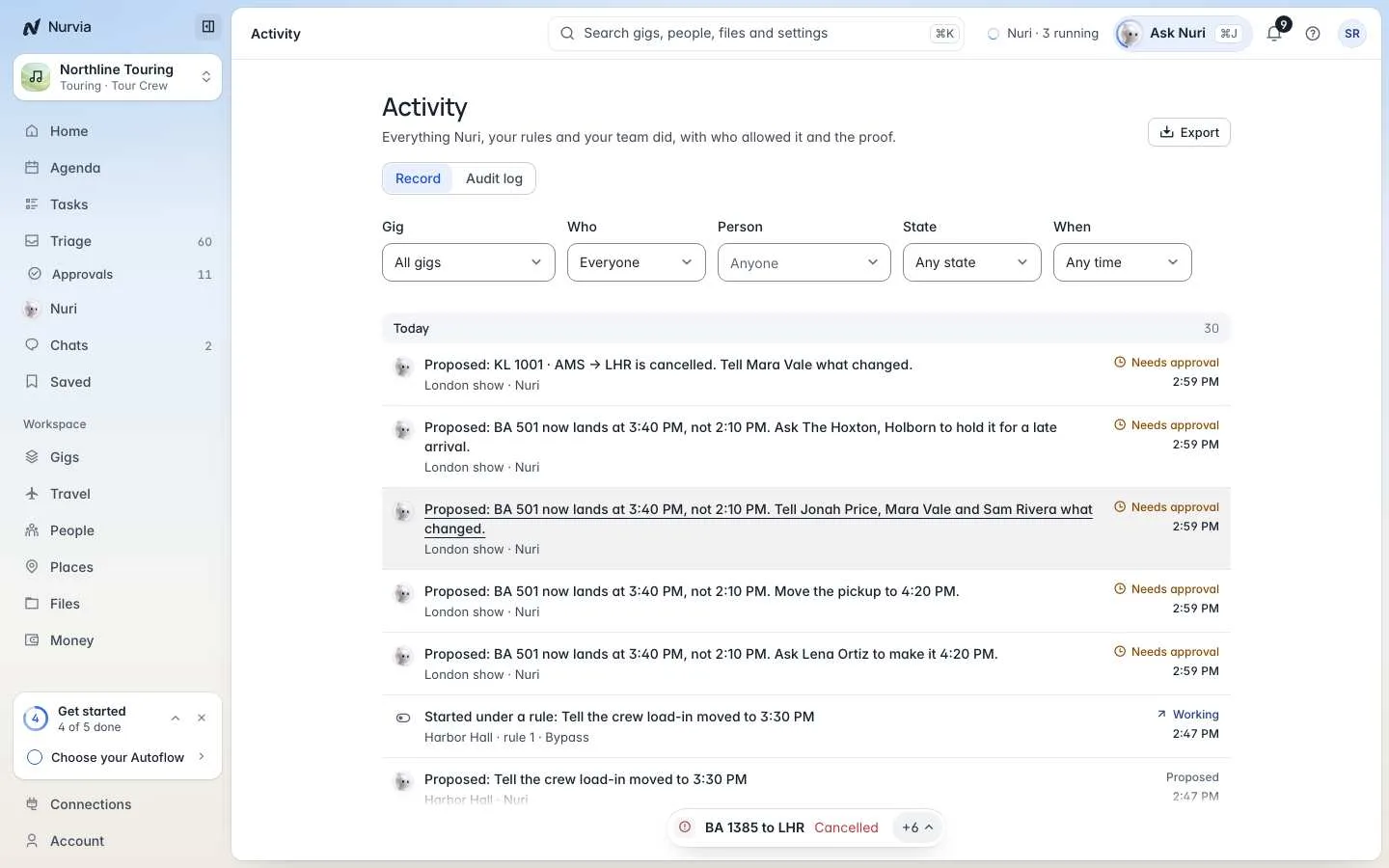
Activity has two tabs: Record (what Nuri, your rules and people did) and Audit log.
- Filter by plan, Who, Person, State and When.
- Open an entry to see who allowed it and the proof.
- Undo where it's still possible, and Export the list.
- Each Autoflow rule links to its own activity.