Web app
See where every detail came from, lock fields, handle a cancelled flight, and work with sheets, tour grids, linked plans and print.
Every plan keeps a record of where each detail came from and how it changed. These pages sit just below the plan itself — open them when a detail looks wrong, when sources disagree, or when travel breaks.
Where to find it
| Page | How to open it |
|---|---|
| History | All history in the plan's Activity section, or the ⋯ menu on its Sources page. |
| Sources | Sources and sync in the plan's ⋯ menu. |
| Disruption room | Open the room on the alert at the top of the plan, or from the Changes section. |
| Sheet | Open as sheet on a section that holds rows, like shifts or deposits. |
| Tour grid | Tour grid in the plan's Travel section, or next to Linked plans. |
| Export, then print the plan's views as they're laid out. |
Fix a detail that's wrong
Check where it came from
Open History. Each fact shows every value it has held and where it came from — an email, a file, a calendar, or a person.
Settle a disagreement
Under Where sources disagree, choose Choose a value to pick the right one. Nothing is overwritten; the other values stay in the history.
Lock it
On the Sources page, choose Lock next to the field. A new email or calendar edit can't overwrite a locked field — the new value waits in Review instead.
History
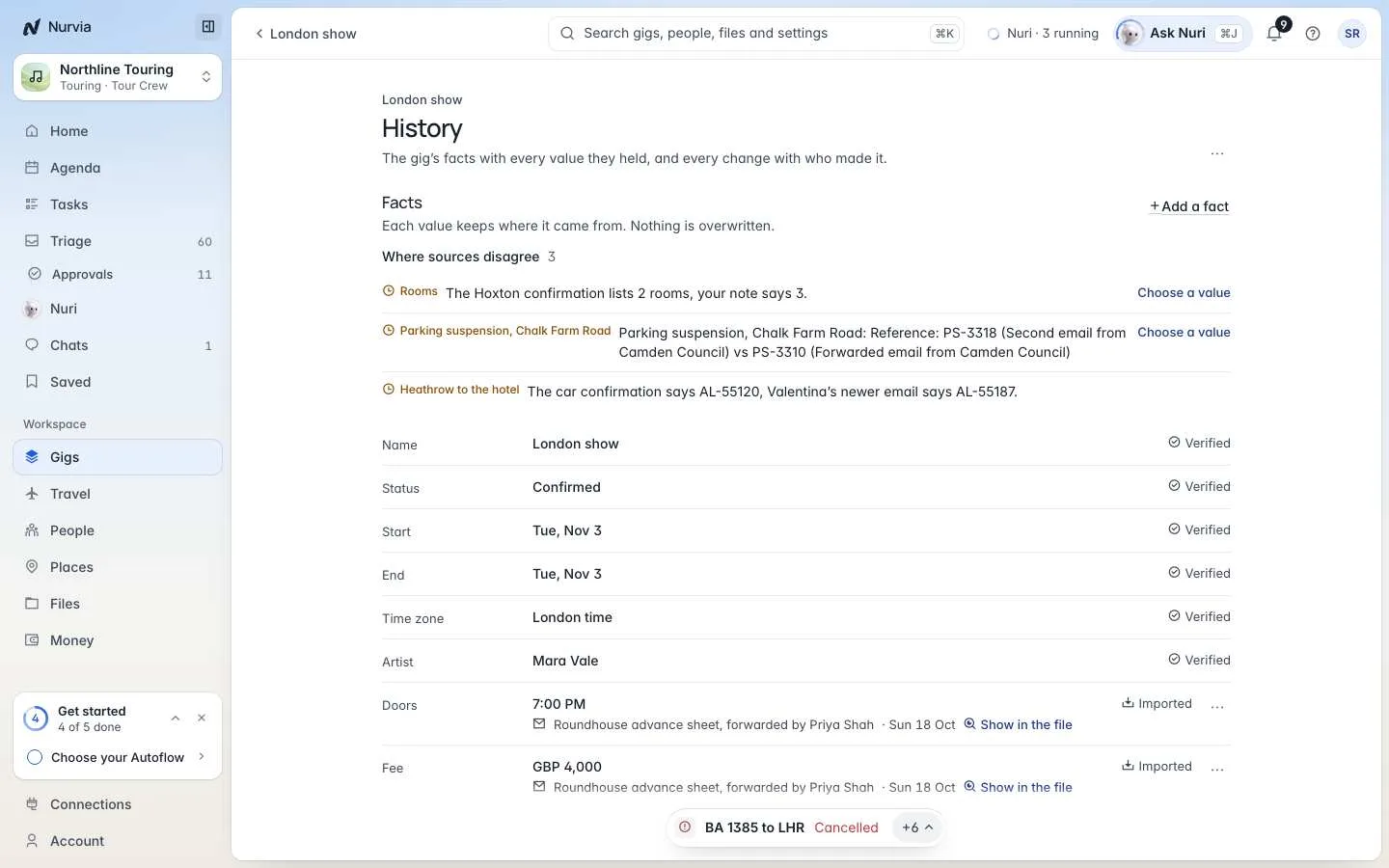
History shows the plan's facts with every value they've held, and every change with who made it. Choose Add a fact to record something yourself. The ⋯ menu can also delete the plan — it goes to the trash with everything it held and can be restored for 30 days. What changed lists every change and where it came from.
Sources
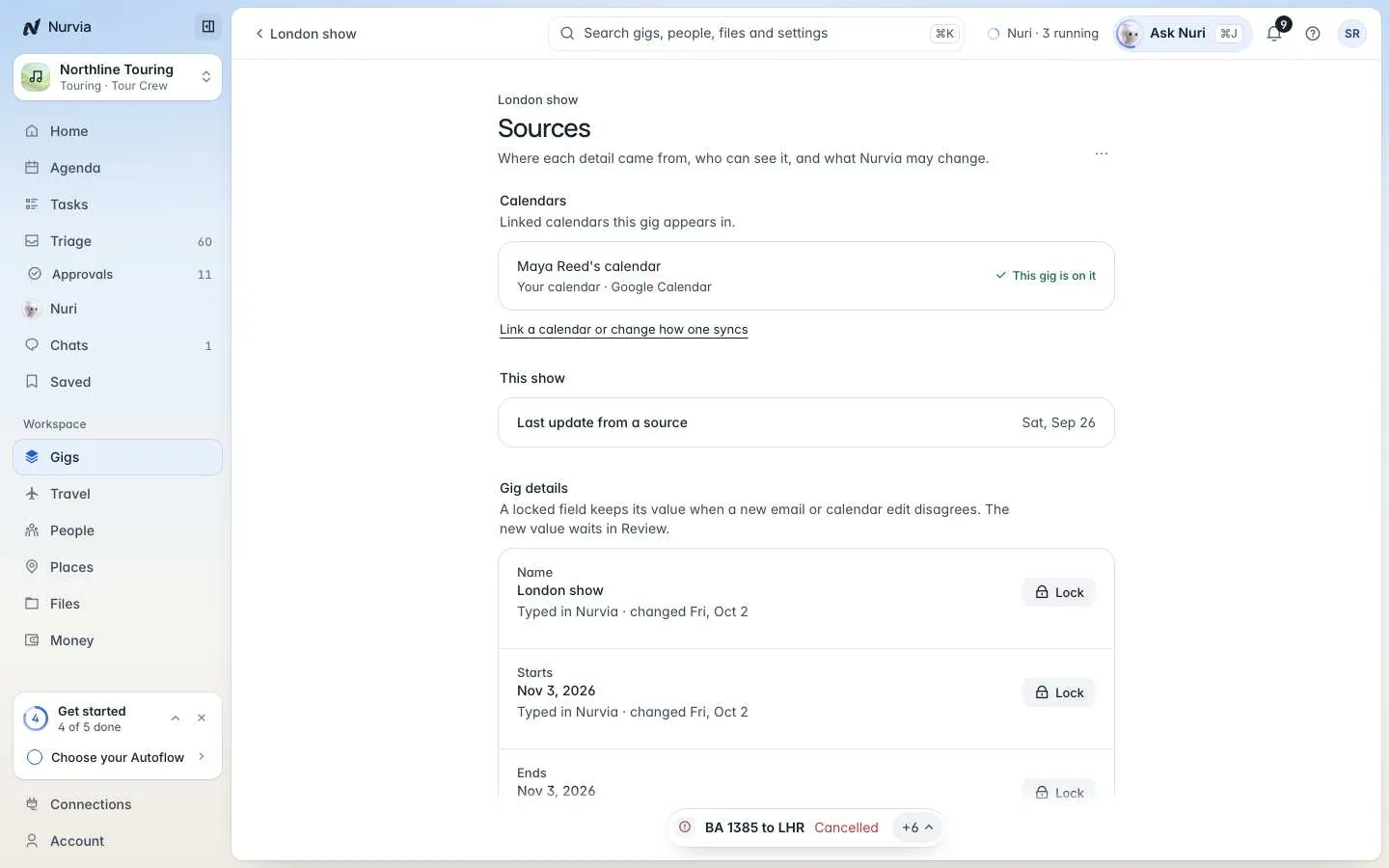
Sources shows where each detail came from, who can see it, and what Nurvia may change.
- Lock a field so a new email or calendar edit can't overwrite it.
- Move to another plan, Merge into another plan, mark an item Not a real booking, or Ignore similar ones.
- People found in email are listed, but nobody is invited or given access because of it.
Only Managers and up can lock, move or merge.
Disruption room
When a flight is cancelled or a plan breaks, the disruption room opens.
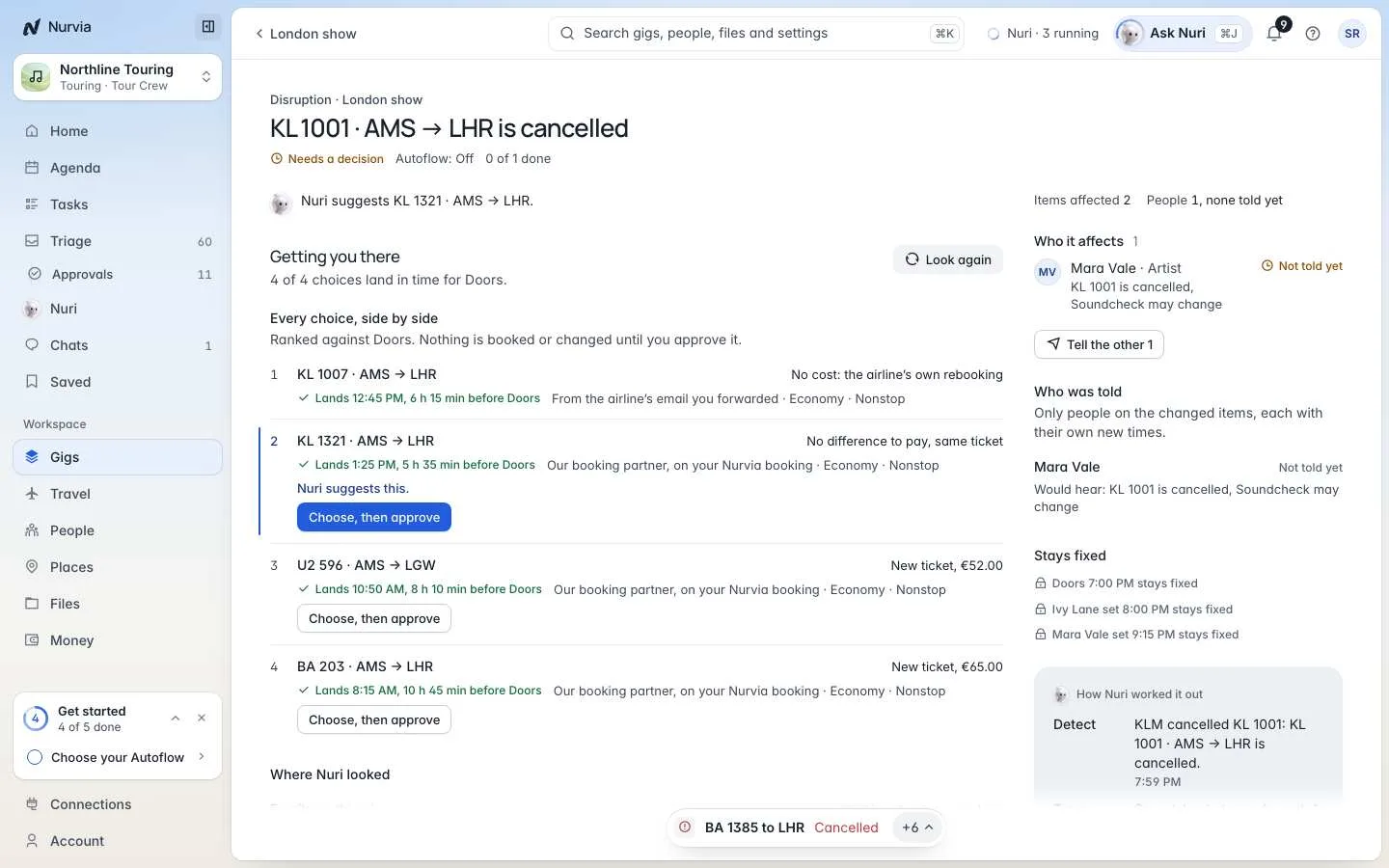
- Getting you there — every choice side by side, ranked against what matters, like doors. Nothing is booked or changed until you choose Choose, then approve.
- Who it affects and Who was told — only people on the changed items, each with their own new times.
- Stays fixed, Rest of the day and Ride times — what moves and what doesn't.
- Nuri's progress — what Nuri has checked and done so far.
Refunds are requests
A refund or credit is a request to the airline. Nothing is charged — it waits for your approval and stays Requested until the airline confirms. Choose Review and approve, or Stop this response.
Sheets
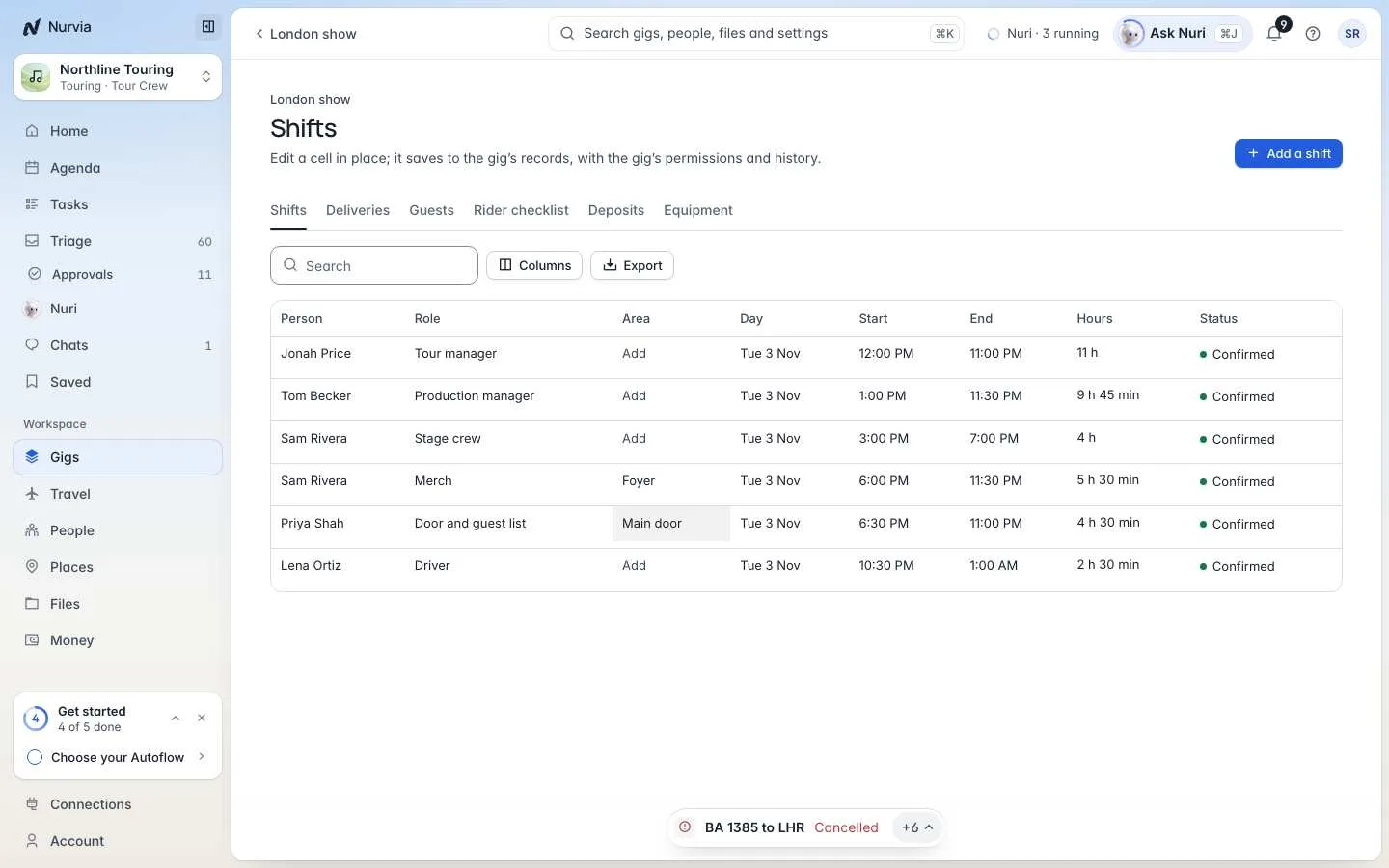
A Sheet holds tables like shifts, deliveries, rider checklists, deposits and equipment. Edit a cell in place — it saves to the plan's records, with the plan's permissions and history. Rows from forwarded documents arrive To review: Accept or Dismiss them one by one, or use Accept all or Dismiss all. Choose Export for a copy.
Tour grid and linked plans
- Linked plans connect plans as Related, Same tour, Comes after or Comes before. Nurvia also suggests links from what came in.
- The Tour grid shows Same tour plans side by side with each arrival flight, pickup and hotel. Times are local to each place.
Deposits
Track deposits on each plan from its Money section. Nurvia records deposits; it never sends or moves money.
Print and PDF
Print turns the current view into a printable page. Share as PDF makes a file of only what the view shows.
Add travel to a plan
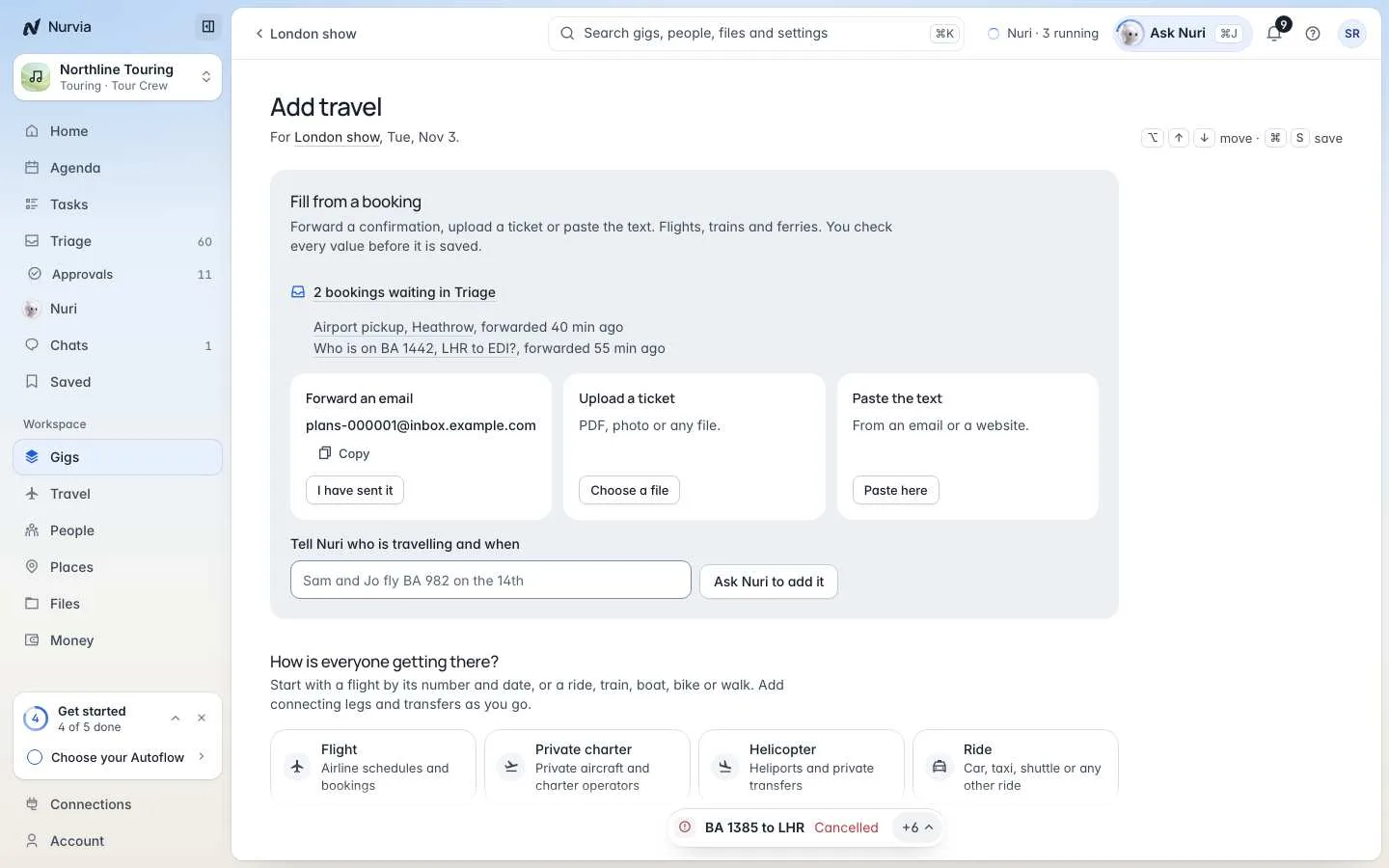
Choose Add travel in the plan's Travel section. Fill it from a booking — forward the confirmation, upload a ticket, paste the text, or tell Nuri who is travelling and when. Or answer How is everyone getting there?: start with a flight number and date, or a ride, train, boat, bike or walk. Add legs and transfers, Add the return, Duplicate for another day, then Save travel.