Web app
Hotel stays with rooming and access details, rides with drivers and pickups, and multi-leg trips.
Stays and rides each get a page with everything the people on them need: rooms and who sleeps where, check-in and access, pickups, drivers and the route. A trip ties the legs of one journey together.
Where to find it
- Web: choose a stay or ride in Travel, or open a plan's Stays or Travel section.
- iPhone: tap it in the Travel tab or on the gig. See Travel on iPhone.
Add a stay
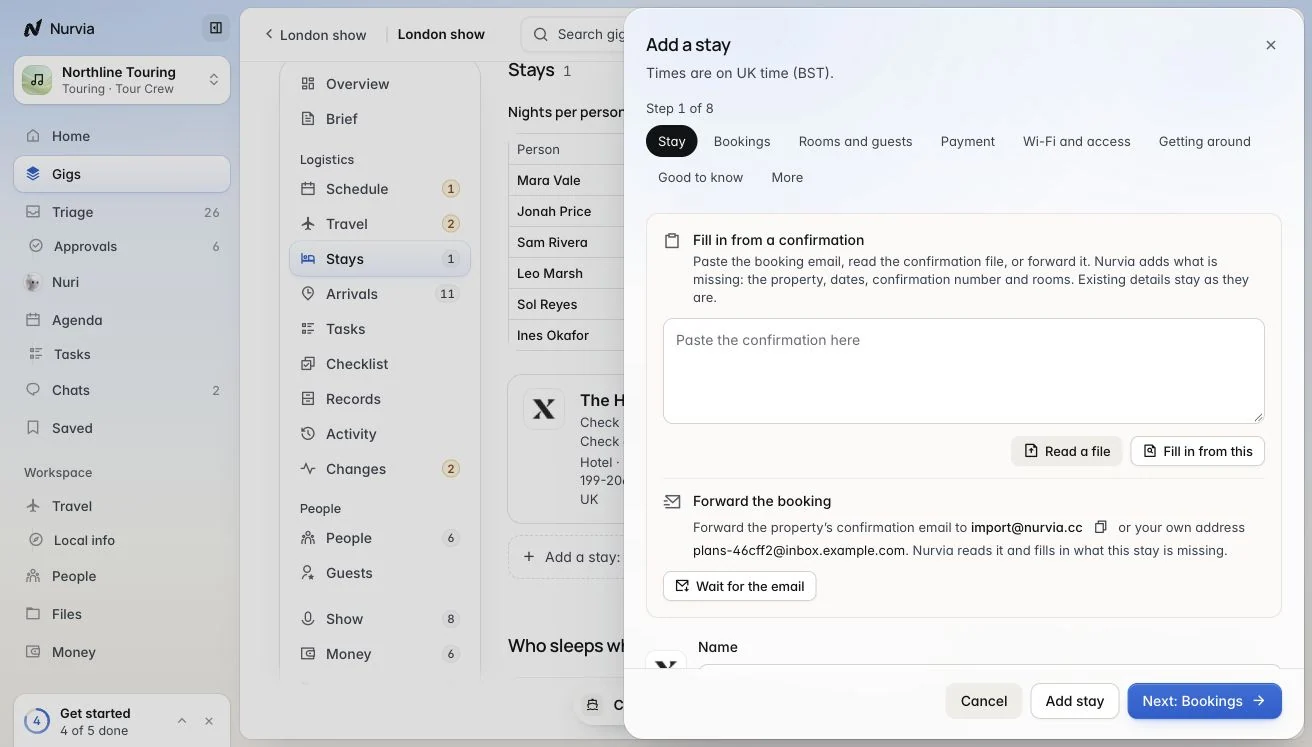
Most stays arrive from your email. To add one yourself:
Start it
In a plan's Stays section, choose Add a stay. Type the hotel name, or use Fill in from a confirmation: paste the booking text, Read a file, or forward the confirmation to the address shown.
Add rooms and guests
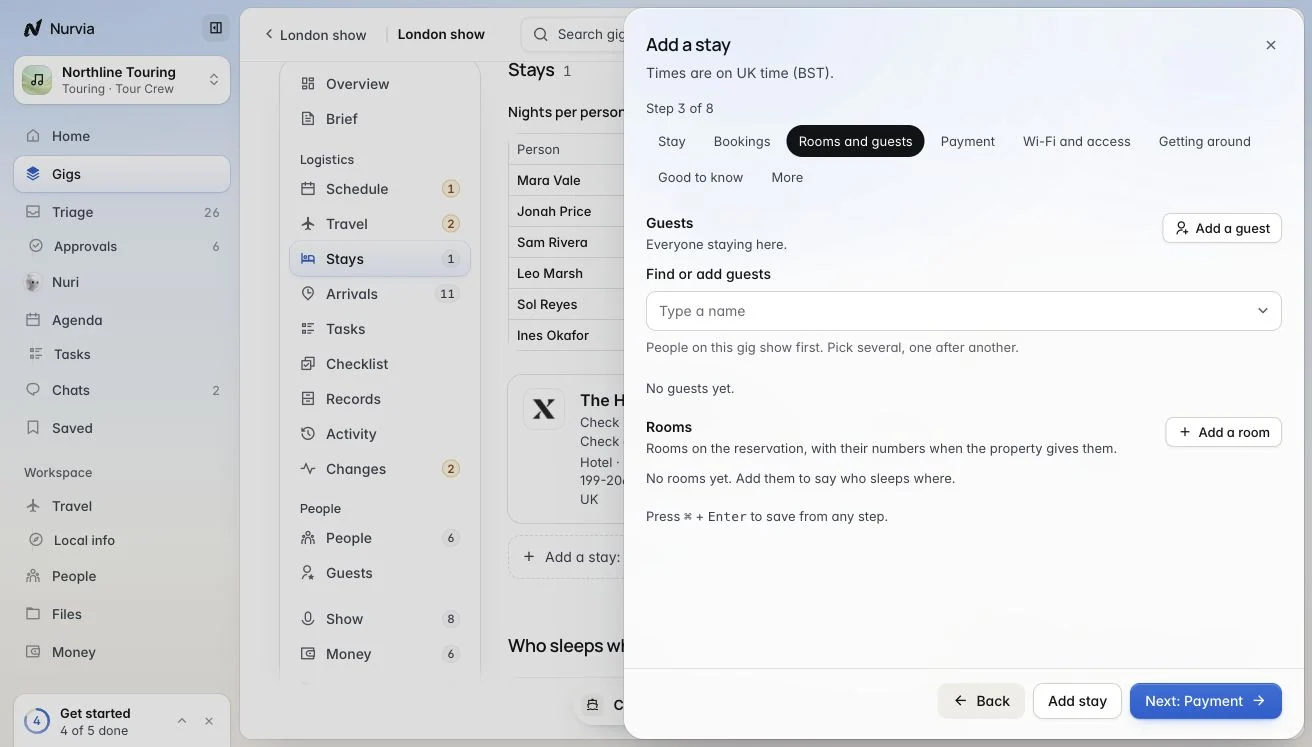
On Rooms and guests, pick who is staying and add each room, so everyone can see who sleeps where.
Finish the rest
Step through payment, Wi-Fi and access, getting around and good-to-know notes — or choose Add stay at any point and fill the rest in later.
A suggested hotel isn't a stay
Only a booked hotel becomes a stay on your plan. Hotels Nuri suggests stay as suggestions until you book one.
A stay's page
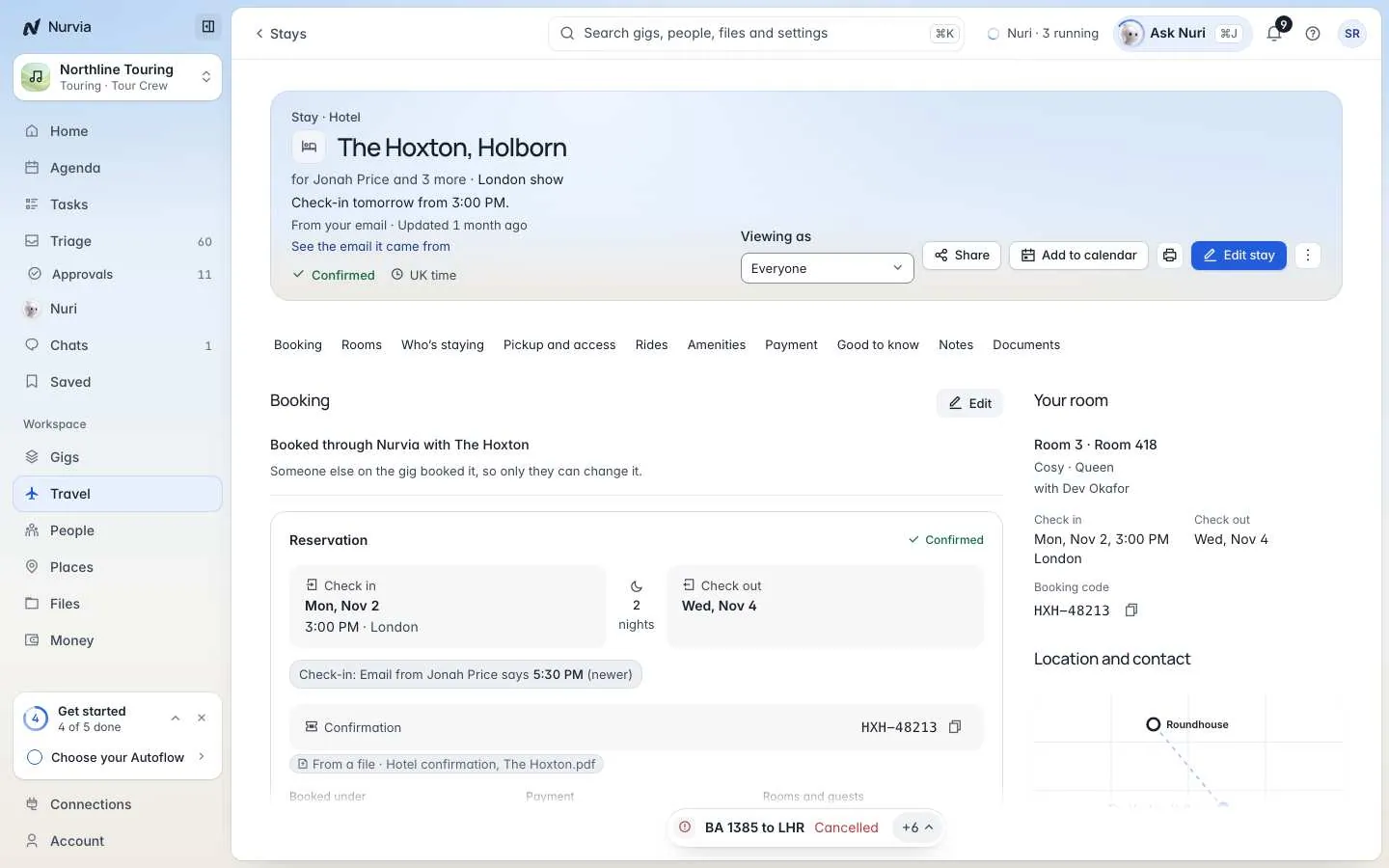
The page has Booking, Rooms, Who's staying, Pickup and access, Rides, Amenities, Payment, Good to know, Notes and Documents. Viewing as shows it the way one guest sees it.
- Edit stay (or press E), Share and Add to calendar sit in the header.
- From the ⋯ menu: Copy confirmation number (each guest sees the one for their own booking), Edit rooms and guests, Export this stay and Delete stay.
- Press R to jump to Rooms.
Rides
A ride shows the pickup and drop-off, drive time, traffic, stops and the driver. If it meets a flight, it warns you when the landing time and the pickup no longer fit.
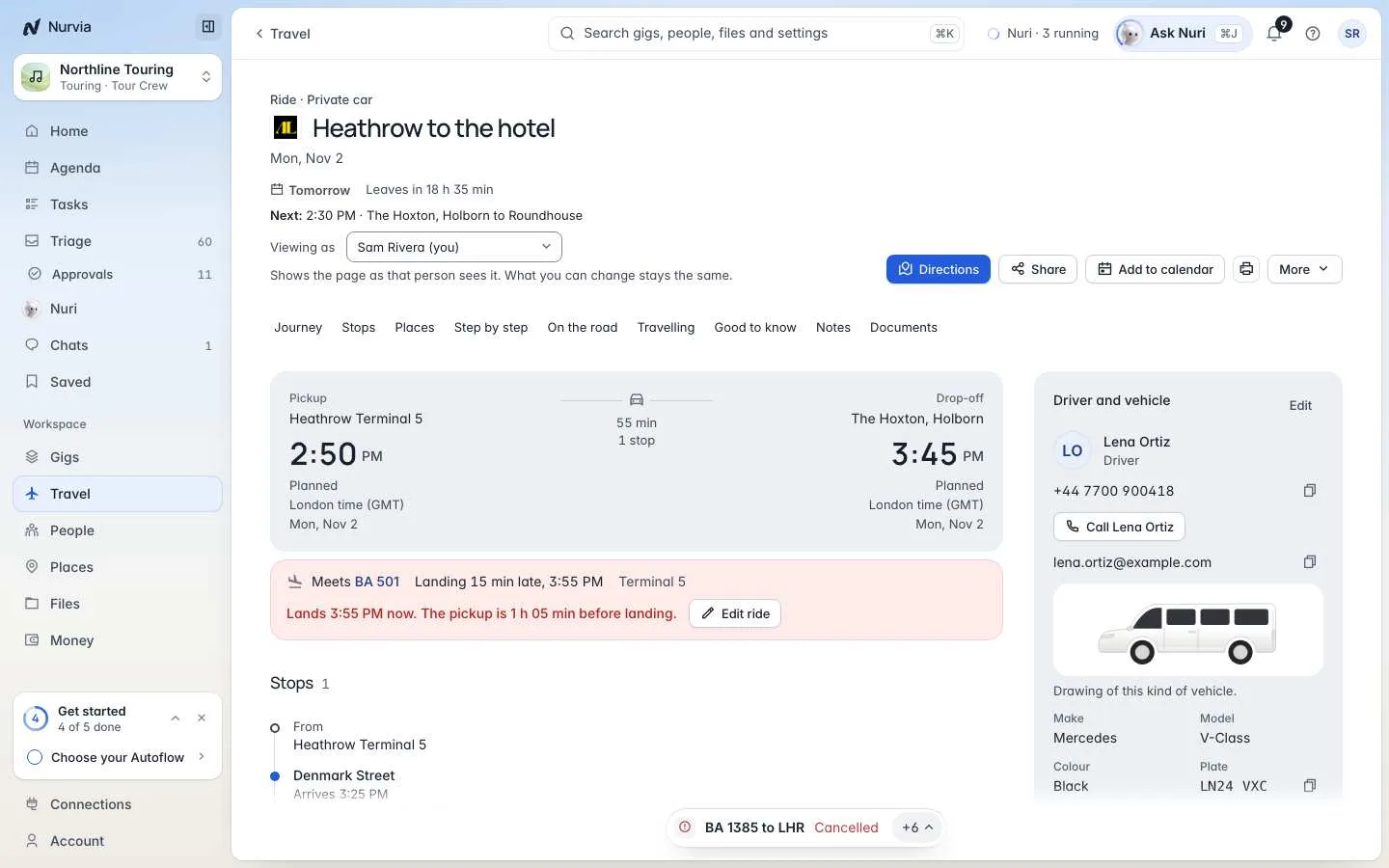
- Directions, Share and Add to calendar sit in the header. Add a driver fills the driver and vehicle card; then C calls the driver.
- From More: Copy pickup details, Add the return, Export for the driver, Ask Nuri about this ride and Delete this journey.
- Share hands the pickup details to your device's share sheet (or copies them) — Nurvia sends nothing itself. For a live page the driver can open without an account, make a driver link from the plan.
Trips
A trip groups the legs of one journey, with a route map, Who is travelling and Day by day. Deleting a trip removes its travel from the plan and its schedule — the plan itself is kept.