Web app
Drive and transit times between a plan's places with leave-by deadlines, a day-by-day jet lag plan, and flight imports.
Routes tells you how long it takes to get between a plan's places and when to leave. Jet lag turns the flights you already have into a day-by-day plan for your body clock. Import flights brings in flights you track in another app.
Where to find it
- Web: from a flight's On the ground panel (Routes for … and Jet lag plan), from Getting around in Places, or from a ride's More menu. Import flights is linked from Add travel and Passport.
- iPhone: from a flight or the gig. See Flights and airports on iPhone.
Check a route
Pick the plan and two places
Routes opens on a plan — choose Change to switch. Pick where you're Leaving from and where you're going.
Choose how you travel
Choose drive, transit, walk or bike. Nurvia shows the time with traffic and a Leave by deadline for each upcoming item.
Open it in your maps app
Open the route in your maps app. The app you choose is remembered in this browser.
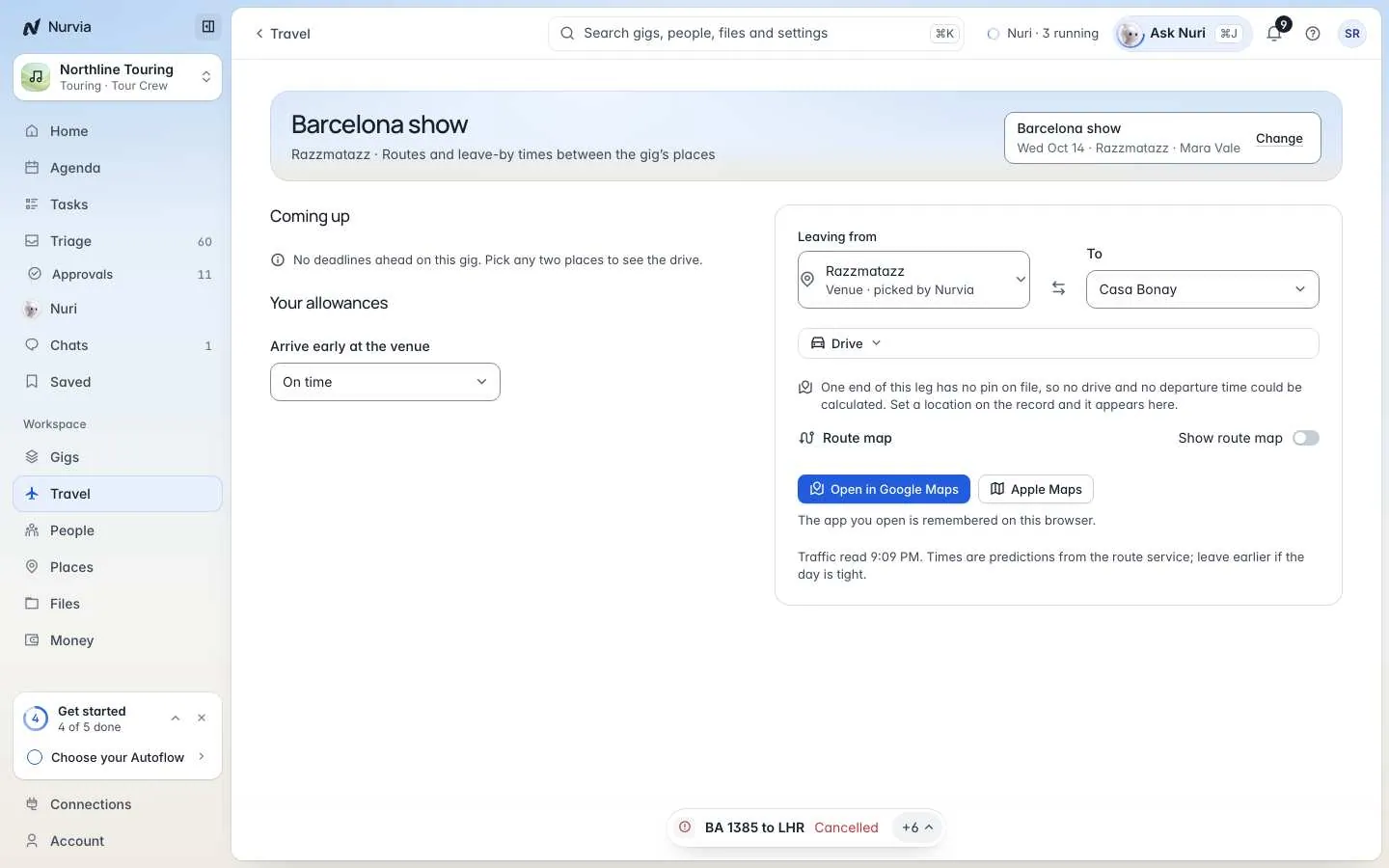
Set Your allowances so the times fit how you travel: Time at the airport, Arrive early at the venue and Way of travelling.
Follow a jet lag plan
Jet lag builds a plan from the flights already in Travel — when to sleep, get light, and have caffeine or melatonin — before you fly, on the travel day and for the days after you land. There's nothing to enter twice.
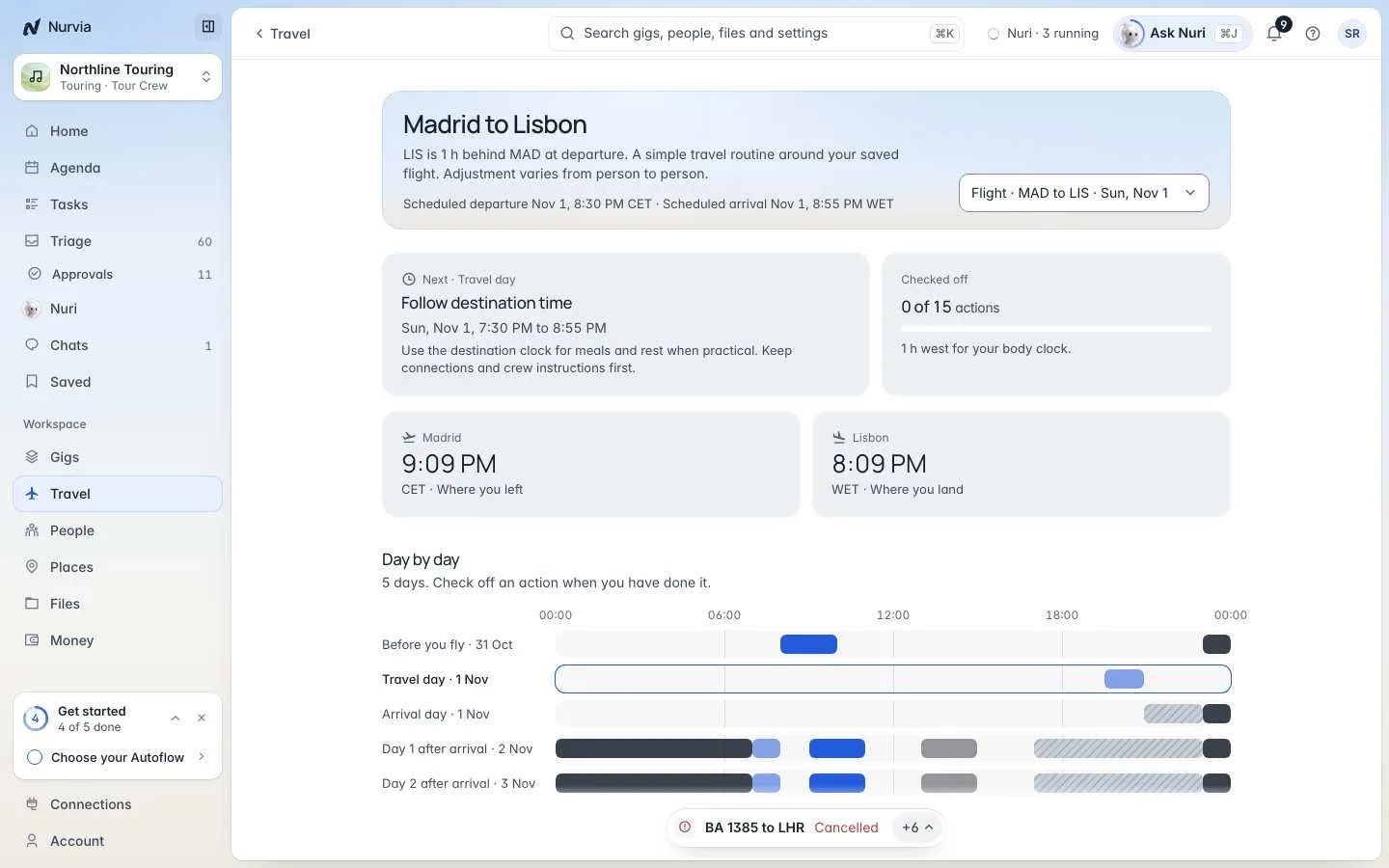
Choose the flight at the top if you have more than one. Check off each action when you've done it, and the plan keeps count.
Import flights
Bring flights in from a flight-tracking app's export — a CSV or JSON file up to 2 MB, or pasted text.
Export from your other app
In your flight-tracking app, export your flights as CSV or JSON.
Choose where they go
Under Add to, pick a plan, My own travel (only you see it), or Travel history only (days per country).
Review and import
Drop the file or paste the list, then Read flights. Check every flight Nurvia read, then Import flights.