Web app
Your team, contacts from every plan, the team feed, and where everyone is — for those who share it.
People is your team: who they are, how to reach them, and which plans they're on. From here you also reach the workspace's contacts, the team feed and the team map.
Where to find it
- Web: People in the sidebar. Contacts, Team feed, Where's everyone and Your profile are at the top of the page.
- iPhone: search for anyone from Search, or open a plan's Contacts. See The plan hub.
Sports workspaces call this Squad; Production calls it Crew.
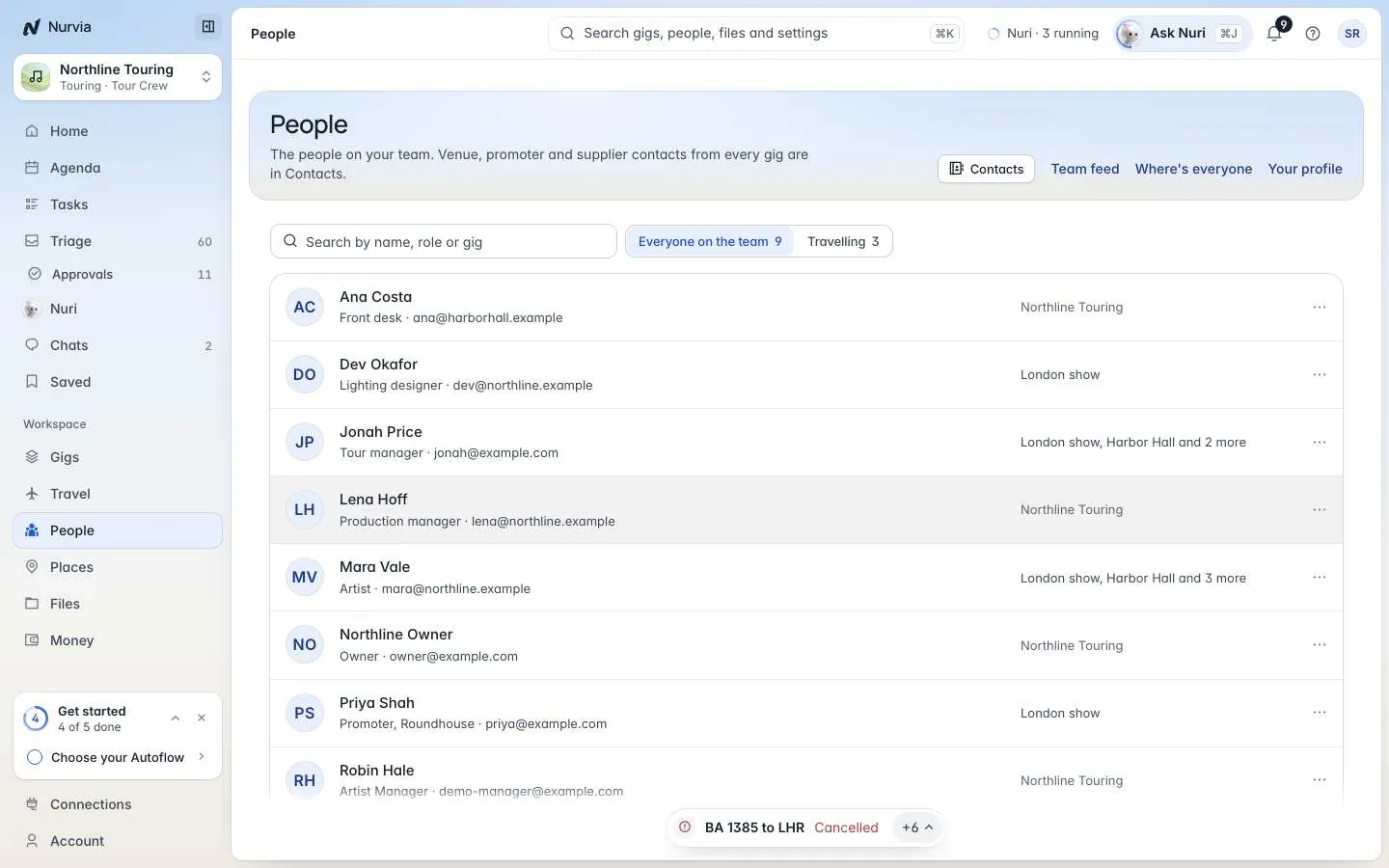
Find someone
Search by name, role or plan, and switch between Everyone on the team and Travelling. People who don't use Nurvia yet show as Not on Nurvia yet.
A person's page
Open someone to see their contact details, roles, group, tags (and private tags only you see), travel, emergency and diet details, and the plans you share. Sensitive details stay blurred until you choose to show them. Admins can remove someone from the workspace here.
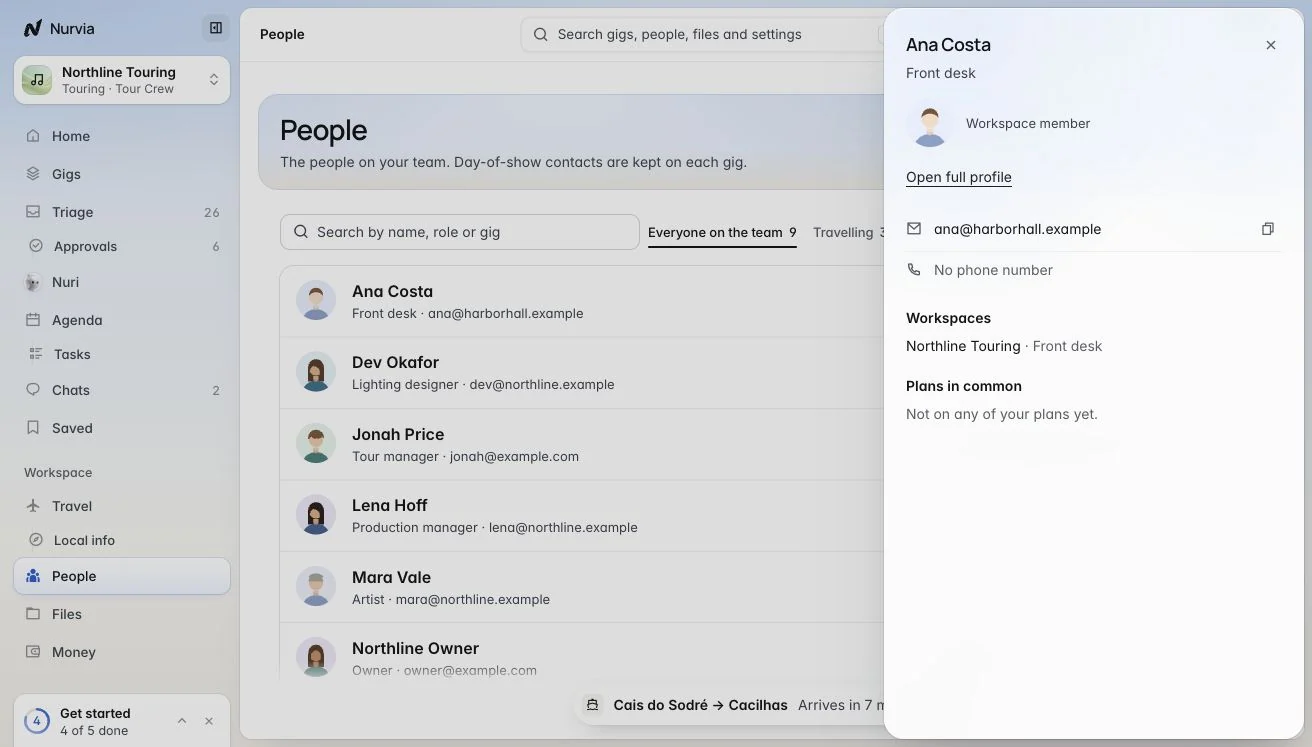
Keep contacts tidy
Contacts lists everyone with an email on this workspace's plans, once each — venue, promoter and supplier contacts included.
Add a contact
Choose Add contact and fill in the name, email, phone, role and company. Saving a contact never sends them anything.
Merge duplicates
Choose Merge duplicates, pick the copies of one person, and keep one. Details the kept contact lacks are taken from the others. The others are hidden, not deleted.
Post to the team feed
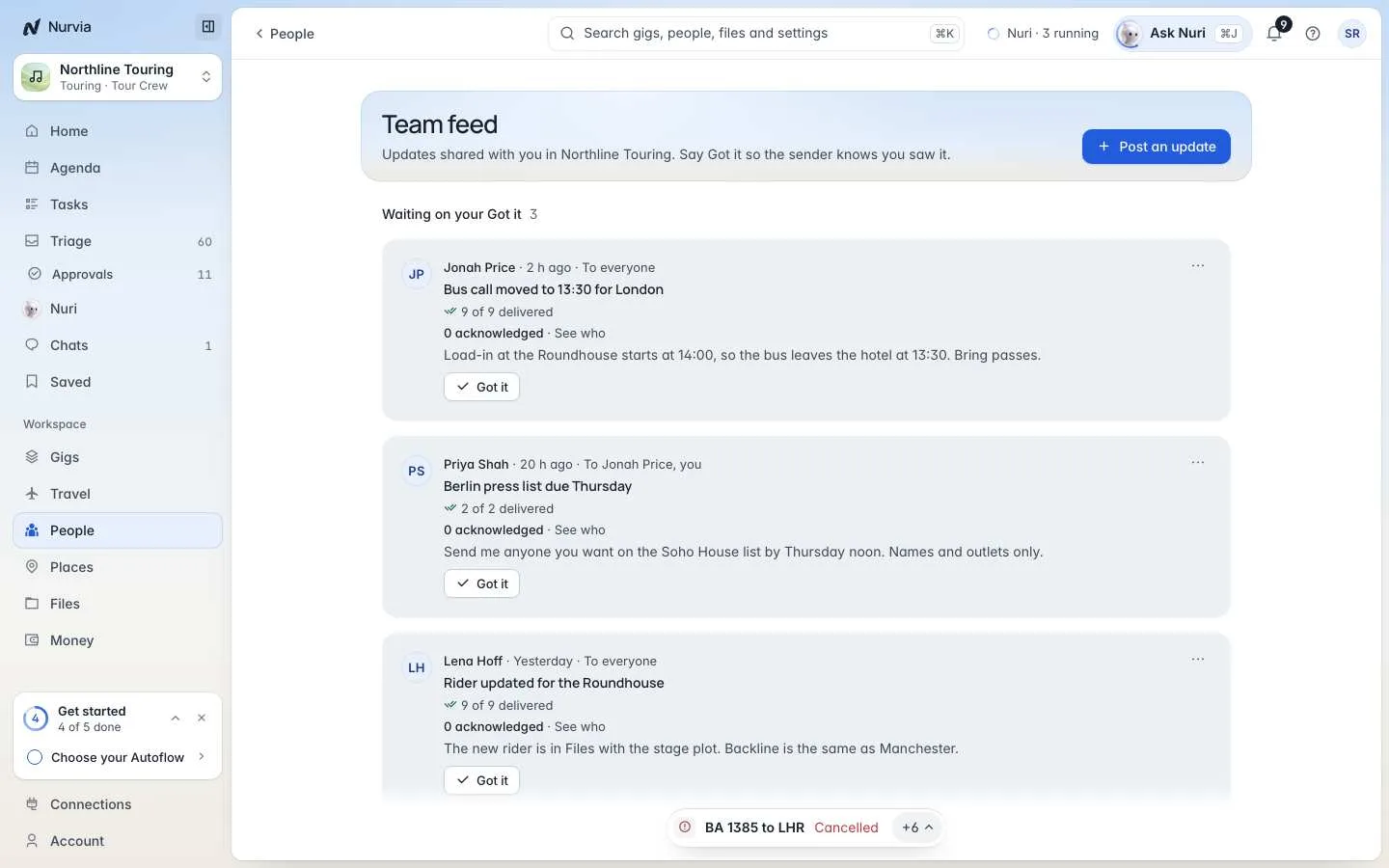
Team feed sends an update to the whole team, or to chosen people. Choose Post an update; people choose Got it, and you see who has acknowledged it. Updates still waiting for your own Got it sit at the top. (Not available in Personal.)
Where's everyone
Where's everyone is a map of teammates who share their live location. Turn on Share my location with this workspace and choose a window: Whenever sharing is on, For the next hour, or From one hour before an item. Your team sees where you are only while sharing is on, and a place older than 30 minutes shows as last seen.