Web app
Store passports and travel documents privately, track visas and day limits like Schengen 90/180, and rebuild past travel.
Keep your passport, visas and travel paperwork in one private place. Nurvia checks every upcoming trip against their expiry dates and the entry rules where you're going, and counts the days that matter.
Where to find it
- Web: TravelDocuments and TravelVisas and days. They're also in SettingsTravel and payments.
- iPhone: from the Travel tab. See Travel on iPhone.
Add a passport or document
Open Documents
Go to TravelDocuments.
Scan it or type it in
Choose Scan (or press S) to read a passport, visa or ID from a photo, or Add document (N) and Type it in. Check every field Nurvia read before you save.
See which trips it covers
The document shows whether it's valid for every upcoming trip, and the Expiry timeline lines your trips up against each expiry date.
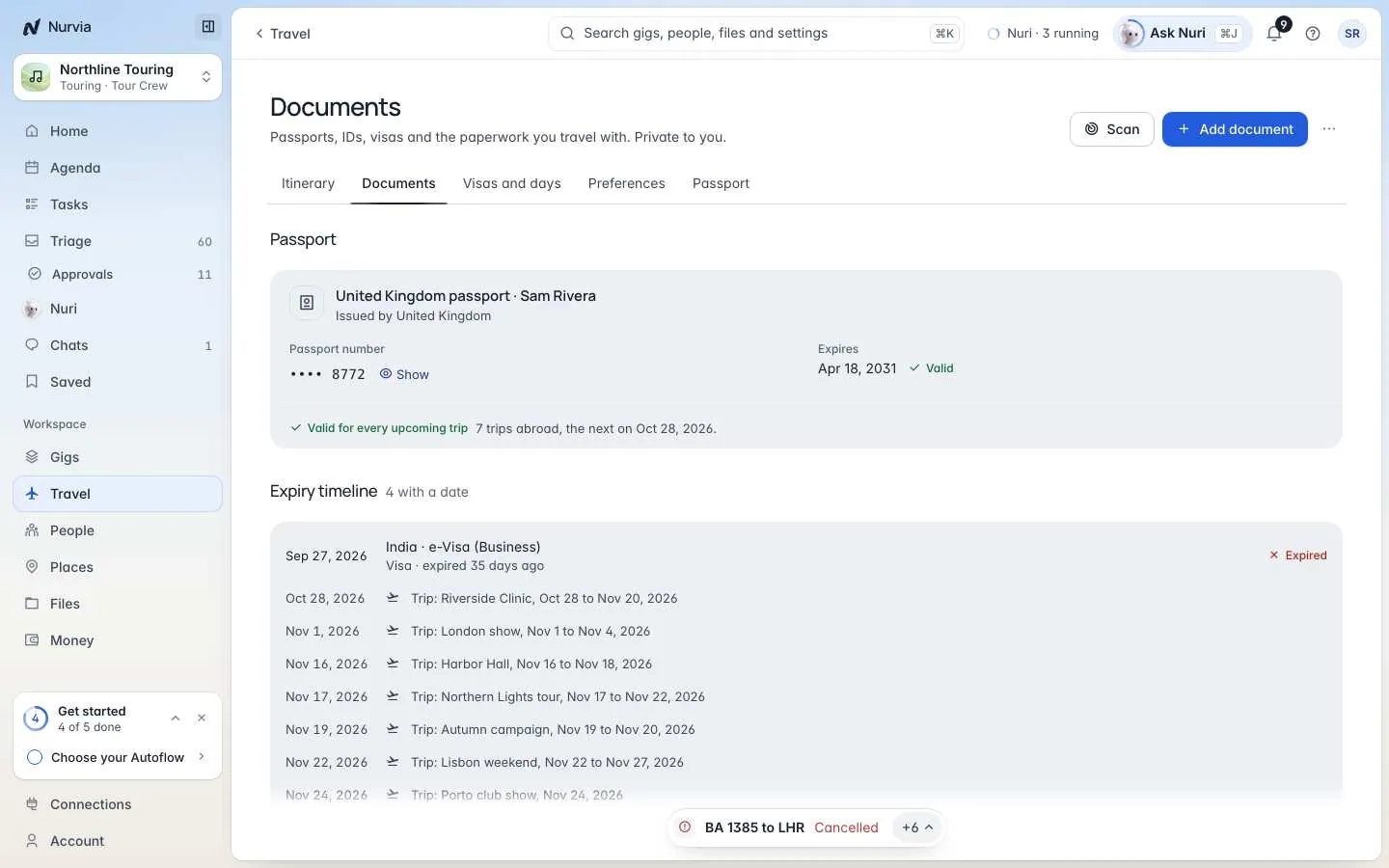
Documents are private to you unless you mark one as shared. You can also Scan a boarding pass to add the flight it's for.
Passport details stay masked
Passport numbers are masked on screen, never sent in calendar exports, and Nuri asks you each time before it uses them.
Visas and days
Visas and days shows the entry rules for your trips, the visas you hold, and the days that count where you go. If you run travel for a team, it shows everyone's passports and visas against their trips — Missing, Expiring or Not needed — grouped By person, By group or as a Grid.
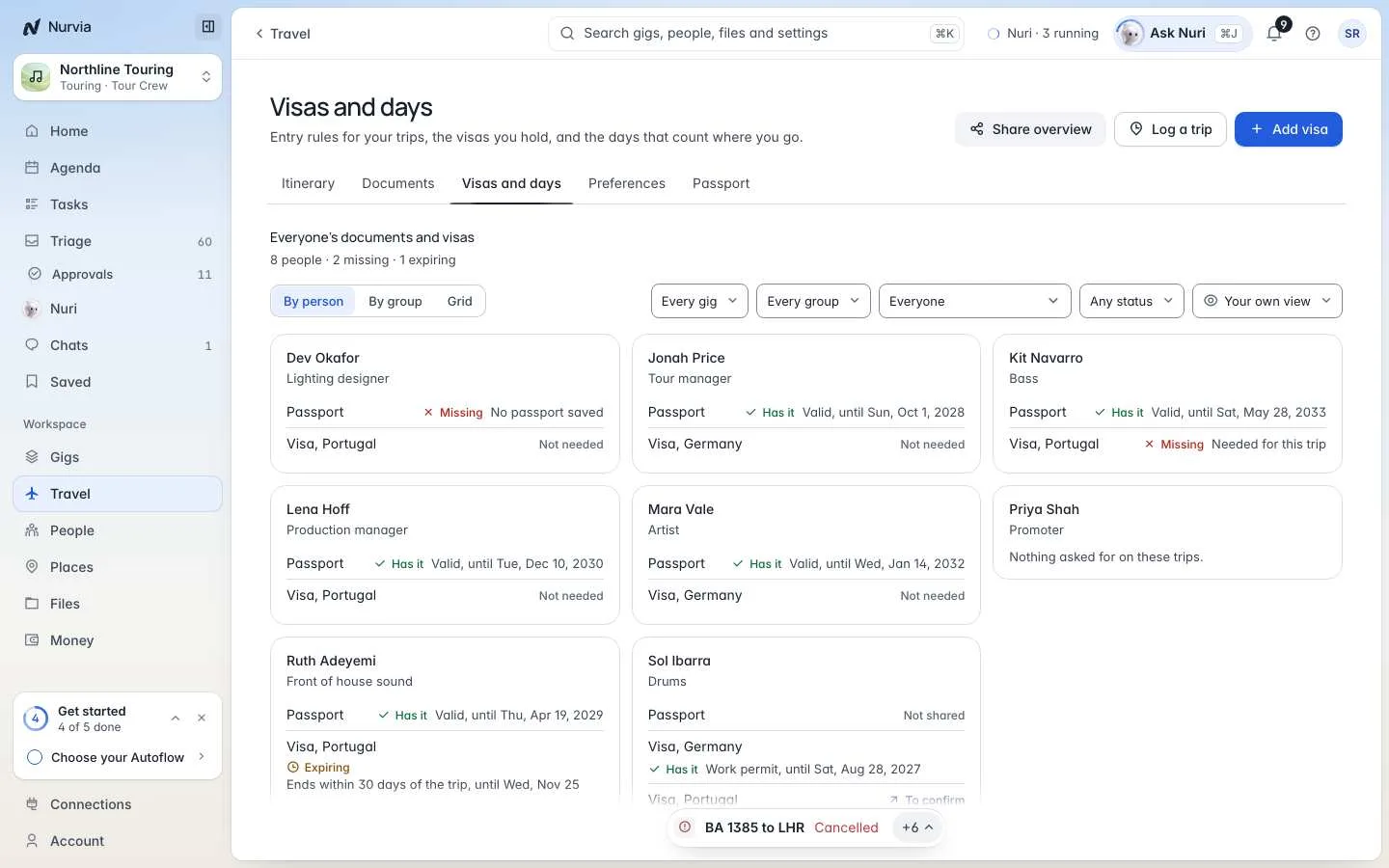
- Add visa (N) and Log a trip (L).
- Add counter (C) to track Schengen's 90 days in any 180, a tax residency threshold, or the days a residence permit needs.
- Check a border before you book, and Share overview to send someone a summary.
Import past trips
Rebuild your history from Photos or a self-hosted location history server. Only countries and dates are saved — from photos, only places, days and counts are kept, never a photo. You can Delete all photo history at any time.
Review past travel lists flights that landed where no stay covers the day, so you can Add stay or Skip.