

Web app
Flights, stays and rides from every plan in one place, in local time — for you and everyone on your team.
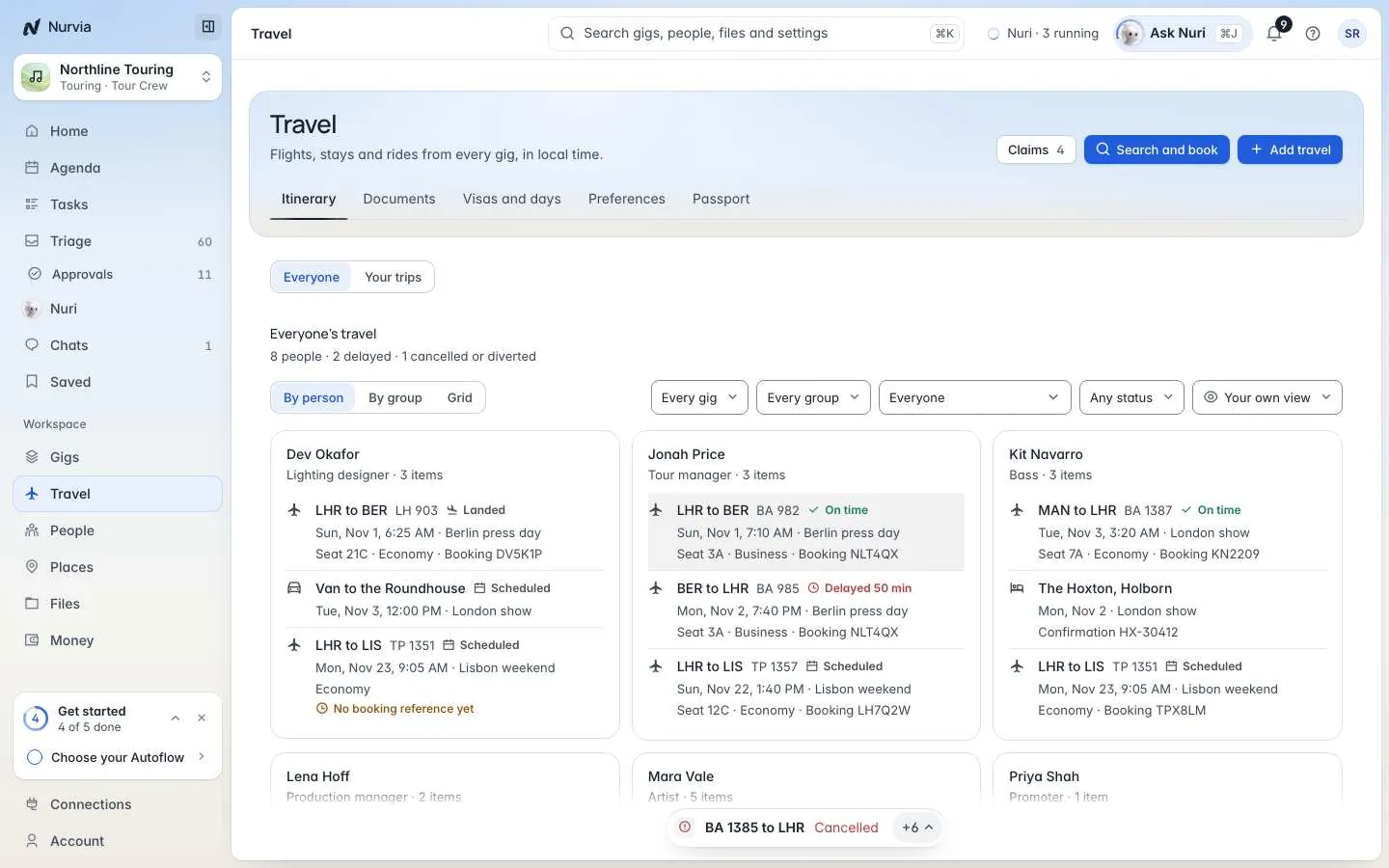
Travel gathers every flight, stay and ride from every plan, always in the local time of where it happens. Use it to see who is going where, add a trip, or check a booking at a glance.
Where to find it
- Web: Travel in the sidebar, or press G then T.
- iPhone: the Travel tab. See Travel on iPhone.
Travel has five tabs: Itinerary, Documents, Visas and days, Preferences and Passport. The header holds Claims, Search and book and Add travel.
Add a trip
Most travel arrives on its own from your connected email: confirmations are matched to the right plan and traveller. To add one yourself:
Choose where it goes
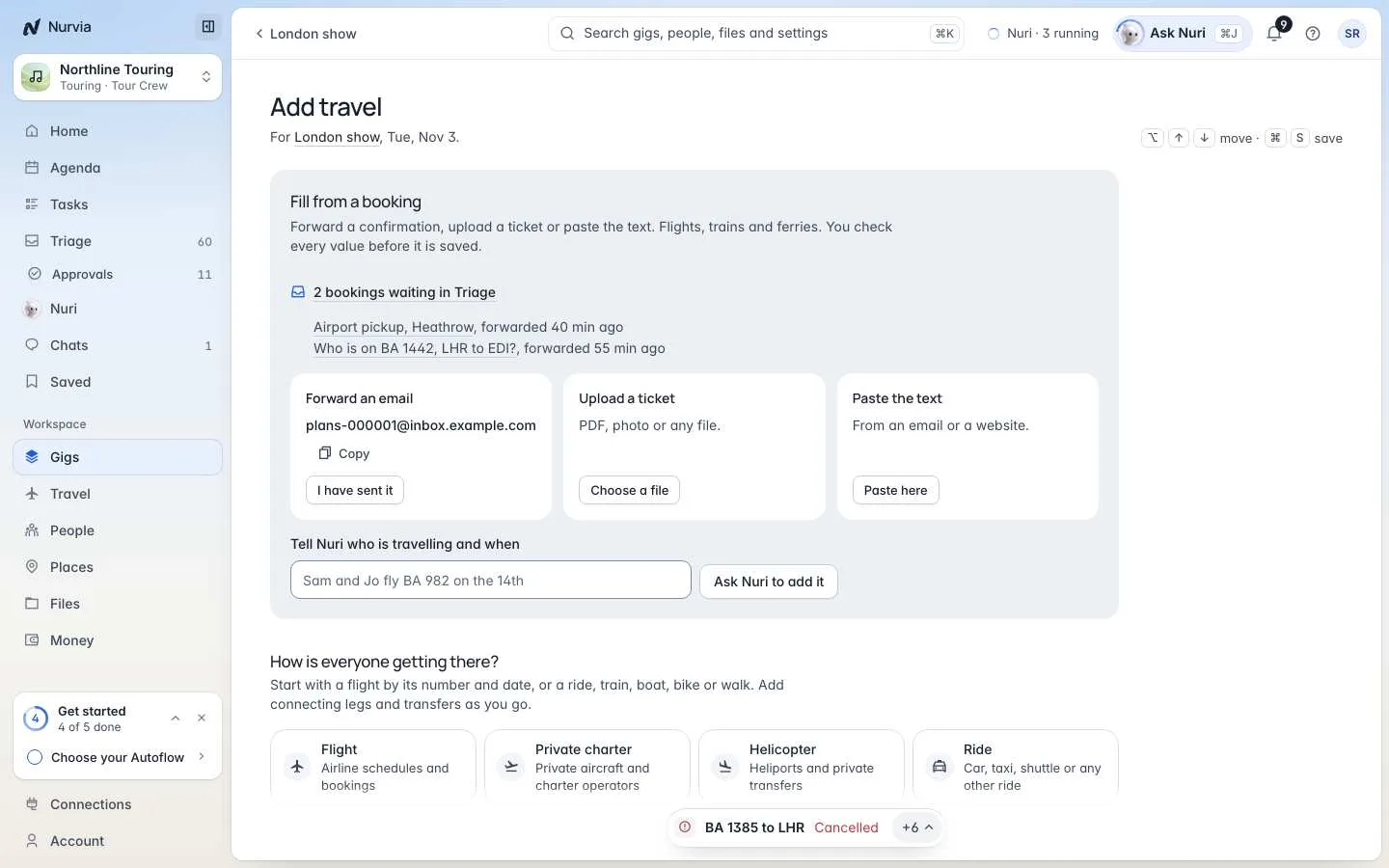
Choose Add travel. Pick the plan it belongs to under On a plan (in music workspaces, On a gig), or choose Your own travel to keep it outside any plan, where only you see it.
Fill it from a booking, or build it
Under Fill from a booking, forward the confirmation, upload a ticket, paste the text, or tell Nuri who is travelling and when. Or answer How is everyone getting there? and start a flight from its number and date, a ride, a train, a boat, a bike or a walk. Nurvia fills in what it knows.
Check and save
Check every value, then choose Save travel. You can add a stay, the return, or another leg before you save.
Already track your flights in another app? Choose Import them at the foot of Add travel — see Import flights.
Find a trip
- Everyone shows each person's upcoming legs (for people who run travel on a team). Group it By person, By group or as a Grid, and narrow it by plan, group, person or status.
- Your trips is your own itinerary. Switch between Upcoming and Past, and Show map to see every leg.
- Search by name, route or booking reference. Press / to search, F to filter and S to sort.
- Personal travel holds trips that aren't on any plan.
Status uses colour, as on iPhone: green when on time or early, red when delayed, cancelled or diverted.
Select several rows to Add travellers to flights and rides at once, or to Export them.
Set your preferences
Open the Preferences tab to set your home airport, seat, cabin, meal, bed, floor, preferred ride app, dietary needs, loyalty programmes and the name on tickets exactly as on your passport. Nuri uses these when it plans and books. They're also in SettingsTravel and payments.
Everything in Travel
 Flights and airportsLive status, the airport journey, ground transport and arrival guides.
 Stays, rides and tripsRooms, rooming lists, pickups and drivers.
 Search and bookFind flights, stays and cars; you approve the exact amount.
 Documents and visasPassports, visas and day counters.
 Routes and jet lagLeave-by times, a jet lag plan and flight imports.
 PassportYour travel history, recap and leaderboard.