Web app
Live flight tracking, the step-by-step airport journey, airport guides, ground transport and arrival pages.
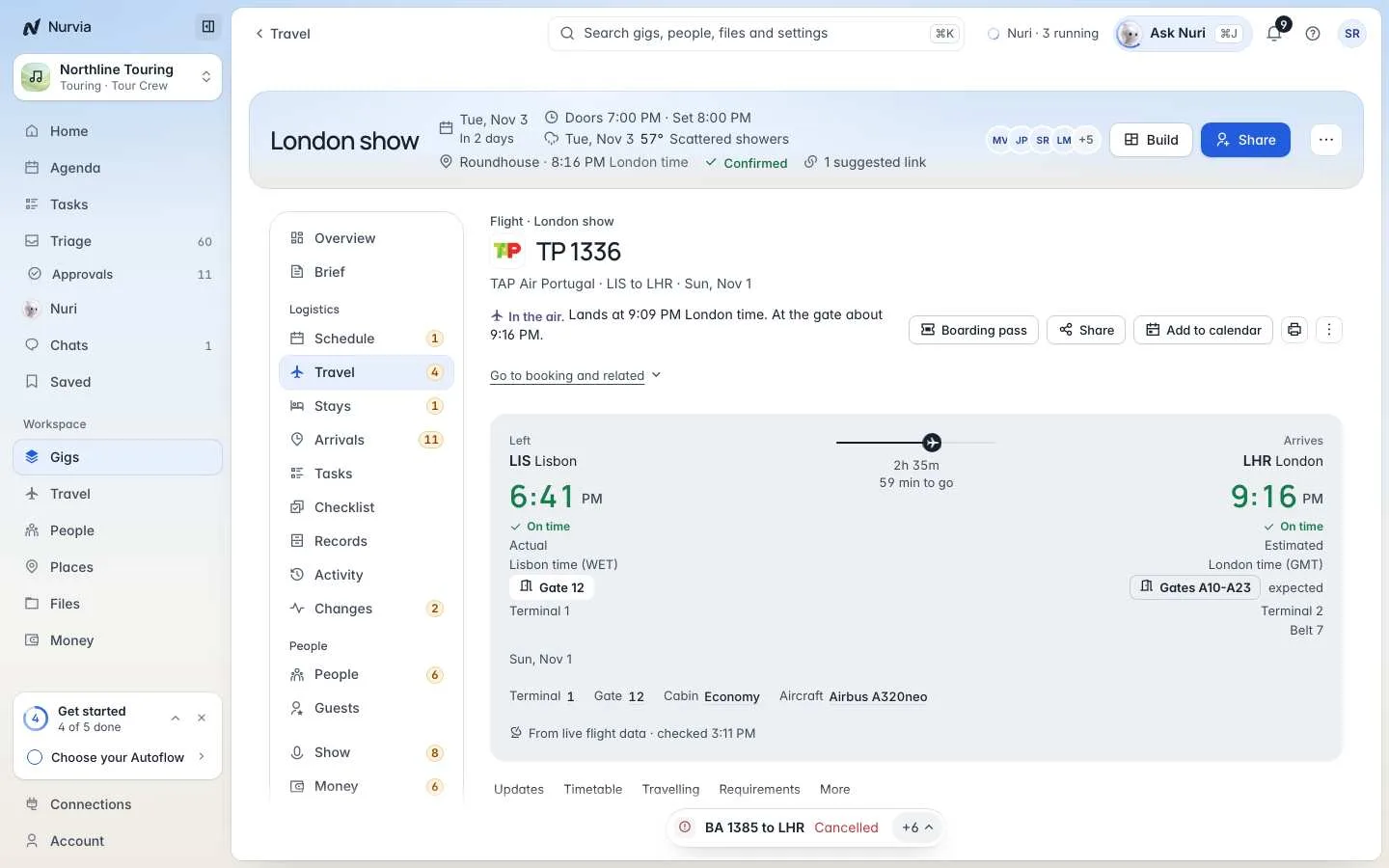
Every flight on a plan gets its own page: live status, who is on it, bags, the booking, and everything about getting to and from the airport. Open it when you need the gate, a reference, or a plan B.
Where to find it
- Web: choose a flight in Travel, or in a plan's Travel section.
- iPhone: tap the flight in the Travel tab or on the gig. See Flights and airports on iPhone.
Read a flight's page
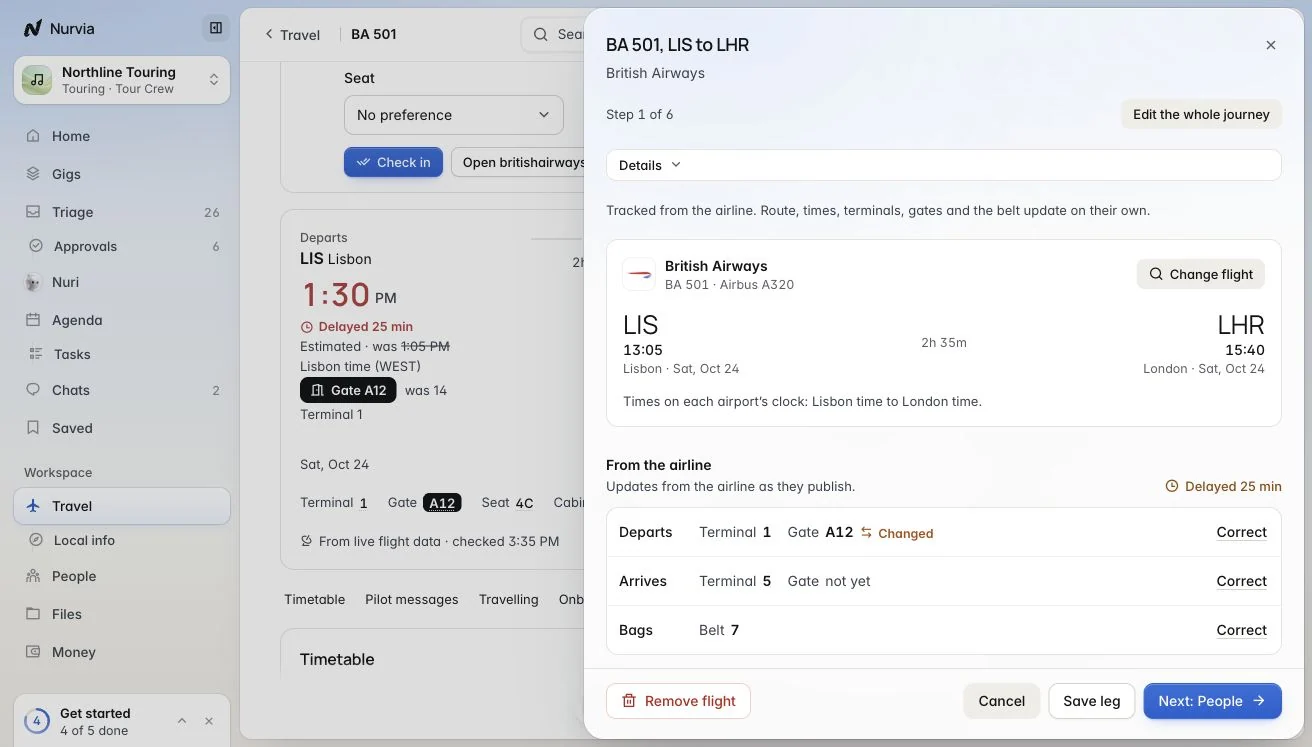
The page runs top to bottom: the timetable with live times, Travelling (who's on it and their seats), Bags, getting there and away, Onboard, Traveller requirements, the booking and Flight updates.
- Live tracking starts three days before departure. Gate changes, delays, cancellations and diversions then update on their own, and each change is listed under Flight updates.
- Viewing as shows the page as one of the travellers sees it — their seat, their bags, their documents.
- Use [ and ] to step between legs of a connecting trip.
Change or share a flight
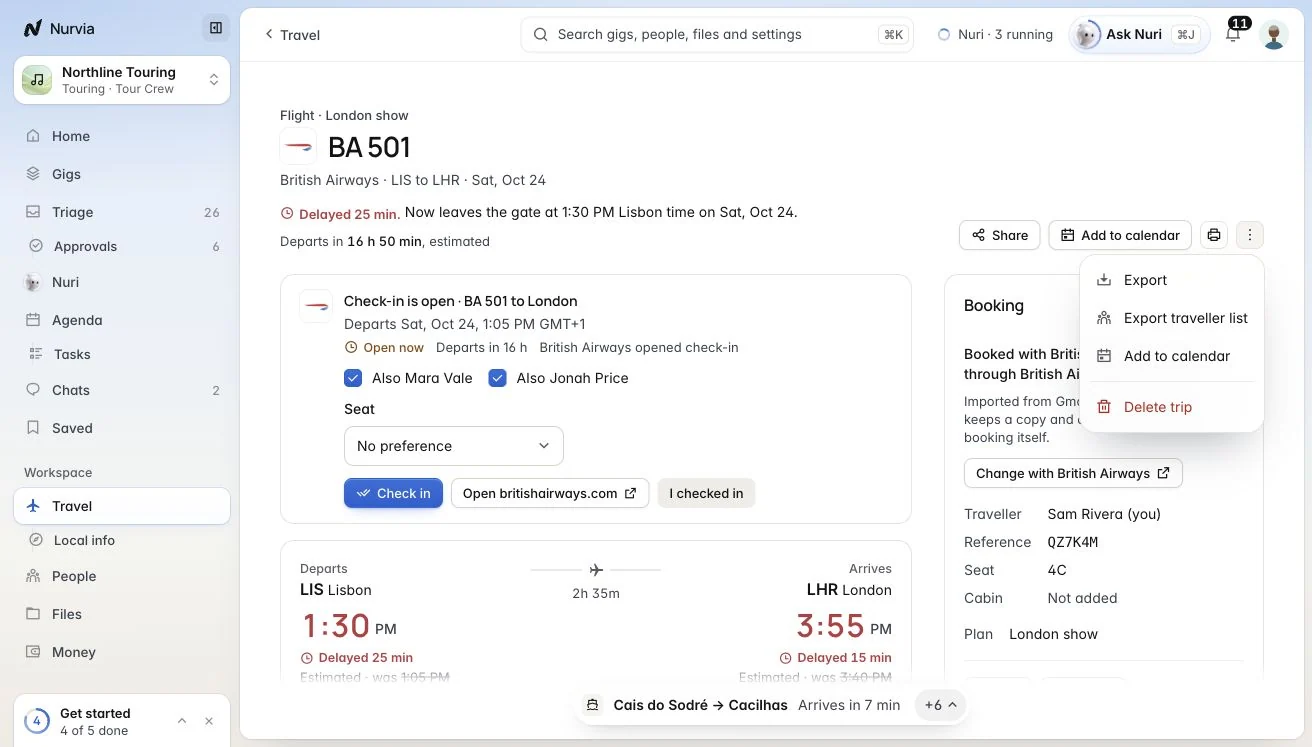
From the header and the ⋯ menu you can Share, Add to calendar, print, Export, Export traveller list or delete the flight. Press ⌘ K on a flight for more: Edit flight, Copy booking reference, Copy flight details, Export this flight, Add transport to this flight and Find other flights.
If a flight is cancelled, its page offers to rebook with the airline, ask for a refund, or Ask Nuri for options. Nothing is changed or bought until you approve it.
Follow the airport journey
Open it
On the flight, choose Open airport journey (or press J).
Follow the times
You get a step-by-step plan with times: Leave by, Airport by, Gate by, Gate closes, the checkpoints, baggage belt and pickup. Tick steps off as you go.
Take it with you
Print or export the journey. If the flight is cancelled you'll see Rebook or get your money back instead.
Airports, ground transport and arrival
The On the ground panel on a flight links to everything around it.
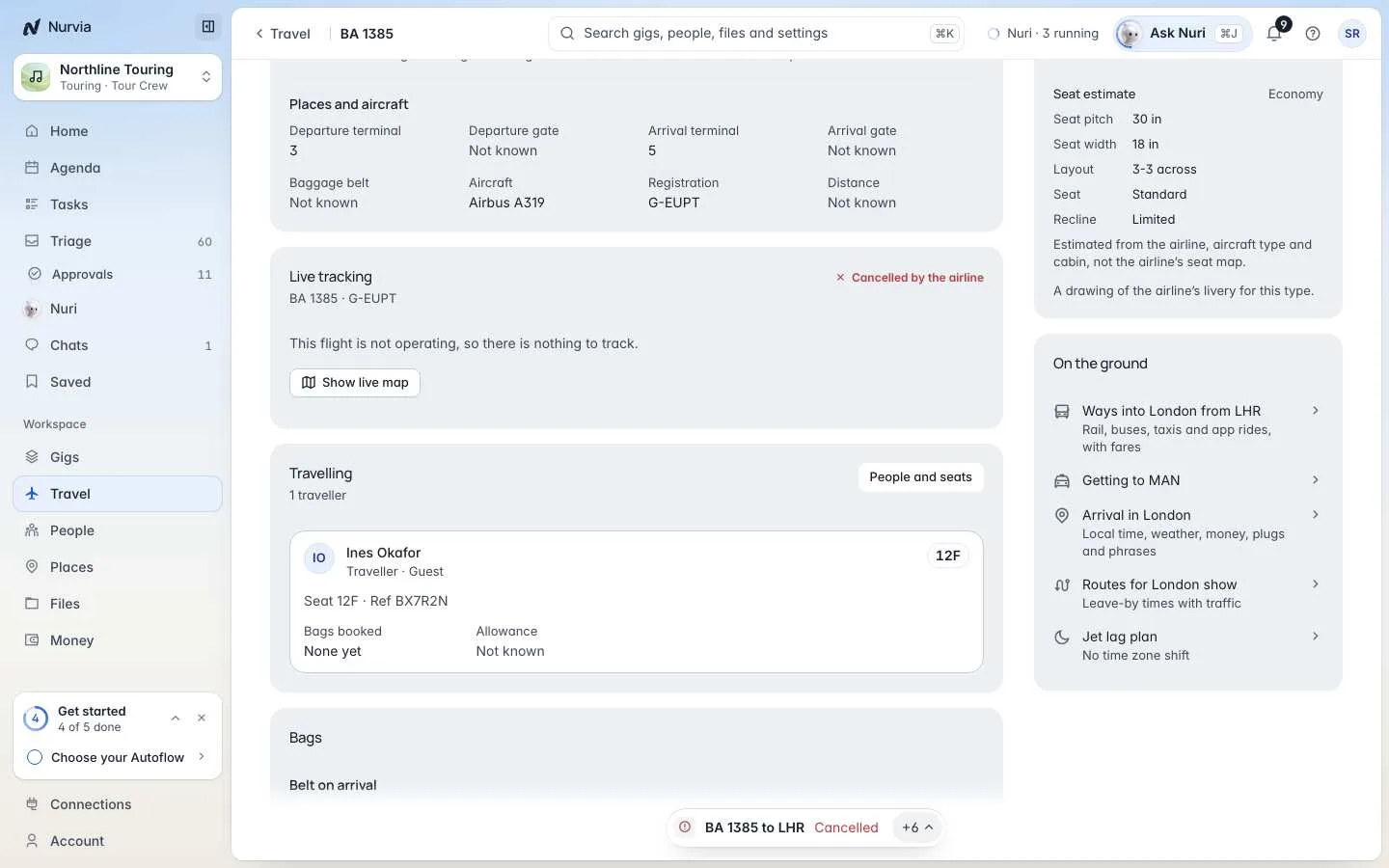
- Airport pages show the board, weather, terminals and gates, amenities, lounges and an estimated security wait.
- Ground transport compares rail, buses, shuttles, taxis and car hire with fares and timetables. Nurvia books nothing here — ride apps open with the pickup already filled in.
- Arrival in [city] shows local time, weather, money (a reference rate), plugs, tipping, emergency numbers, useful phrases, routes from the airport and your jet lag plan.
On iPhone
The airport journey shows on Home when a flight is coming up, and flight status runs as a Live Activity on your Lock Screen.